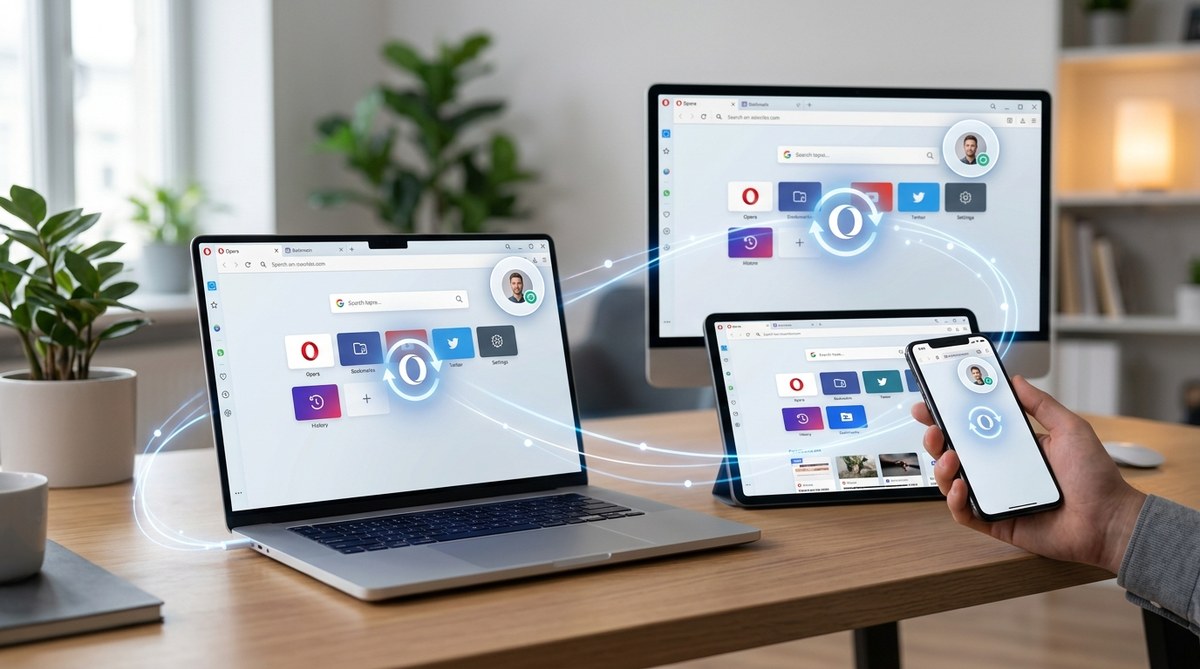
You telecommute from a coffee shop, a co-working space, and your kitchen table. Your phone is your second brain. Your laptop holds your research rabbit holes. Your desktop at home stores the bookmarks you swore you’d organize. Keeping them all aligned sounds like a chore, but Opera sync makes it feel like magic. One login, and your browsing world stays whole, no matter which screen you grab.
Opera sync ties your bookmarks, passwords, open tabs, history, and settings across every device you own. Set up an Opera account once, turn on sync on each device, and your data updates automatically. Use Flow to share links and files between your phone and computer instantly. You get a consistent browsing experience without re-entering logins or hunting for that tab you left open last night.
Why Bother Syncing Opera at All?
Maybe you have a work laptop, a personal desktop, and an Android phone. Maybe you switched from a Chromebook to a Windows machine last year. Without sync, you end up emailing yourself links, retyping passwords, and digging through browser history to find that recipe you saved three weeks ago. That is a time drain.
Sync solves that. It keeps your bookmarks, saved passwords, browsing history, open tabs, and even your speed dial pages consistent across devices. You change a bookmark on your laptop, and it appears on your phone within seconds. You log into a site on your phone, and next time you open it on your desktop, the password is already there. This is the kind of convenience that turns a good browser into an essential daily tool.
For anyone who has recently moved to Opera from another browser, sync also helps you feel at home quickly. You can migrate all your bookmarks and settings from Chrome, Firefox, or Edge, and then sync them across your new devices. It reduces the friction of switching.
Setting Up Opera Sync: A Step by Step Guide
Getting started takes less than two minutes. The process is the same for Windows, macOS, Linux, Android, and iOS.
-
Create an Opera account if you do not have one. Open Opera on any device, click the user icon in the upper right corner (a silhouette), and select “Create account.” Use your email and a strong password. You can also sign up with your Google account if that is easier.
-
Sign in on your primary device. After account creation, log in. Opera will ask if you want to enable sync. Click “Turn on sync.”
-
Choose what to sync. By default, Opera syncs bookmarks, passwords, open tabs, history, and settings. You can toggle individual items on or off. If you are privacy conscious, you might want to leave browsing history out. That is fine. Adjust the sliders under “Sync options.”
-
Repeat on your other devices. Install Opera on your phone, tablet, or second computer. Sign in with the same Opera account. Enable sync. Your data will start appearing within seconds. For phones, you can find sync in the settings menu (the gear icon) under “Sync.”
-
Verify sync is working. Open a bookmark on your laptop. Check your phone’s Opera browser, and it should be there. If not, give it a moment. Opera syncs continuously in the background as long as you have an internet connection.
That is it. Five steps. You are now a synced Opera user.
What Gets Synced?
Not everything travels between devices, but the most valuable data does. Here is a breakdown:
- Bookmarks – all your saved links, including folders and their structure.
- Open tabs – the tabs you currently have open on one device can be seen and opened on another. This is gold when you leave work and want to continue reading an article at home.
- Browsing history – every site you visited appears in the history on all synced devices. This can be turned off if you prefer to keep your search habits private.
- Passwords – saved login credentials are encrypted and shared across devices. You only need to remember your Opera account password.
- Speed dial – your most visited pages and custom shortcuts appear on every device’s new tab page.
- Settings – things like search engine preference, ad blocker toggles, and startup pages sync. But note, some advanced settings may not transfer. We will cover that in the table below.
Table: What Syncs and What Does Not
To give you a clear view, here is a table of sync capabilities in Opera as of 2026.
| Sync Item | Desktop (Win/Mac/Linux) | Mobile (Android/iOS) | Notes |
|---|---|---|---|
| Bookmarks | Yes | Yes | Folders and hierarchy preserved |
| Open Tabs | Yes | Yes | Tabs from one device appear on another |
| Browsing History | Yes (toggle) | Yes (toggle) | Can be disabled for privacy |
| Saved Passwords | Yes (encrypted) | Yes (encrypted) | Requires Opera account password to view |
| Speed Dial | Yes | Yes | Custom thumbnails and folders |
| Settings | Partial | Partial | Search engine, privacy toggles, but not extensions |
| Extensions | No | No | Must install separately on each device |
| Themes | No | No | Themes are device specific |
| Payment Info | No | No | Saved card details not synced for security |
As you can see, the core browsing data travels smoothly. Extensions and themes are left behind because they often rely on platform specific code. But you can manage your extensions manually. For help keeping those organized, check out our guide on how to manage Opera browser extensions for better security and performance.
Using Flow for Instant Sharing Between Phone and Computer
Opera includes a feature called Flow that sits alongside sync. Flow lets you send links, notes, files, and images between your phone and computer without any cloud service in the middle. It is encrypted end to end, so only your devices can read the content.
To use Flow, open Opera on your phone, tap the Flow icon (looks like a paper plane) from the bottom bar. Scan the QR code that appears on your desktop’s Flow page (accessible from the sidebar). Once connected, anything you send appears on both devices instantly.
Flow is great for sending a recipe from your phone to your laptop while cooking, or quick notes you typed on the go. It does not replace sync; it complements it. Sync keeps your browsing data aligned, while Flow handles one off transfers.
Troubleshooting Common Sync Issues
Syncing is usually smooth, but sometimes things misbehave. Here are three common problems and their fixes.
Problem 1: Sync is Stuck or Taking Forever
Opera sync relies on a stable internet connection. If data is not updating, check your network. Then sign out of your Opera account on the problematic device, close the browser, reopen, and sign in again. That often wakes up the connection.
Problem 2: Passwords Are Not Syncing
Passwords are stored with an extra layer of encryption using your Opera account password. If you changed your account password recently, you might need to re authenticate on each device. Go to Settings > Sync > Manage encrypted data, and enter your current password. That should fix it.
Problem 3: Tabs from Phone Are Not Showing on Desktop
Make sure “Open tabs” is toggled on in the sync settings on both devices. Also, tabs only sync when the browser is running in the foreground on the sending device. If you close the browser, those tabs disappear from the sync list. Keep the tabs you want alive by leaving the window open or using Opera’s “Continue where I left off” startup setting.
Tip from an Opera support veteran: If you have more than 50 open tabs, sync may slow down. Close tabs you no longer need, or use tab sleeping to keep the list manageable. The browser performs better, and sync stays snappy.
Keeping Your Sync Secure
Since syncing sends your passwords and browsing history to Opera’s servers (encrypted, of course), you want to make sure your Opera account is locked down. Use a strong password that you do not reuse elsewhere. Enable two factor authentication (2FA) if you want an extra layer. You can find that option in your Opera account settings at opera.com/account.
Also, decide whether you want to sync browsing history. If you share a computer, you might prefer to keep history local. The choice is yours. For more on tightening privacy, read our mastering Opera browser privacy settings for safer browsing guide.
Advanced Sync: Customizing What Travels
Maybe you want your passwords to sync but not your history. Or you want bookmarks to sync only one way from desktop to phone. Opera does not offer one way sync, but you can selectively turn items on and off per device. On each device, go to Settings > Sync > Manage sync data, and uncheck the items you want to keep local.
One advanced trick: use Opera’s sync encryption passphrase. This creates a separate password that encrypts your sync data before it leaves your device. Even Opera cannot read it. To set it up, go to Sync settings on your desktop, click “Encryption options,” and choose “Use your own passphrase.” Write it down somewhere safe. You will need to enter it on every device you sync. This is overkill for most people but useful if you are handling sensitive information.
How Sync Fits Into Your Broader Opera Experience
Syncing is part of a larger story. Opera is known for its built in ad blocker, free VPN, and battery saver mode. When you sync your settings, those features stay consistent. For instance, if you enable the VPN on your phone, your desktop’s VPN settings will remain separate because VPN is a per device feature. But the ad blocker’s filter lists and custom exceptions do sync.
To get the most out of Opera, combine sync with regular performance tune ups. Our article on boost your Opera browser speed with these proven tips in 2026 covers how to keep everything running smoothly.
The Unwritten Rules of Opera Sync
Over the years, experienced users notice a few unspoken guidelines that make sync work better.
- Use the same email address across all devices. It sounds obvious, but people sometimes create a new Opera account with a different email by accident.
- Do not share your Opera account with family members unless you want their bookmarks mixed with yours. Each person should have their own account and profile.
- Log out of Opera on public computers to avoid leaving your synced data exposed.
- Keep Opera updated on all devices. Sync compatibility depends on running a recent version. Outdated browsers might fail to sync properly.
Linking Your Devices with Opera’s Flow
Flow deserves its own mention because it is not sync. It is a real time bridge. You can send a photo, a PDF, or a grocery list from your phone to your computer in a snap. It works even if you are not connected to the same Wi Fi network. The data is encrypted, so you do not have to worry about prying eyes.
To send something, open Flow on the sending device, tap the plus icon, and choose a file or type a message. On the receiving device, it appears instantly in the Flow sidebar. You can also reply from the computer. It is like a private chatroom between your own devices.
Flow is especially useful for people who handle work across devices. For example, you take a photo of a whiteboard during a meeting with your phone, then send it through Flow to your laptop to add notes. No email, no cloud storage uploads. Just a direct pipe.
Making Sync a Habit
The best time to set up Opera sync is right now. If you already have Opera installed on one device, create your account and turn sync on. Then install Opera on your other devices and log in. It takes five minutes, and you never have to think about it again.
If you are a recent switcher from Chrome or Firefox, Opera can import your data during first run setup. After that, sync keeps everything consistent. You might also want to enhance your Opera browser with essential customization tips to tailor the look and feel across all devices.
Sync and the 2026 Browser Landscape
As of 2026, cross device synchronization is expected, not optional. Every major browser offers it, but Opera distinguishes itself with Flow, built in VPN, and a genuinely fast sync mechanism. Opera’s sync is also open about what data it collects. There is no hidden agenda. Your data is encrypted and not used for advertising.
That makes Opera a strong choice for privacy conscious multi device users. If you pair sync with Opera’s top performance tweaks to speed up your Opera browser experience, you get a setup that is both fast and consistent.
Keep Your Browsing Life in Sync
You put a lot of thought into your digital workflow. Opera sync removes the friction of moving between devices. It lets you pick up exactly where you left off, whether you are on a phone at the airport, a laptop in a meeting, or a desktop at home. One account, one set of data, unlimited screens.
Take a minute today to enable sync on all your devices. You will wonder how you ever lived without it. And if you hit any snags, come back to this guide. It has the fixes you need. Happy browsing.