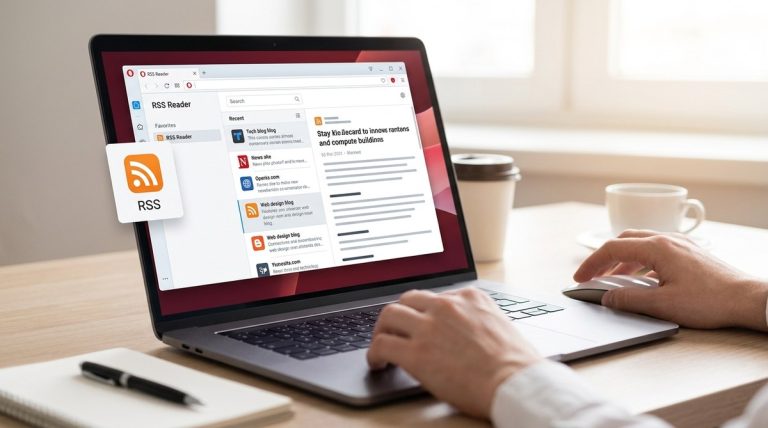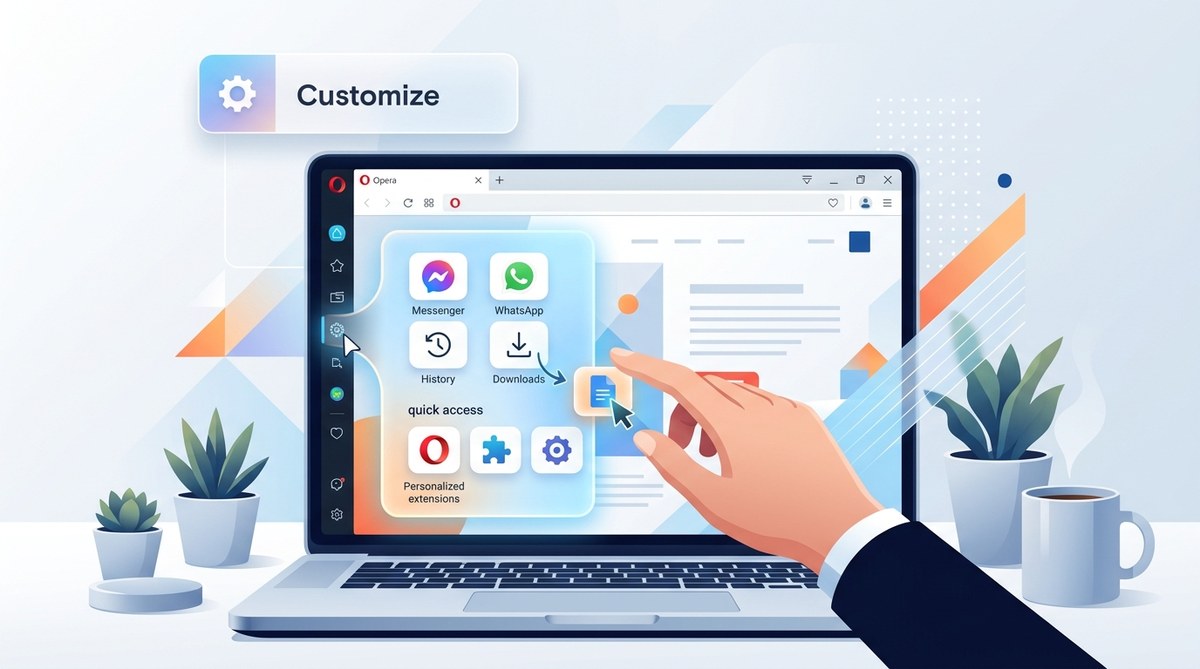
The left side of your Opera browser is more valuable than most people realize. It holds your messengers, your tools, and your shortcuts. But if you have not taken the time to customize your Opera sidebar, you are leaving productivity on the table. Whether you use Opera daily for work, gaming, or keeping up with friends, the sidebar can be a launchpad for your most frequent tasks. In 2026, Opera's customization options are stronger than ever. This guide shows you exactly how to bend the sidebar to your will.
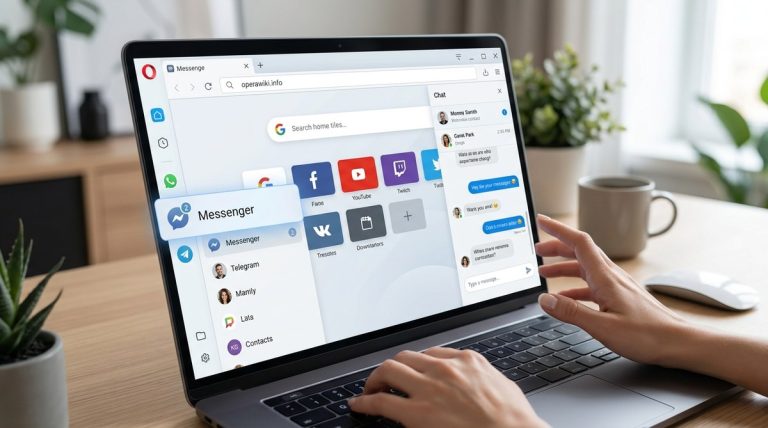
Opera's sidebar is completely modular. You can add, remove, and rearrange icons for messengers like WhatsApp and Telegram, tools like the built-in VPN and ad blocker, and custom site panels for services like Spotify and Google Calendar. By spending ten minutes to customize your Opera sidebar, you remove friction from your daily browsing and put your most vital tools one click away.
Find Your Sidebar Control Center
Before you can rearrange anything, you need to know where the master switchboard lives. Opera places sidebar options in two main spots.
- Click the Easy Setup button in the top right corner of your browser window. It looks like a gear icon or a three-dot menu depending on your version.
- Scroll down until you see the "Sidebar" section.
- Toggle the visibility of default tools. You can turn on Telegram, WhatsApp, Instagram, the VPN, the ad blocker, and more right from this simple panel.
- For deeper control, click "Go to full browser settings" or type
opera://settingsin your address bar. Then search for the word "Sidebar".
This settings page is your home base for everything sidebar related. You will return here every time you want to add or remove a major component.
Arrange Your Most Used Tools
You can drag and drop icons directly in the sidebar itself. Hold down your left mouse button on any icon and move it up or down. Put your most used tool at the top. For example, if you use the built-in VPN more than Facebook Messenger, drag the VPN shield above the chat icon. This small adjustment saves you time over the course of a week.
Tools you can add or remove from the sidebar:
- Messenger apps (WhatsApp, Telegram, Facebook Messenger, Instagram, Twitter / X)
- Opera features (VPN, Ad Blocker, Flow, Pinboards, My Flow)
- Extensions that have sidebar access
- Custom site panels (see next section)
Remember, you do not have to keep everything visible. If you only use one messenger app, turn the others off. A cleaner sidebar helps you focus on what actually matters to you.
Add Custom Site Panels for Web Apps
This is where the real magic happens for power users. You can pin any website to your sidebar. It acts like a standalone app panel that lives right next to your tabs.
Here is how to set up a custom site panel:
1. Click the three dots (the More menu) at the bottom of the sidebar icons.
2. Select "Customize sidebar".
3. Scroll down to the "Custom site panels" section.
4. Click the plus (+) button.
5. Paste the URL of the site you want. For example, https://calendar.google.com.
6. Give it a friendly name like "Calendar". Click "Add".
Now Google Calendar opens right in your sidebar. You can check your schedule without leaving your main browsing window. This same trick works perfectly for Spotify, Notion, Todoist, WhatsApp Web, or any other web app you rely on during the day.
Expert Advice from a longtime Opera user: "Do not overload your sidebar with too many custom panels. Stick to three to five web apps you access every single day. Reserve the rest for your bookmarks bar or Speed Dial. This keeps your sidebar lean, functional, and actually useful under pressure."
Tune Sidebar Appearance and Behavior
Not everyone wants the sidebar visible one hundred percent of the time. You can control exactly when and how it shows up.
Enable Auto-Hide
If you want a cleaner browsing view, enable auto-hide. Click the gear icon in the sidebar, or right-click directly on the sidebar background. Check the box that says "Auto-hide sidebar". The sidebar will shrink to a thin strip. When you hover your mouse over it, it pops open. When you click away, it tucks itself out of sight.
Change Sidebar Width
Hover your mouse over the right edge of the sidebar until the cursor changes to a resize arrow. Click and drag to make the sidebar wider or narrower. This is especially useful for custom site panels that need more room, like a music player or a calendar view.
Pin and Unpin Items
You can pin the sidebar open by clicking the pin icon at the bottom right of the sidebar panel. This keeps it open even if you have auto-hide enabled. It is a simple toggle that puts you in full control.
Advanced Tricks for Power Users and Gamers
Opera GX, the gaming version of Opera, has even deeper sidebar customization. You can change the sidebar color, add GX Corner for game news, and connect your social accounts for seamless sharing.
For regular Opera users, here are some advanced tweaks:
- Use Sidebar Extensions: Some Chrome extensions add icons to the sidebar. Install an extension like OneTab or Save to Pocket and pin it to your sidebar for instant access to your saved items.
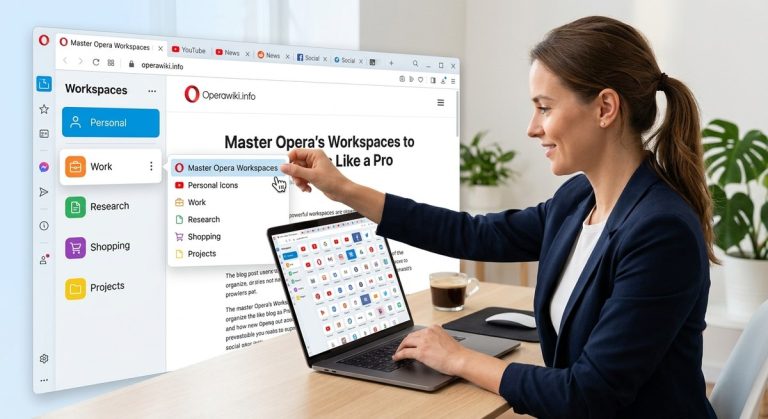
- Create Sidebar Profiles: Opera does not have native sidebar profiles, but you can use Workspaces to achieve similar results. Have a "Work" workspace with Slack and Calendar panels, and a "Personal" workspace with WhatsApp and Spotify.
- Keyboard Shortcuts: Learn the shortcut Ctrl + Shift + S (Windows) or Cmd + Shift + S (Mac) to toggle the sidebar visibility instantly. This is faster than reaching for your mouse.
For more ways to refine your browser, check out our guide to enhance your Opera browser with essential customization tips.
Common Sidebar Mistakes and How to Fix Them
Even experienced users make small errors that slow down their workflow. Let us look at a table of common pitfalls and the best ways to address them.
| Mistake | Why It Hurts | How to Fix It |
|---|---|---|
| Keeping every messenger active | Clutters the sidebar and drains system resources | Trim down to your top two chat apps. Turn off the rest in Easy Setup. |
| Not using custom site panels | Limits your sidebar to just Opera tools, wasting its potential | Add three web apps you use constantly. Gmail, Calendar, and a notes app are great starters. |
| Ignoring the auto-hide option | Wastes screen space on a small monitor | Enable auto-hide. The sidebar only appears when you need it. |
| Using the default icon order | Slows down your navigation. You have to hunt for the right icon | Drag your top three tools to the very top of the sidebar list. |
| Forgetting to manage extensions | Some extensions add unwanted icons to the sidebar | Right-click unnecessary icons and remove them from the sidebar directly. |
Integrate Sidebar with Other Opera Features
The sidebar does not exist in a vacuum. It works best when combined with other Opera tools.
- Flow: Your sidebar connects to Flow, which lets you send files, notes, and links between your computer and phone. Keep Flow pinned at the top for instant file sharing.
- Pinboards: Use Pinboards to collect images and videos from across the web. You can access your Pinboard from the sidebar whenever inspiration strikes.
- VPN: The built-in VPN is a single toggle in the sidebar. It protects you on public Wi-Fi networks. If you have not set this up yet, read our guide on how to use Opera's built-in VPN for secure browsing.
Mastering these integrations makes you a far more efficient browser user. You stop juggling dozens of tabs and start using a unified dashboard for your digital life.
Sidebar and Browser Performance
A cluttered sidebar can actually slow down your browser startup time. Every messenger panel tries to load in the background when you open Opera. By choosing only the essentials, you are actively helping your browser run faster.
This aligns with our broader advice on boost your Opera browser speed with these proven tips in 2026. A lightweight sidebar means a snappier browser.
Think of your sidebar as a toolkit. You would not carry every tool from your garage up a ladder. You pick the specific wrench or screwdriver you need for the job. Do the same with your Opera sidebar. Only keep the tools that serve your daily routine.
Your Perfect Sidebar Awaits
Customizing your sidebar is a five-minute task that pays off every single day. Open your settings, remove the chat apps you have not used in months, add your favorite web tools, and rearrange the rest. By taking control of this small but powerful part of your browser, you build a digital environment that genuinely serves your workflow.
If you want to go even deeper, check out how to manage your extensions in our guide to manage Opera browser extensions for better security and performance. A well tuned browser is a joy to use. Take the ten minutes today to make Opera truly yours.