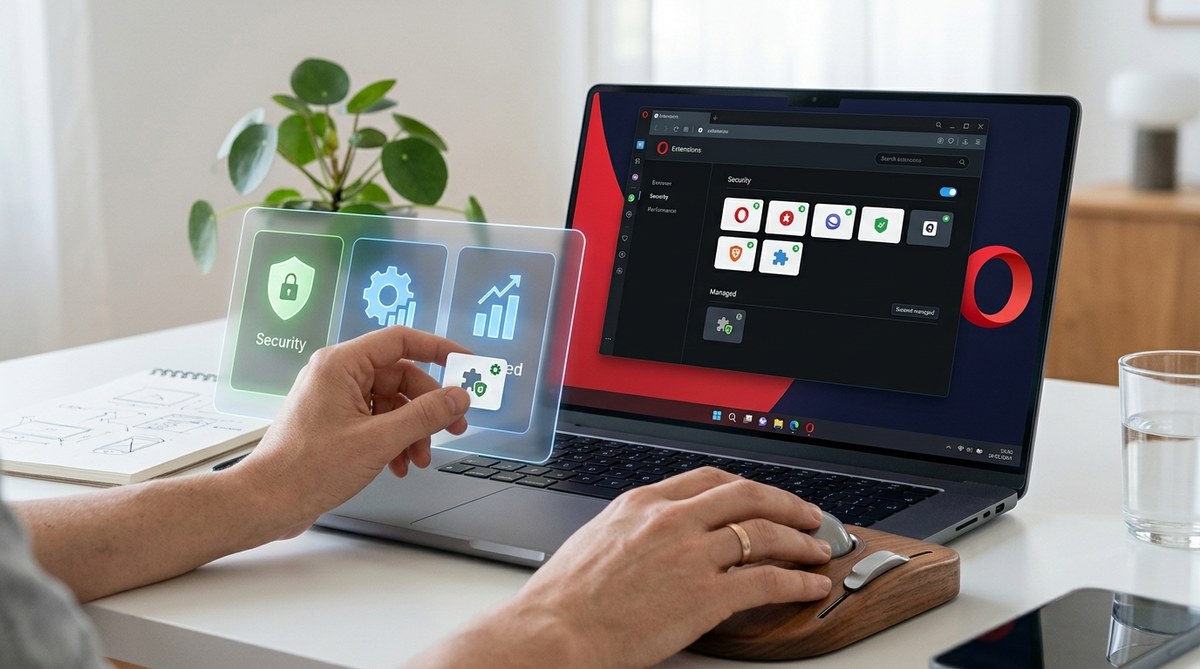
Managing extensions in the Opera browser is a powerful way to enhance your browsing experience while keeping your system secure. Extensions add extra features, improve productivity, and customize your interface. But if not managed properly, they can slow down your browser or pose security risks. Whether you’re a privacy enthusiast or just want a faster, safer browsing setup, understanding how to control Opera extensions is essential. Let’s walk through how to do it effectively.
Managing Opera extensions improves both security and speed. Regularly review, disable, or remove unnecessary add-ons, and use built-in tools to optimize the browser’s performance. Proper management minimizes security risks and keeps your browsing smooth and fast.
Understanding the importance of managing your Opera extensions
Extensions can significantly enhance how you use Opera. They can block ads, manage passwords, or add new functionalities. However, they can also introduce vulnerabilities if they are malicious or poorly coded. Plus, too many extensions can slow down your browser and cause conflicts.
Tech-savvy users need to stay vigilant. Regularly reviewing extensions ensures that only trusted, necessary add-ons are active. This not only protects your privacy but also helps maintain optimal browsing speed.
How to access and manage extensions in Opera
Managing extensions in Opera is straightforward. First, you need to access the extensions menu. Here’s how:
- Click the Opera menu icon in the top-left corner.
- Select “Extensions” from the dropdown menu.
- Choose “Extensions” again or press
Alt + Pon Windows orCommand + Shift + Eon Mac.
This opens the Extensions page, where you can see all installed add-ons. Here you can enable, disable, or remove extensions with a few clicks.
Practical steps to manage Opera extensions effectively
To keep your browser secure and fast, follow these steps:
1. Review installed extensions regularly
- Check which extensions are active.
- Remove those you no longer use or trust.
- Be cautious about installing new extensions, especially from unverified sources.
2. Disable extensions you do not need immediately
Disabling extensions temporarily can improve speed without uninstalling them. To do this:
- Navigate to the Extensions page.
- Toggle the switch next to the extension to turn it off.
This is useful if you notice your browser slowing down or suspect an extension might be causing issues.
3. Remove unnecessary or suspicious extensions
- On the Extensions page, click “Remove” on the extension you want to delete.
- Confirm the removal when prompted.
Removing unneeded extensions reduces security risks and frees up resources.
4. Manage Chrome extensions in Opera
Opera supports Chrome extensions through a dedicated add-on. To enable this:
- Visit the Chrome Web Store and add the “Install Chrome Extensions” plugin from the Opera Add-ons store.
- After installing, you can add Chrome extensions to Opera, expanding your options.
Keep in mind, only install Chrome extensions from reputable sources. Regularly review their permissions and activity.
5. Adjust extension permissions
Some extensions request access to your data or browsing activity. To review permissions:
- Click “Details” on the extensions page.
- Modify specific permissions or disable the extension if you’re uncomfortable.
This step helps prevent extensions from overreaching.
Best practices to keep your extensions safe and performant
| Technique | Common mistakes | Why it matters |
|---|---|---|
| Regular review | Forgetting to check extensions periodically | Keeps your browser free from unnecessary or harmful add-ons |
| Disable before removing | Removing extensions without disabling first | Prevents conflicts or crashes during removal |
| Install from trusted sources | Installing extensions from unknown sites | Protects against malware and privacy breaches |
| Keep extensions updated | Ignoring update prompts | Ensures you have the latest security patches |
| Limit number of extensions | Overloading with many add-ons | Maintains optimal browser speed and stability |
“The key to a secure and fast browsing experience is to stay vigilant about your extensions. Regular checks and thoughtful management can prevent many common issues.” — Browser security expert
Troubleshooting extension-related issues
If you experience browser slowdown or crashes, extensions might be the cause. To troubleshoot:
- Temporarily disable all extensions.
- Enable them one by one to identify the culprit.
- Remove or replace problematic extensions.
Another tip is to clear cache and cookies periodically, which can also improve overall performance.
Tips for optimizing Opera’s performance with extensions
- Limit active extensions to only those you use daily.
- Use lightweight extensions designed for speed.
- Keep your browser and extensions updated regularly.
- Consider disabling hardware acceleration when troubleshooting performance issues.
For a comprehensive guide on optimizing Opera, check out
Keeping your browsing safe with extension management
Extensions can be a double-edged sword. While they add convenience, they can also pose security risks if not managed properly. Always:
- Install extensions from official sources.
- Review permissions before installation.
- Remove unused or suspicious add-ons promptly.
Additionally, enable Opera’s built-in privacy features, such as blocking third-party cookies and managing site data, to further protect your browsing.
Final thoughts on managing Opera extensions for security and performance
Taking control of your extensions is a vital part of maintaining a fast, secure browser environment. Regularly reviewing, updating, and removing unnecessary add-ons minimizes vulnerabilities and boosts speed. Remember, less is often more when it comes to extensions. Use only what truly adds value to your browsing experience.
By staying proactive, you can enjoy the full potential of Opera while keeping your digital footprint secure and your browser running smoothly.
Stay in control of your browsing environment
Keeping your Opera browser lean and secure is an ongoing process. Regular management of extensions ensures your privacy stays protected and your browsing remains snappy. Spend a few moments each month reviewing your add-ons. Your future self will thank you for a faster, safer, and more enjoyable browsing experience.