You open your browser each morning and check ten different sites for updates. You scroll through social media feeds hoping to catch a new blog post. You subscribe to email newsletters that clutter your inbox. There is a better way, and it has been sitting inside your browser all along. The Opera RSS reader lets you pull every update from your favorite sites into one clean feed. No algorithms. No noise. Just the content you actually want to see.
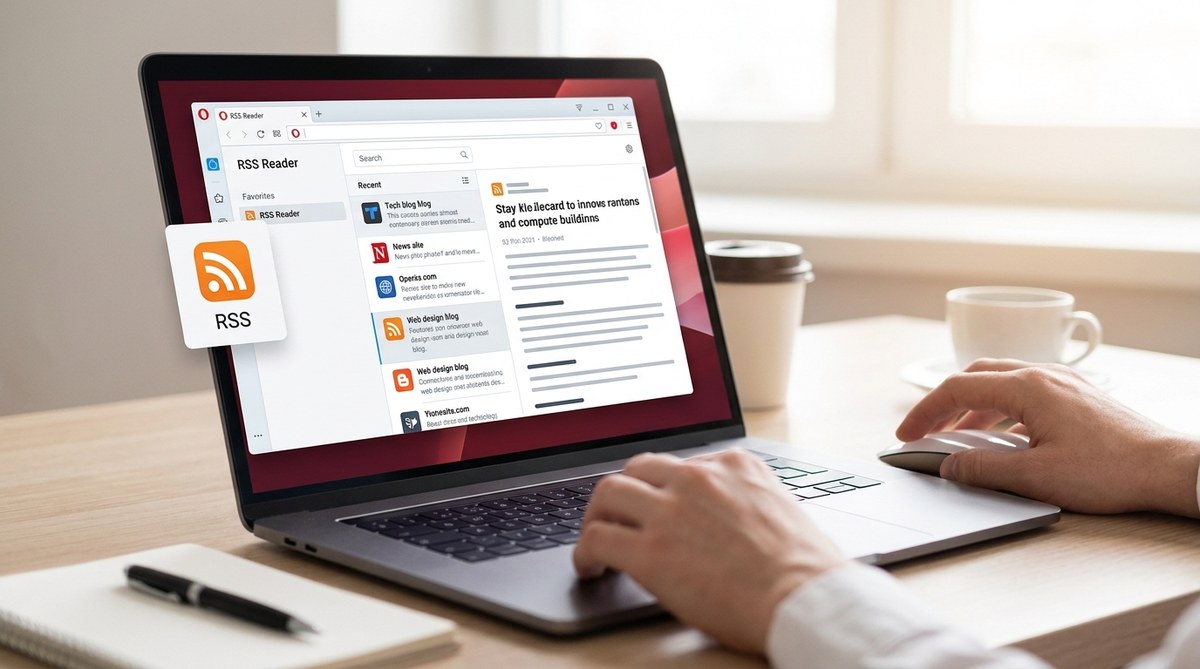
Opera’s built-in RSS reader transforms how you consume web content by aggregating updates from any site that publishes an RSS feed. You can subscribe directly through the browser sidebar, organize feeds into folders, and read full articles without leaving the interface. This guide covers setup, organization, and advanced tips so you can ditch the social media scroll and take back control of your reading list in 2026.
What Makes the Opera RSS Reader Different
Most browsers abandoned built-in RSS support years ago. Opera kept it. That gives you a real advantage. Instead of installing a third party extension or signing up for a separate service, you get a native reader that sits in your sidebar. It loads fast. It works offline. It does not track your reading habits.
The reader pulls content directly from a site’s RSS feed. If a website publishes a new article, that update appears in your feed within minutes. You can read the full text right there, or click through to the original page. No ads. No sponsored posts. Just a clean list of everything your chosen sites have published.
How to Set Up the Opera RSS Reader
Getting started takes less than two minutes. Follow these steps to add your first feed.
- Open Opera and click the sidebar icon on the far left of the window. It looks like a small square with three lines.
- Scroll down the sidebar menu until you see the RSS icon. It looks like a small orange dot with curved lines radiating outward. Click it.
- Click the plus sign or the “Add Feed” button at the top of the RSS panel.
- Paste the URL of the site you want to follow. The reader will automatically detect the RSS feed if one exists.
- Click “Add” and watch the feed populate with recent articles.
That is all it takes. The feed updates automatically in the background. You never have to manually refresh.
Finding RSS Feeds for Any Site
Some sites make their RSS feed obvious. Others hide it. Here are a few ways to find the feed URL for almost any website.
- Look for the RSS icon in the browser address bar. Opera highlights it when a feed is available.
- Check the site footer. Many blogs place their RSS link near the copyright notice.
- Add “/feed” to the end of a domain. For example, “example.com/feed” works for many WordPress sites.
- Use the “View Page Source” option and search for “rss” or “atom”. The feed URL will appear in the code.
If a site does not offer RSS at all, you can sometimes use a service like FetchRSS to generate a feed from the page structure. But most news sites, blogs, and publications still support RSS natively.
Organizing Your Feeds for Maximum Efficiency
A list of fifty feeds becomes noise. A well organized set of folders becomes your personal news desk. Take a few minutes to structure your subscriptions.
- Create topic folders. Right click in the RSS panel and select “Add Folder”. Name it something like “Tech News” or “Local Weather”.
- Drag and drop feeds. Click any feed and drag it into the correct folder. You can rearrange them at any time.
- Use a “Daily Read” folder. Put your five most important feeds here. Check this folder first each morning.
- Archive old feeds. If you have not opened a feed in three months, move it to an “Archive” folder. You can always bring it back.
| Organization Mistake | Better Approach |
|---|---|
| Adding every feed to the root list | Use topic folders to group related content |
| Subscribing to 50+ feeds at once | Start with 10 to 15 and add slowly |
| Never removing inactive feeds | Review your list every month and prune |
| Ignoring update frequency | Separate daily sites from weekly sites into different folders |
Reading and Managing Articles in the Feed
When you open a feed, you see a list of article titles with short descriptions. Click any title to read the full content in the main window. The reader strips away the website design and shows you just the text and images.
You can mark articles as read or unread. Use the star icon to bookmark important pieces. Right click any article to open it in a new tab if you want to save it for later.
One useful trick: use the search bar at the top of the RSS panel to find articles across all your feeds. If you remember a post about “JavaScript performance” but cannot recall which site published it, a quick search pulls it up.
Expert tip from a longtime Opera user: Set aside ten minutes each morning to scan your feeds. Read the headlines. Star the ones you want to read fully. Then close the panel and move on. This habit keeps you informed without letting RSS become another time sink.
Customizing the RSS Reader Experience
The default settings work well, but a few tweaks make the reader feel like your own.
- Adjust the update interval. Go to Settings > Browser > RSS and change how often feeds check for new content. Every 30 minutes is a good balance for most users.
- Toggle preview mode. You can choose to show full articles or just headlines in the feed list. Full articles give you more context at a glance.
- Change the font size. The reader respects your browser’s default font settings. Adjust them in Settings > Appearance if the text feels too small or too large.
- Enable dark mode. If you use Opera in dark mode, the RSS reader follows suit. This is easier on the eyes during late night reading sessions.
Syncing Your Feeds Across Devices
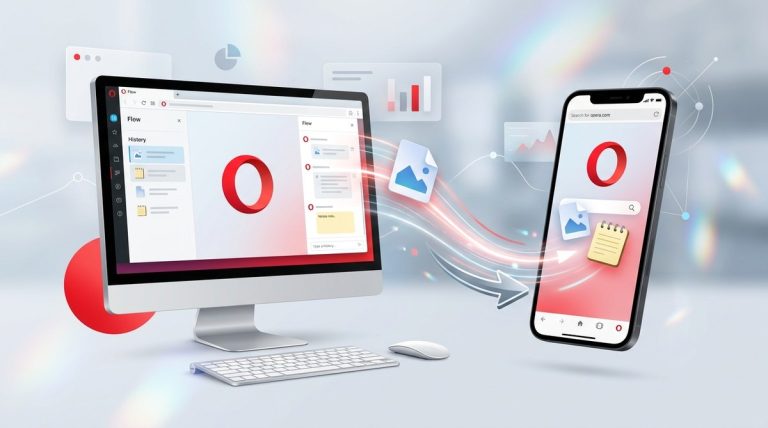
Opera Sync works with your RSS subscriptions. If you sign into Opera on your desktop and your phone, your feeds travel with you. Add a feed on your laptop during lunch, and it appears on your phone by the time you commute home.
To enable this, make sure Opera Sync is turned on in Settings > Sync. Your RSS feeds, bookmarks, and browsing history will stay in sync across all devices. This is especially handy if you use Opera on both Windows and Android.
For a deeper look at keeping everything in sync, check out our guide on how to sync your Opera browser across devices seamlessly.
Common Mistakes and How to Avoid Them
Even experienced users make a few errors when setting up their RSS reader. Here is what to watch for.
Adding the wrong URL. Some sites use multiple feeds. A site might have separate feeds for articles, comments, and podcasts. Make sure you subscribe to the feed that matches the content you want.
Ignoring feed health. Feeds can break. If a site redesigns its layout, the RSS feed might stop working. Check your feeds once a month. If a feed shows no new articles for two weeks, visit the site to see if the feed URL changed.
Overloading your list. It is tempting to add every site you enjoy. But a feed list with 100 entries becomes overwhelming. Stick to 20 to 30 active feeds. Rotate others in and out as your interests change.
Forgetting to use folders. A flat list of feeds is hard to scan. Spend five minutes organizing them into folders. Your future self will thank you.
Why RSS Beats Social Media for Following Sites
Social media platforms decide what you see. They hide posts behind algorithms. They show you ads. They bury updates from your favorite sites under cat videos and political arguments.
RSS puts you in control. You see every update from every site you subscribe to, in the order it was published. No algorithm decides what is important. No promoted posts interrupt your reading. You get the full picture, every time.
This matters more in 2026 than ever. Social platforms continue to deprioritize links to external sites. They want to keep you inside their walled gardens. RSS is the escape hatch. It lets you follow the web on your own terms.
For more ways to take control of your browsing experience, read our guide on mastering Opera browser privacy settings for safer browsing.
Hidden Features Worth Knowing
The Opera RSS reader has a few tricks that are not obvious at first glance.
- Keyboard shortcuts. Press Ctrl + Shift + R to open the RSS panel. Use the up and down arrow keys to navigate articles. Press Enter to open the selected article.
- Export your feeds. If you ever want to switch to a different RSS service, you can export your subscriptions as an OPML file. Go to the RSS panel settings and look for the export option.
- Import from other readers. Moving from Feedly or Inoreader? Import your OPML file into Opera and keep all your subscriptions intact.
- Mute noisy feeds. Some sites publish dozens of articles per day. Right click the feed and select “Mute” to stop notifications without unsubscribing.
Making the RSS Reader Part of Your Daily Routine
The best tool is useless if you do not use it. Here is a simple routine that works for thousands of Opera users.
Open the RSS panel first thing in the morning. Scan the headlines. Star three to five articles that look interesting. Close the panel and start your work. Later, when you have a break, open the starred articles and read them fully. That is it. Five minutes in the morning, ten minutes scattered through the day.
You stop checking social media for updates. You stop opening ten tabs to see if your favorite blogs posted. Everything comes to you.
For more ways to streamline your browser habits, take a look at our top performance tweaks to speed up your Opera browser experience.
Your New Reading Habit Starts Today
The Opera RSS reader is one of those features that feels small but changes everything. It turns your browser into a personalized news hub. It removes the friction of checking multiple sites. It gives you back the time you used to spend scrolling through feeds that did not serve you.
Start with five sites you visit every day. Add their RSS feeds to Opera. Organize them into one folder. Read them for a week. Then add five more. By the end of the month, you will have a curated feed that keeps you informed without the noise.
Open your sidebar. Click the RSS icon. Add your first feed. Your future self, the one who reads what matters without the distractions, will be glad you did.