Ads are everywhere. They slow down your browser, eat up your data, and make pages feel cluttered. You click a link, and suddenly you are waiting for three video ads, two pop ups, and a banner to load before you can read a single sentence. Opera has a solution built right in. Its native ad blocker removes those distractions at the source, so pages load faster and you see only the content you came for. No extensions. No extra downloads. Just a cleaner, speedier web. This guide shows you exactly how to turn it on and get the most out of it.
Opera’s built in ad blocker is free, requires no third party extensions, and lives in your browser settings. Enabling it takes under a minute on both desktop and mobile. Once active, it blocks ads, stops trackers, and reduces data usage. Pages load noticeably faster. You also get a cleaner reading experience across news sites, blogs, and video platforms. This guide covers the exact steps, plus tips for customizing the blocker to avoid breaking your favorite sites.
Why You Should Block Ads in Opera
Online ads have grown heavier over the years. A single page can load dozens of scripts, trackers, and auto play videos before you even see the article. All that extra code slows everything down. It drains your laptop battery and eats through mobile data plans.
Opera’s ad blocker stops that waste at the network level. It prevents ad servers from sending their content to your browser in the first place. That means less data, fewer requests, and pages that render faster. According to tests by Opera, enabling the built in blocker can cut page load times by up to 90 percent on ad heavy sites.
Beyond speed, there is a privacy benefit. Many ads come with trackers that follow you across the web. The blocker also stops many of those tracking scripts, giving you a layer of protection without needing a separate tool. If you want to strengthen your privacy further, read our guide on mastering Opera browser privacy settings for safer browsing.
How to Enable Opera Ad Blocker on Desktop
The desktop version of Opera makes this process simple. You can do it from the Easy Setup menu or directly from the main settings panel. Both methods work, but the Easy Setup path is faster.
-
Open the Easy Setup menu. Look for the gear icon in the upper right corner of the Opera window. It sits on the right side of the address bar. Click it once.
-
Find the Ad Blocker toggle. A sidebar slides out. You will see a section labeled “Ad Blocker.” It usually appears near the top of the list. The toggle switch sits right next to it.
-
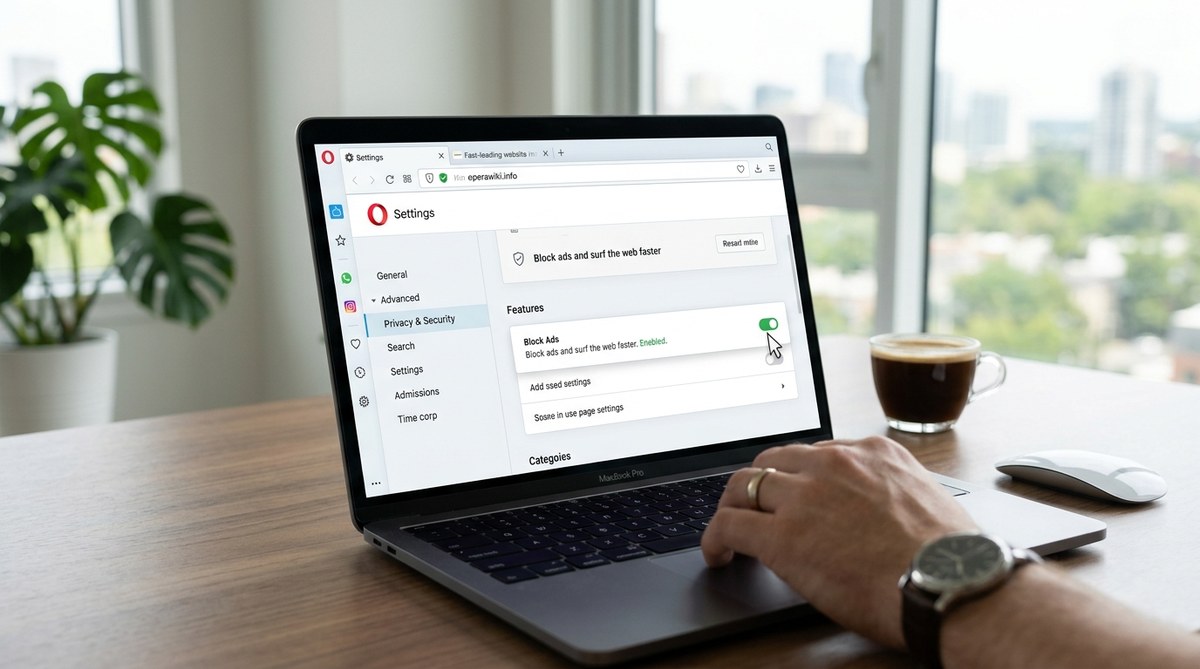
Turn the toggle on. Click the switch so it turns blue (or orange, depending on your theme). That is it. The blocker is now active on all pages.
-
Confirm it is working. Visit a site that normally shows ads. You should see a cleaner layout with no banner ads or pop ups. In many cases, you will also notice the page loads faster.
If you prefer the full settings path, follow these steps instead:
- Click the “Menu” button (the red O icon in the top left corner).
- Go to “Settings” then “Browser” then “Privacy & security.”
- Look for the “Ad Blocker” section and toggle it on.
Both methods lead to the same result. Use whichever feels more natural to you.
How to Enable Opera Ad Blocker on Mobile
Opera’s mobile browser for Android also includes the same ad blocker. The steps differ slightly from the desktop version, but they remain straightforward.
- Open Opera on your phone.
- Tap the O menu icon. It is usually in the bottom right corner of the screen.
- Go to Settings. Scroll down until you see “Ad Blocker.”
- Toggle it on. A brief message may appear explaining that the blocker will remove ads and help pages load faster.
Once enabled, ads disappear from most websites. You will also notice that pages use less mobile data. That is a big plus if you are on a limited plan. For extra performance gains, check out our top performance tweaks to speed up your Opera browser experience.
Benefits of Using Opera’s Built in Ad Blocker
Switching on the ad blocker gives you several advantages at once. Here is a summary of what changes:
- Faster page loads. Without ad scripts, pages render in a fraction of the time.
- Less data usage. Ads can account for 30 to 50 percent of a page’s total size. Blocking them saves megabytes on every visit.
- Cleaner layouts. No banner ads, sidebars, or pop ups interrupting your reading.
- Lower CPU usage. Fewer background scripts mean your processor works less. Laptop batteries last longer.
- Built in tracker blocking. Many ads double as trackers. The blocker stops many of them automatically.
- No extra extensions needed. Everything is native. You do not need to install or maintain a separate add on.
These benefits compound over time. A single afternoon of browsing can save you hundreds of megabytes of data and several minutes of waiting.
Common Mistakes and How to Avoid Them
Even with a simple feature like the ad blocker, people sometimes run into issues. The table below lists frequent mistakes and their solutions.
| Mistake | Why It Happens | How to Fix It |
|---|---|---|
| Toggling the wrong switch | Settings panels can feel crowded. Users accidentally enable “Tracker Blocker” or “VPN” instead. | Double check that the switch reads “Ad Blocker” before turning it on. The icon usually shows a shield with a slash. |
| Blocking all ads breaks a site | Some sites rely on non intrusive ads to stay free. Blocking everything can break login forms or video players. | Add that site to your exceptions list. Go to Settings then Ad Blocker and select “Manage sites.” Enter the URL. |
| Forgetting to update Opera | An outdated browser may lack the latest ad blocking rules. | Keep Opera updated. Go to Menu then “Update & Recovery” to check for the latest version. |
| Assuming mobile and desktop work the same | The mobile toggle is in a different spot. Users sometimes give up and install a third party blocker. | Use the mobile steps above. They take about 15 seconds. |
| Not checking per site settings | The blocker might be active globally, but a site overrides it. | Open the site, click the shield icon in the address bar, and confirm the blocker is on for that page. |
Avoid these pitfalls, and the ad blocker will work reliably across your entire browsing session.
Fine Tuning Your Ad Blocker Settings
Opera gives you control over how strict the blocker behaves. You do not have to accept the default settings. A few tweaks can improve compatibility on sites you visit often.
Manage exceptions. If a site breaks after you enable the blocker, you can whitelist it. Go to Settings then Ad Blocker and choose “Manage sites.” Enter the domain and save. The blocker will skip that page while staying active everywhere else.
Adjust blocking level. Some versions of Opera let you choose between “Basic” and “Aggressive” blocking. Basic stops the most common ad networks. Aggressive catches more scripts but can break some sites. Start with Basic and switch only if you still see ads.
Combine with tracker blocking. Opera also has a separate tracker blocker. Using both tools together gives you even more privacy. For a complete rundown on staying safe online, see our guide on how to use Opera’s built in VPN for secure browsing.
Expert advice. Start with the default ad blocking mode and only add exceptions when a site does not work correctly. Most sites load fine with the standard setting. Over time, you will build a small allowlist of trusted domains. That keeps your browsing fast while still supporting sites you care about.
Troubleshooting Common Problems
Sometimes the ad blocker seems active, but ads still appear. Here is how to fix the most common issues.
The toggle is on, but ads show. This usually means the blocker needs updated filter lists. Opera updates these automatically, but a restart can force a refresh. Close the browser and reopen it. If ads persist, clear your cache under Settings then Privacy & security.
A video site stops playing. Some video platforms use ad scripts that also handle playback. Whitelist that site using the “Manage sites” feature. The ads will return, but the video will work again.
Pages load slower after enabling. This is rare, but it can happen if the blocker conflicts with another extension. Try disabling other ad related add ons. Keep only Opera’s native blocker active. For help managing extensions, read our guide on how to manage Opera browser extensions for better security and performance.
The blocker keeps turning off by itself. Check if a system update or antivirus program is interfering. Also make sure you are signed into your Opera account. Synced settings can sometimes override local preferences. If the problem continues, reinstall Opera from the official site.
Make the Ad Blocker Part of Your Daily Routine
Once you enable Opera ad blocker, you will barely notice it is there. That is the point. Pages load faster, your data lasts longer, and the web feels less cluttered. You stop thinking about ads and start focusing on what you actually want to read or watch.
The setup takes less than a minute. The payoff happens every single time you open a new tab. Whether you are on a desktop at home or on your phone during a commute, the blocker works silently in the background. It is one of those small changes that makes a big difference over a week or a month.
If you want to push your browser even further, take a look at our boost your Opera browser speed with these proven tips in 2026 guide. It covers everything from cache management to hardware acceleration.
Start Browsing Faster Today
You already have the tool. Opera’s ad blocker is built into the browser you are using right now. It does not cost anything. It does not require a plugin. It just needs you to flip one switch.
Open your settings. Find the ad blocker toggle. Turn it on. Then visit your favorite news site or blog. Notice how much faster the page loads. Notice how clean everything looks. That is what a browser should feel like.
Once you see the difference, you will wonder why you waited so long. And if you ever run into a site that needs exceptions, you now know exactly how to handle it. Happy browsing.