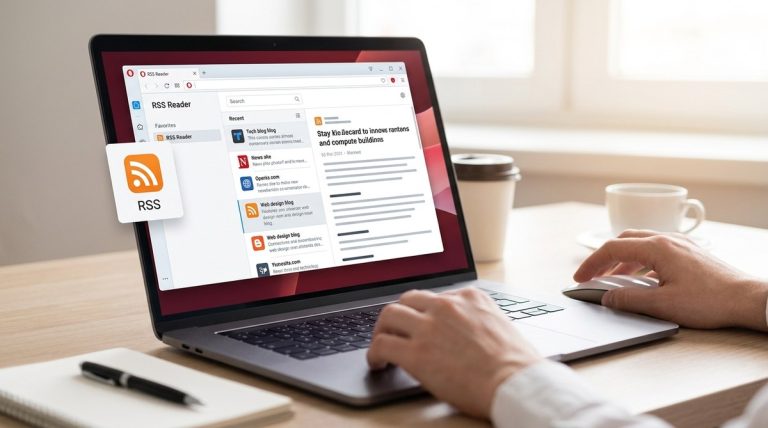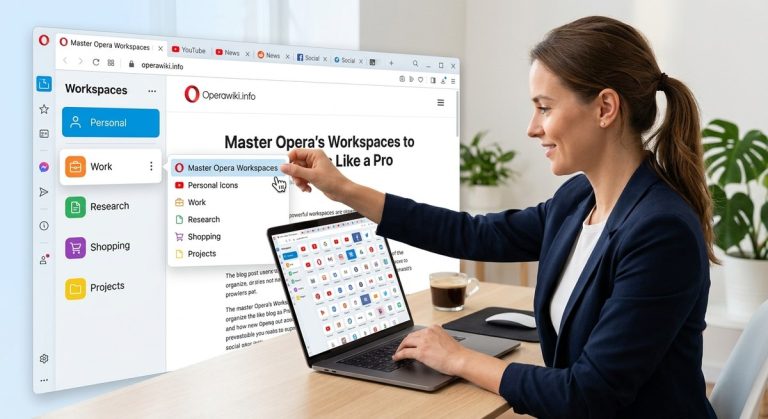
You open an article to read. Within seconds, ads pop up, a video starts playing, and three newsletter banners demand your email. Your focus is gone. The web was designed for reading, but today it fights you at every scroll. Opera browser gives you the power to take that control back. With a few built in tools, you can strip away the noise and turn any page into a clean, peaceful reading space. No distractions, no clutter. Just the words you care about.
Opera offers a complete set of free tools for distraction-free reading: a dedicated Reader Mode that removes ads and sidebars, a built-in ad blocker, customizable display settings, and the Flow feature to save articles across devices. By combining these, you can create a reading environment that helps you absorb information faster and enjoy longer sessions without eye strain. This guide walks you through every step.
How Opera Uses Reader Mode to Remove Clutter
Opera’s Reader Mode is your first line of defense against visual chaos. When you activate it, the browser strips away everything that isn’t the main article. Gone are the flashing banners, the “related posts” grids, and the floating share buttons. Instead, you get a clean, single column layout with the text and essential images only.
Activating Reader Mode is straightforward. Follow these steps:
- Navigate to any article, blog, or text-heavy page you want to read.
- Look at the right side of the address bar. If the page supports Reader Mode, you will see a small book icon turn blue or purple.
- Click that icon, or press F9 on your keyboard, to toggle Reader Mode on.
- Once activated, the page instantly transforms. You can scroll comfortably without any intrusive elements.
Reader Mode works on most news sites, Wikipedia, documentation pages, and many blogs. It also functions on some mobile versions of sites when using Opera on a phone or tablet. If the book icon does not appear, the page may have a paywall or a complex layout that Opera cannot simplify, but this is rare.
Expert tip: If you visit a site frequently that supports Reader Mode, you can set Opera to automatically enable Reader Mode for that domain. Go to Settings > Advanced > Reader Mode and add the site URL. This saves you a click every time.
Customizing Reader Mode for Your Eyes
The default Reader Mode look is clean, but it may not be perfect for everyone. Opera lets you tweak the appearance to match your preferences. You can adjust font size, line spacing, and background color. This is especially useful for long study sessions or late night reading.
Here is a table of the main customization options and what they do:
| Setting | What It Does | Best For |
|---|---|---|
| Font Size | Scales the text up or down | Reducing eye strain on small screens |
| Serif / Sans-serif | Changes the font style | Serif for printed feel, sans-serif for digital speed |
| Light / Sepia / Dark | Switches the background color | Sepia for warm reading, Dark for low light rooms |
| Line Width | Controls the amount of text per line | Narrower lines for easier tracking, wider for faster scanning |
| Line Height | Adjusts spacing between lines | More space to avoid lines blending together |
To access these options, click the Aa icon that appears in the Reader Mode toolbar. A small popup will let you slide each control. Experiment for a minute until the page feels comfortable. Your eyes will thank you after a two hour research session.
Take It Further with Opera’s Sidebar Tools
Opera’s sidebar is more than a launching pad for messengers. It can become part of your distraction-free reading workflow. The key is to use it intentionally and hide it when you need full focus.
Here are ways to use the sidebar for better reading:
- Bookmarks panel: Save articles you want to read later directly from the sidebar. Simply drag the page’s icon into the panel.
- Flow: Opera’s note and link sharing tool. You can send articles to your phone for reading on the go.
- Extensions: Install lightweight reading extensions like Pocket offline or a dictionary tool. Avoid heavy extensions that slow down the browser.
- Ad Blocker toggle: Use the sidebar’s VPN and ad blocker buttons to check if any ads slipped through.
You can show or hide the sidebar by clicking the sidebar icon at the bottom left or by pressing Ctrl + Shift + S. When you need pure reading, hide it. When you want to bookmark or take notes, bring it back. This small habit keeps your screen minimal without losing access to useful tools.
If you want to further reduce visual noise, consider enhancing your setup with our guide on how to customize your Opera browser sidebar for quick access to tools.
Using Opera’s Flow for Seamless Reading Across Devices
One of the best ways to stay distraction-free is to read on the device that fits your current environment. Opera Flow syncs links, notes, and images between your desktop and phone instantly. No cables, no cloud apps, no extra tabs.
To use Flow:
- On desktop Opera, click the Flow icon in the sidebar (it looks like a paper plane).
- Scan the QR code with your phone’s Opera browser (Android or iOS).
- Now you can send any article from your phone to your desktop by sharing it via Flow. On desktop, you can send notes or reminders to yourself.
This means you can start reading a long article on your phone during a commute, then continue on your laptop without losing your place. Flow does not display ads or suggestions. It is a clean, private channel.
For more ways to sync your Opera setup, read our article on how to sync your Opera browser across devices seamlessly.
Block Distractions Before They Appear
Reader Mode usually handles ad removal, but sometimes you want to stay in the normal page view while still blocking popups and trackers. Opera’s built-in ad blocker and pop-up blocker take care of this before you even start reading.
You can enable them from Settings > Privacy & Security. Check “Block ads” and “Block pop-up windows.” These block most advertising networks, tracking scripts, and autoplay videos. Even if you do not use Reader Mode, the page loads faster and stays cleaner.
Expert tip: Combine the ad blocker with Reader Mode for a double layer of protection. Some articles on sites like Medium or smaller blogs will still show a few elements after Reader Mode activates. The ad blocker catches those leftovers.
If you want to take privacy further, see our post on how to set up Opera browser for maximum privacy in 2026.
A Complete Workflow for Deep Reading
Let’s put everything together. Here is a step by step process for turning any Opera session into a distraction-free reading experience. Use the table below to compare the core techniques and avoid common missteps.
| Technique | Purpose | Common Mistake | Fix |
|---|---|---|---|
| Reader Mode | Strip page layout | Not checking if icon is visible | Press F9 anyway; some pages support it even if icon is hidden |
| Ad Blocker | Block ads and trackers | Leaving it turned off for “trusted sites” | Enable it globally; whitelist only if a site breaks |
| Sidebar Hide | Reduce visual clutter | Keeping sidebar open while reading | Set a keyboard shortcut to toggle it |
| Dark Mode | Reduce eye strain in low light | Using dark mode in bright rooms | Switch to light or sepia during the day |
| Flow Sync | Save articles across devices | Forgetting to send before closing tab | Use the browser’s “Share” or “Send to Flow” button |
A typical deep reading session might go like this:
- Open Opera and navigate to your article.
- Press F9 to activate Reader Mode.
- Adjust font to your liking with the Aa menu.
- Hide the sidebar by pressing Ctrl + Shift + S.
- If you need to save a passage, copy it and paste directly into Flow by clicking the Flow icon in the sidebar (briefly show it).
- Read until the end, then use Flow to push the link to your phone for later reference.
This workflow cuts out every unnecessary step. You stay in the flow of reading without tab hopping.
What to Avoid When Reading Online
Even with the best tools, bad habits can break your focus. Here are traps to watch out for:
- Keeping notification badges visible. Opera shows badge counts on the sidebar for messengers. Turn off those badges in Settings > Sidebar > Notifications, or disable the messengers entirely while reading.
- Using too many tabs. A research session can easily spawn 20 tabs. Use Opera’s Tab Snoozing feature to temporarily hide tabs you are not reading. Right click a tab and choose “Snooze tab.”
- Forgetting to disable auto-play. Opera blocks most autoplay videos by default, but some sites still play them. Check Settings > Advanced > Autoplay and set it to “Block.”
- Not closing Reader Mode when it breaks layout. Rarely, Reader Mode might chop off sidebar content like a table of contents. Just press F9 again to revert to normal view, then rely on the ad blocker alone.
For a broader look at keeping Opera lean, see our guide on how to master tab management in Opera browser for effortless browsing.
Building a Distraction-Free Reading Habit in Opera
The tools are only half the story. The real change comes from making distraction-free reading your default. Set Opera to open specific pages in Reader Mode automatically. Keep the ad blocker always on. Hide the sidebar before you begin reading. These small choices add up.
Start today. Pick one article you have been putting off. Open it in Opera, turn on Reader Mode, hide the sidebar, and read it without a single interruption. Once you feel how smooth it is, you will wonder why you ever read any other way.