You are working on a project and need to save an entire webpage as an image. Not just what you see on screen, but the whole thing from top to bottom. Maybe it is a job listing, a recipe, a long article, or a design mockup you want to reference later. Without a full page screenshot, you end up stitching together multiple pictures, and that is a headache you do not need. Opera browser has a built in tool that handles this perfectly, no extensions required. It is called the Snapshot tool, and it can grab everything from the first pixel to the last footer. Let me show you exactly how to use it.
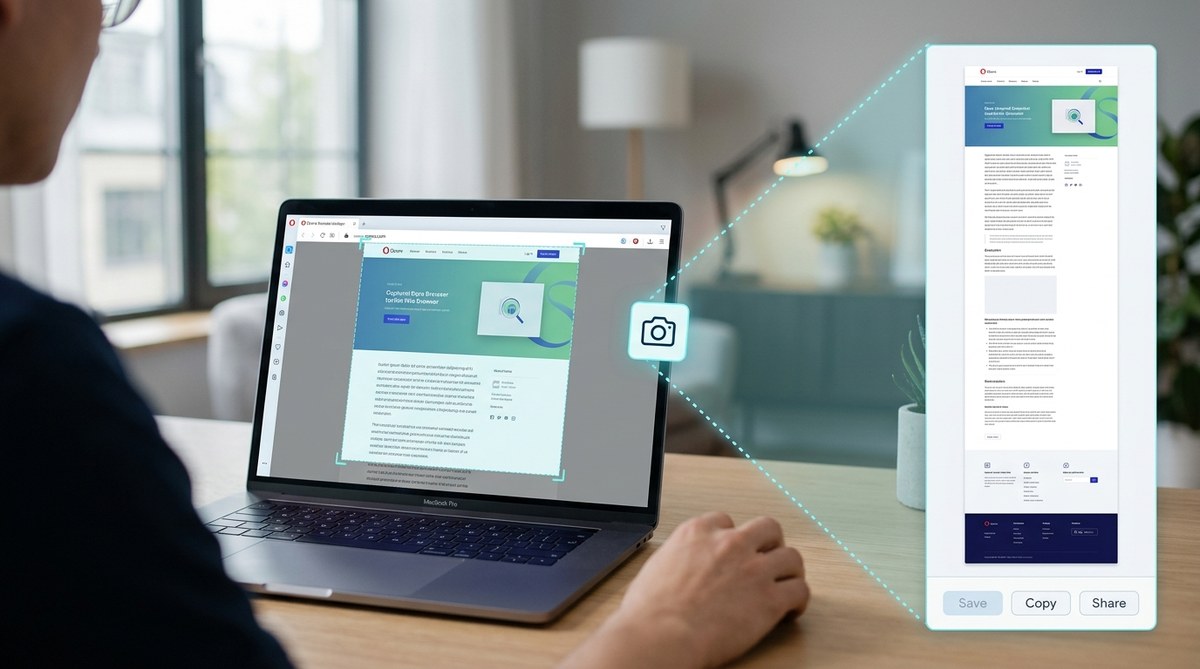
Opera’s built in Snapshot tool lets you capture full page screenshots of any webpage without installing extra software. Just open the camera icon in the sidebar, choose “Capture entire page,” and save or edit your image. The tool also supports annotations, cropping, and instant sharing. This guide covers the exact steps, common mistakes, and troubleshooting tips so you can rely on this feature for work, school, or personal projects in 2026.
Why Use Opera’s Snapshot Tool for Full Page Screenshots
Most browsers require a third party extension or a complicated keyboard shortcut to get a full page screenshot. Opera keeps things simple. The Snapshot tool lives right in the sidebar, ready when you are. Here is why it stands out:
- No extra downloads. The feature is baked into Opera, so you do not need to search for an extension that might slow down your browser.
- Edit before saving. You can draw arrows, add text, highlight areas, or blur sensitive information before you export.
- Share instantly. The tool lets you copy the image to your clipboard, download it, or send it straight to a printer.
- Works with any webpage. Whether it is a scrolling news article, a long product page, or a detailed documentation guide, the full page capture covers it all.
If you spend time mastering Opera browser privacy settings for safer browsing, you will also appreciate that the Snapshot tool does not send your data anywhere. Everything stays on your computer.
Step by Step: How to Take an Opera Full Page Screenshot
Follow these steps to capture a full page screenshot in Opera. Make sure you are using the latest version of Opera (update from 2026). The interface might look slightly different on older builds, but the core workflow remains the same.
-
Open the Snapshot tool. Look for the small camera icon on the left sidebar. If you do not see the sidebar, click the three dots menu (the main menu) and select “Show sidebar.” The camera icon is usually near the bottom, below the pin and messenger buttons.
-
Choose your capture mode. After clicking the camera icon, a toolbar appears at the top of the screen. You will see two options: “Capture visible area” and “Capture entire page.” Select “Capture entire page” for a full page screenshot.
-
Wait for the capture. Opera will automatically scroll through the page and stitch together all sections. This process takes a few seconds, depending on the page length. Do not switch tabs or press escape while it is running.
-
Edit your screenshot. Once the capture completes, an editing window opens. You can crop the image, add shapes, draw arrows, type text, or use the highlight tool. The blur tool is perfect for hiding personal details like email addresses or credit card numbers.
-
Save or share. In the top right corner of the editing window, you will find buttons to download the image as a PNG, copy it to your clipboard, or print it directly. Choose what fits your workflow.
-
Close the editor. Click the X button in the top left to exit. The screenshot is not automatically saved, so make sure you have downloaded or copied it before closing.
That is it. You now have a complete image of any webpage, from the header down to the very last line.
Understanding the Capture Options: Visible vs Full Page
Sometimes you only need what is on your screen. Other times you need the entire page. Use this table to decide which option fits your task.
| Capture Type | What It Grabs | Best For |
|---|---|---|
| Visible area | Exactly what you see in the browser window right now | Sharing a single paragraph, a table, or a small section without scrolling |
| Full page | Everything within the page, including content that requires scrolling | Saving long articles, product listings, documentation pages, or portfolio websites |
The visible area option is faster because it does not need to scroll. But if you are working on a design review, a full page capture gives you the complete layout. Use the table above to match the capture to your need.
Common Mistakes and How to Avoid Them
Even with a straightforward tool, small slip ups can ruin a screenshot. Here are the most frequent errors people make when trying to capture a full page in Opera.
“The full page capture depends on the page being loaded completely. If the page has lazy loading images or infinite scroll, Opera might stop before it reaches the real bottom. Always scroll to the bottom of the page once before launching the snapshot tool.” — Opera Support Team, 2026
A few other mistakes:
- Not updating Opera. Older versions may not have the full page capture feature or may have known bugs. Check for updates under Menu -> Update & Recovery.
- Forgetting to close popups. A chat widget or cookie banner can overlap the content. Close those overlays before capturing.
- Selecting the wrong capture mode. If you click “Capture visible area” by accident, you will only get the current view. Double check the toolbar selection.
- Using extensions that interfere. Some ad blockers or script managers can break the scrolling mechanism. Temporarily disable them if the full page capture stops early.
If you want a faster browser that handles these tasks smoothly, check out these top performance tweaks to speed up your Opera browser experience. A snappier browser means less waiting for screenshots to finish.
Troubleshooting: When the Full Page Capture Won’t Work
Sometimes the full page option is grayed out, or the capture stops halfway through. Let us fix that.
The “Capture entire page” button is disabled
This usually happens when the page uses infinite scrolling. Opera cannot detect where the page ends because new content keeps loading. Try scrolling down manually until you reach the footer, then try again. If the button remains disabled, you may need to use a third party tool for that specific website.
The screenshot cuts off before the page ends
Lazy loading images are the most common cause. Images that load only when you scroll near them can cause Opera to think the page is shorter than it really is. Before capturing, scroll through the entire page slowly so that all images load. Then launch the Snapshot tool.
The tool closes unexpectedly
This can happen if the browser runs out of memory, especially on very long pages (like a 10,000 word article with high resolution images). Close other tabs and try again. If the problem persists, restart Opera and limit the number of active extensions.
For a more stable browsing environment, consider how to manage Opera browser extensions for better security and performance. A cleaner extension list often resolves capture issues.
Choosing the Right Approach: Built in Tool vs Extensions
Opera’s built in Snapshot tool covers most needs, but it is not the only way to grab a full page screenshot. Here are the popular alternatives:
- Third party extensions: Tools like Fireshot or Nimbus Screenshot offer more advanced editing (e.g., annotating PDFs, adding watermarks, or saving as PDF). However, they add extra load to your browser and may require permissions to read all site data.
- Operating system tools: Windows Snipping Tool and macOS Screenshot app can capture the visible area only. They do not support scrolling captures without additional software.
- Browser native alternative (Chrome/Edge): Both have developer tools that can capture full page screenshots, but the process is more technical (Ctrl+Shift+I -> Ctrl+Shift+P -> type “screenshot”). Opera’s method is simpler for everyday use.
Stick with the built in tool unless you need features like batch processing or direct upload to cloud services. For most users, the Opera Snapshot tool is all you need.
Tips for Better Full Page Screenshots in Opera
Prepare the page before capturing
- Remove distracting elements: close slide in panels, dismiss newsletter popups, and collapse unnecessary menus.
- If the page has a “print” version or a “reader mode,” use that. It strips away sidebars and ads, giving you a cleaner image.
Check the image quality
By default, Opera saves screenshots as PNG files with high resolution. The file size can be large for very long pages. If you need a smaller file, use an image compressor after saving. The editing tool does not offer compression settings.
Use annotations sparingly
The editing box has plenty of tools for drawing and text. But too many arrows or highlights can make the screenshot look cluttered. Add only what is necessary for your audience.
If you frequently save and share screenshots as part of your workflow, you might also benefit from how to sync your Opera browser across devices seamlessly. That way, your captured images and settings follow you from desktop to laptop.
Making Full Page Screenshots Part of Your Workflow
Now you know how to capture any webpage from top to bottom using Opera’s own Snapshot tool. This feature saves you time when you need to archive a page, share a layout with a teammate, or keep a visual record of something important. No more juggling multiple screenshots or searching for a reliable extension.
The process is fast. Click the camera, choose “Capture entire page,” edit if needed, and save. Once you practice it a few times, it becomes second nature. Try it on your next project. You will wonder how you managed without it.
For even more ways to get the most out of Opera, take a look at these 10 hidden features in Opera browser you should know about in 2026. The Snapshot tool is just one of many built in tools designed to make your browsing easier.