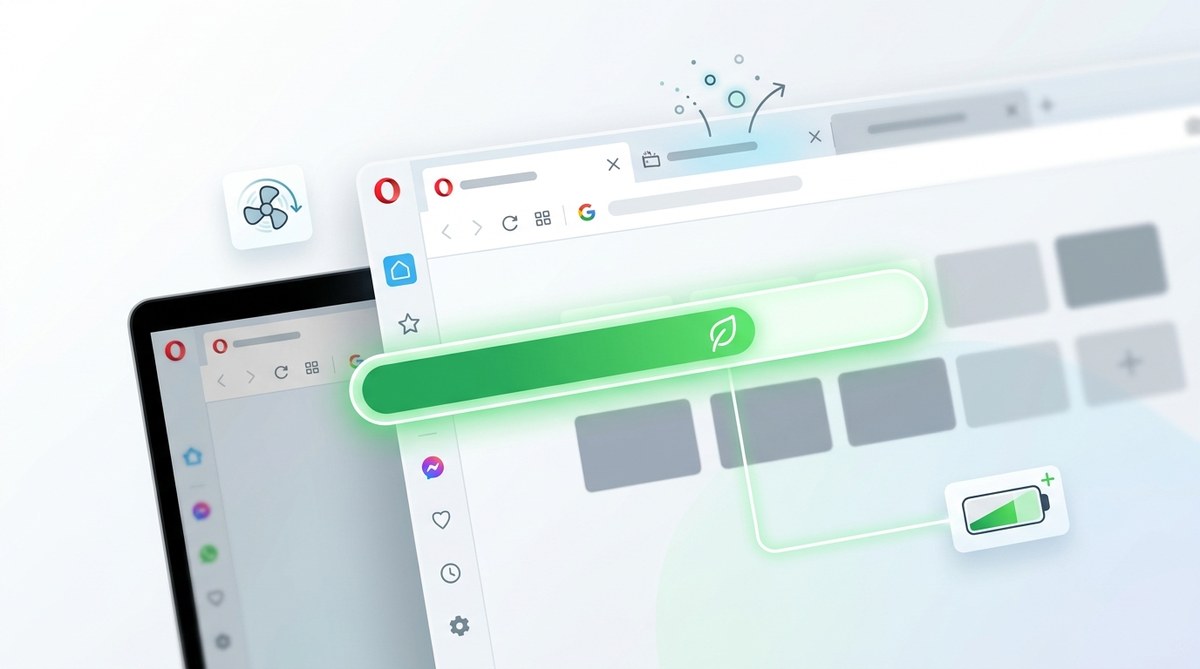
You are at a coffee shop, your laptop battery shows 25%, and you still need to research, stream music, and maybe play a browser game. Panic mode? Not if you use Opera. The browser has a smart feature built right in: Opera battery saver mode. It quietly tweaks how Opera behaves so you can keep working (or playing) longer without hunting for a power outlet. In this guide, you will discover exactly what happens when you enable it, how to turn it on, and why it is a lifesaver for both regular users and gamers on Opera GX.
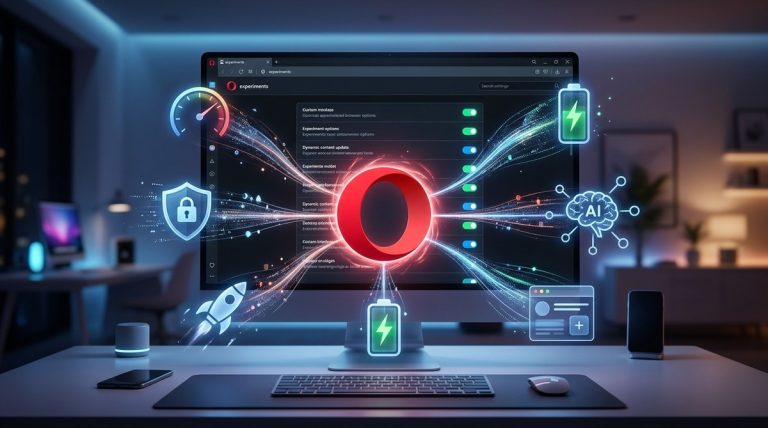
Opera battery saver mode reduces background tab activity, lowers the frame rate, and pauses nonessential features like visual effects and sidebar animations. It can extend your browsing time by up to one hour on a single charge. The feature works automatically when you unplug your laptop or you can toggle it manually. Opera GX users get extra controls to balance performance and power use while gaming.
What happens when you flip the switch
The moment you enable Opera battery saver mode, several changes kick in behind the scenes. The goal is simple: cut down on power drain without ruining your experience. Here is what actually changes:
- Background tabs get throttled – Opera pauses animations, reduces timer precision, and limits network activity for tabs you are not looking at.
- Visual effects are reduced – Smooth scrolling becomes standard scrolling. Tab previews and some transparency effects are disabled.
- Frame rate drops – The browser caps rendering to 30 frames per second. This matters most for video playback and games.
- Extension activity is limited – Some extensions may be delayed or paused until you click back into the page.
- Sidebar and pop-up animations stop – No fancy transitions. Just static icons until you interact.
These tweaks are barely noticeable when you are reading articles or checking email. But they add up to serious battery savings. Opera claims you can get up to an extra hour of browsing time. In real world tests, many users report seeing 20 to 30 percent less power consumption compared to standard mode.
How Opera battery saver mode actually works
Opera does not just dim the screen or reduce brightness. It makes smart choices about resource allocation. Let us break down the main techniques.
Tab suspension and timer reduction
Your computer uses less energy when the CPU and GPU have less work. Opera tells inactive tabs to stop running JavaScript timers every few hundred milliseconds. Instead, it checks them every few seconds. This is similar to what Chrome does with tab discarding, but Opera does it without closing the tabs. So you can still switch back to a tab and it reloads quickly.
Hardware acceleration tuning
Modern browsers lean on your graphics card to render pages smoothly. Opera reduces the GPU load by lowering the rendering resolution for off-screen areas and limiting composited layers. This means the GPU does not have to redraw parts of the page that have not changed. For games in Opera GX, the Frame Rate Limiter in the GX Control panel also kick in, so gaming graphics do not waste frames while you are on battery.
Network and background sync controls
Extensions and web apps often talk to servers in the background. Opera pauses these connections when the browser is in battery saver mode. Email checkers, social media pings, and news updates wait until you become active again. This reduces Wi-Fi radio usage, which is a known battery hog.
Operas engineering team found that background tab JavaScript alone can consume 15% of the browsers total power on a typical laptop. Throttling these timers was the single most effective optimization in battery saver mode.
How to turn on battery saver mode in Opera and Opera GX
You do not need to dig through confusing menus. The process is straightforward.
- Open your Opera browser.
- Click the Opera menu icon (the red O in the top left corner).
- Hover over Battery Saver (you may see a battery icon if your laptop is unplugged).
- Choose Turn on Battery Saver.
- The battery icon in the address bar will turn green to confirm.
For Opera GX users, the process is slightly different because GX has its own performance controls:
- Launch Opera GX.
- Open the GX Control sidebar (the game controller icon on the left).
- In the Limiter tab, look for Battery Saver.
- Toggle the switch to On.
- You can also set a Battery Saver Profile that limits CPU and RAM usage automatically when your battery drops below a certain percentage.
Once enabled, you will see a small green battery icon next to the URL bar. Click it anytime to check your estimated savings.
When should you use Operas battery saver?
Battery saver is not always necessary. If you are plugged in, keep it off for full performance. But it shines in these scenarios:
| Scenario | Why battery saver helps |
|---|---|
| Working at a cafe or library | No outlet nearby; every minute of battery counts |
| Long flights or train rides | Limited charging options for hours |
| Playing casual browser games on Opera GX | Reduces fan noise and heat while still playable |
| Streaming music in the background | Throttled background tabs save power without interrupting audio |
| Multiple tabs open for research | Suspended background tabs preserve battery for the active tab |
| Gaming tournaments on the go | GX Control + battery saver keeps frame rates stable longer |
Notice the table does not include heavy video editing or 4K streaming. Those tasks will still drain battery quickly because the screen and GPU are active. But for everyday browsing, battery saver is a real time extender.
Opera battery saver vs other browser optimizations
Many browsers have power saving features, but Opera does it differently. Here is a comparison table to make it clear:
| Feature | Opera battery saver | Chrome energy saver | Firefox performance |
|---|---|---|---|
| Throttles background tabs | Yes | Yes (tab discarding) | Yes (tab unloading) |
| Reduces frame rate | Yes (30 FPS cap) | No | No |
| Limits extension activity | Yes (pauses idle extensions) | Only via site settings | Partial (add-on manager) |
| Visual effects disabled | Yes (transitions, animations) | No | No |
| Automatic on unplug | Yes (configurable) | Yes (Windows/Mac) | Partial (only with battery) |
| Gaming controls (GX) | Yes (CPU/RAM limiters) | No | No |
Opera stands out because it combines aggressive background throttling with visual simplification and dedicated gaming tools. For Opera GX users, the synergy between battery saver and the GX Control limiter means you can play lighter games like “Agar.io” or “Slither.io” for over an hour on a standard laptop battery.
More ways to save battery while browsing
Battery saver mode is powerful, but you can stack other habits to stretch your usage even further. For instance, enabling the built in Opera ad blocker reduces the number of scripts loaded, which also cuts power usage. You can also close unnecessary tabs manually instead of relying on automatic throttling. If you want to go deeper, check out our guide on Top Performance Tweaks to Speed Up Your Opera Browser Experience. It covers things like disabling hardware acceleration on older machines and cleaning up extensions that waste resources.
Another trick: turn off the sidebar features you do not use. The sidebar consumes memory and GPU cycles. Use the How to Customize Your Opera Browser Sidebar for Quick Access to Tools article to trim it down. Fewer active panels mean fewer background processes.
Finally, keep your browser updated. Opera releases performance improvements regularly. The latest version in 2026 includes better battery saver algorithms that adapt to your specific usage patterns. You can read about new features in Stay Up-to-Date with the Latest Opera Browser Releases and Features.
Get the most out of every charge
You do not have to be a tech expert to make your laptop last longer with Opera. Battery saver mode does the heavy lifting automatically. Just turn it on when you unplug, and let the browser manage the details. For gamers using Opera GX, combine it with the GX Control limits for a balanced experience that keeps you playing without draining your battery too fast. Try it the next time you are away from an outlet. You will notice the difference in the extra minutes you gain. And if you ever need more control, Opera gives you all the levers to pull. Happy browsing.