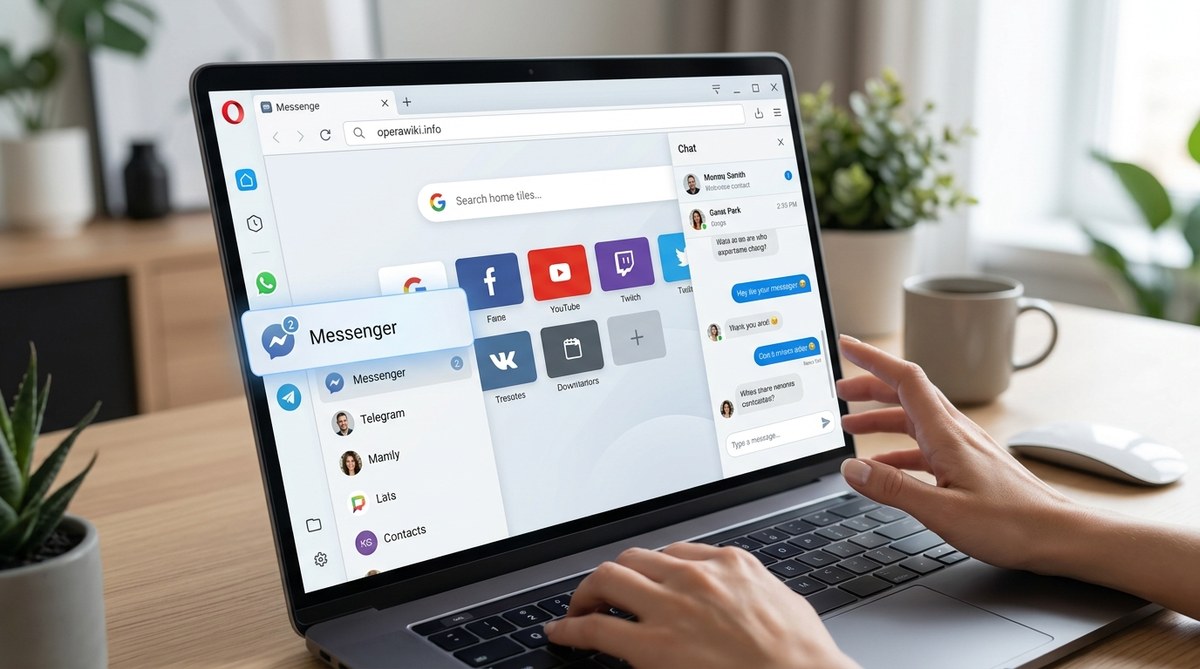
After years of juggling tabs for work and play, you might feel like your browser is a catch all for everything until you try Opera’s built in chat hub. The Opera messenger integration lets you pin your favorite messaging apps directly to the sidebar. No more alt tabbing between Slack and research. No more missing a message because you minimized the wrong window. This feature turns your browser into a command center for communication.
Opera messenger integration works by embedding messaging apps into the browser’s sidebar using web wrappers. You can add WhatsApp, Telegram, Facebook Messenger, and others with a single click. Once set up, each app lives in its own mini panel that stays open while you browse. Notifications appear as badges, and you can reply without leaving your current page. It saves time and keeps your conversations organized.
Why Keep Your Chat Apps Inside Opera
Think about how often you switch from a browser to a chat app in a typical day. For many people it is ten times an hour. Each switch costs a second or two, and those seconds add up. More importantly, context switching breaks your focus. When Opera messenger integration brings your chats into the sidebar, you can glance at a message and reply without leaving the page you are reading.
This is especially useful if you use web versions of apps like WhatsApp or Telegram. Instead of opening a new tab, the app runs inside a dedicated sidebar panel that Opera keeps alive. You can even pop the panel out into a floating window if you need more space.
Beyond convenience, the integration helps you keep your desktop clean. No extra windows, no taskbar clutter. Everything lives inside one application.
Setting Up Opera Messenger Integration Step by Step
The setup takes less than two minutes. Follow these steps:
- Open Opera and look at the left sidebar. You will see a row of icons. If you do not see a messenger icon, click the hamburger menu at the bottom of the sidebar to show hidden icons.
- Click the messenger icon (it looks like a speech bubble). A sidebar panel will open showing available apps.
- Choose the app you want to add from the list. Common options include WhatsApp Web, Telegram, Facebook Messenger, and Instagram.
- Click “Add” next to your chosen app. Opera will open the app’s login page inside the sidebar panel.
- Scan the QR code or log in with your credentials as you normally would. Once signed in, the app stays active in the sidebar.
- Repeat for any other messaging apps you use regularly. You can add up to five or six without the sidebar feeling crowded.
After setup, each app appears as a small icon at the top of the sidebar panel. Clicking an icon switches the panel to that app. A red badge shows unread message counts, so you never miss a ping.
You can also reorder the icons by dragging them. This puts your most used app at the front.
What About Notifications and Performance
A common worry is that keeping multiple chat panels open will slow down your browser. In my testing on a mid range 2023 laptop, adding four messengers used less than 200 MB of extra RAM. Opera handles these panels efficiently because they are essentially isolated web views. They do not load full browser extensions or heavy scripts.
Notifications work system wide as long as Opera is running. You get the same native notification popups you would from a standalone app, but they come from the browser. Clicking a notification brings you to Opera if it is backgrounded.
| Feature | Standalone App | Opera Sidebar Integration |
|---|---|---|
| Memory usage | Varies, often 300 MB+ per app | ~50 MB per web panel |
| Tab switching | Needs alt+tab or click | Stays visible in sidebar |
| Notifications | Native system | Opera native |
| Portability | Fixed to one computer | Follows Opera account sync |
| Customizability | Full app settings | Limited to web version settings |
As the table shows, the integration trades some customization for lower resource usage and better workflow. The web version of an app typically has fewer options than the desktop client, but the trade off is worth it for most people.
Expert advice: If you use a messaging app that requires two factor authentication, set up a dedicated app password or use a QR code method. The sidebar panel remembers your session, so you only log in once. Just be aware that clearing your browser cookies will log you out of all integrated messengers. Use Opera’s sync feature to keep your session tokens across devices.
Customizing Which Apps Appear in the Sidebar
You are not stuck with the default selection. Opera lets you add custom apps that are not listed. Here is how:
- Open the messenger panel and scroll to the bottom of the app list.
- Click “Add custom app” or the plus button.
- Paste the URL of the web version of your messaging service. For example, you could add Discord, Microsoft Teams, or Signal.
- Give it a name and pick an icon if prompted.
- Click add. The app appears as a new panel.
Some services like Discord work perfectly this way. Others like Signal require you to first install the web version from their website. The side panel loads the URL just like a mini browser, so anything that works in a normal tab works here.
If you want to remove an app, hover over its icon in the panel and click the three dot menu. Choose “Remove”. The app’s login data may remain in Opera’s cookie storage, so you can add it back later without reauthenticating.
Managing Multiple Conversations and Tabs
Once you have three or four messengers running, you might wonder how to keep from getting overwhelmed. Opera messenger integration includes a few helpful features:
- Unread badge count on each app icon. You see at a glance who has messages waiting.
- Quick reply from the panel. Type your response inside the panel without opening a new tab.
- Floating window for long conversations. Click the pop out button to detach the panel. You can resize it and place it anywhere on screen.
- Do not disturb mode. Right click the messenger icon in the sidebar and toggle “Mute notifications”. This silences all chat alerts for a set period.
You can also use Opera’s built in ad blocker to speed up these panels. Go to Settings, then Ad Blocker, and enable it. Ad blocking works inside the web views too, which makes messenger pages load faster.
Common Pitfalls and How to Avoid Them
Even a smooth feature like this has a few gotchas. Here are the most common mistakes people make and how to fix them.
| Mistake | Why It Happens | How to Fix |
|---|---|---|
| App stays loading | The web version may be blocked by a firewall or cookie restriction | Check Opera’s cookie settings. Allow third party cookies for the messenger domain |
| Notifications not showing | Opera’s system notification permission is off | Go to Opera settings > Notifications and enable them. Also check OS notification settings |
| App logs out frequently | Opera clears cookies on exit | In settings, go to “Privacy & Security” and set “Clear cookies on exit” to off |
| Sidebar feels cramped | Too many apps added | Remove apps you rarely use. Use the pop out window for the most active app |
| Custom app does not load | The URL may redirect or require a specific user agent | Try adding the mobile version of the app URL (e.g., “web.telegram.org/?mobile” for Telegram) |
If you run into trouble with a specific app, check Opera’s support forums or the app’s help page. Most issues come down to cookie permissions or notification settings.
Using Opera Messenger Integration with Other Productivity Features
The sidebar is not just for chat. You can combine messenger integration with Opera’s other tools to build a powerful workflow. For example, you can keep a messenger panel open while writing an email in Opera’s built in Mail client. Or you can reference a conversation while editing a document in Google Docs.
Opera also has a Pinboard feature that lets you save notes, images, and links. If someone sends you a link in WhatsApp, you can right click on it and “Add to Pinboard” to keep it for later.
For heavy multitaskers, the Opera sidebar customization guide shows how to add other tools alongside your messengers. You can have a note taking app, a calendar, and WhatsApp all in one sidebar.
If you want to shave off even more time, learn the essential Opera shortcuts that let you switch between panels without a mouse. For instance, pressing Ctrl+M toggles the messenger panel open and closed.
Making the Most of Opera’s Integrated Chat
Once you have everything set up, you might wonder how to use the feature more intentionally. Here are a few tips:
- Prioritize your most used apps. Drag them to the top of the panel list.
- Use the floating window for apps you need to monitor all day, like Slack for work.
- Turn on “Opera Sync” to keep your messenger sessions synced between your home and work computer.
- If you share a computer, set up separate Opera profiles. Each profile can have its own set of messenger integrations and logged in accounts.
The integration works especially well for remote workers who spend hours in the browser. Instead of running a separate desktop app for each messenger, you reduce everything to one interface.
A Quick Word on Security and Privacy
Because Opera messenger integration loads web versions of apps, your conversations are encrypted the same way they are in a normal browser tab. WhatsApp Web uses end to end encryption. Telegram uses its own encryption for secret chats. The browser itself handles authentication like any other session.
However, be aware that Opera’s sidebar panels are still web pages. They can be subject to the same risks as any other webpage, such as phishing attempts or malicious links. Do not click suspicious links inside the panel, even if they appear to come from a contact.
To boost your privacy settings in Opera, you can enable the built in VPN when using messenger panels on public Wi Fi. That adds a layer of encryption between your browser and the messenger server.
What If You Prefer a Different Approach
Some people like to keep their messengers in separate tabs. That is completely fine. Opera messenger integration is optional. You can turn it off entirely by right clicking the sidebar and disabling the messenger icon. Or you can use a mix: add your most important app to the sidebar and let the rest live in tabs.
The goal is to reduce friction, not to force a specific workflow. Try the integration for a week. If you find yourself using the sidebar regularly, keep it. If not, you lose nothing.
Wrapping Up with a Practical Next Step
Now that you know how to use Opera messenger integration, the best move is to set it up right now. Pick one messaging app you use every day. Add it to the sidebar. Use it for a few hours. See how it feels. Chances are you will wonder why you did not do this sooner.
Once you get comfortable, add a second app and rearrange the icons. Customize the panel order to match your daily rhythm. Over time, this small change will save you dozens of tab switches and keep your focus where it belongs: on the work that matters.
For more ways to fine tune your browser, check out the top performance tweaks to speed up your Opera browser experience. They pair well with the messenger integration to make Opera feel like a custom built productivity machine.