Looking to boost your privacy while browsing with Opera? You’re not alone. Many users want to keep their personal information safe from trackers, advertisers, and potential threats. Luckily, Opera offers a wide range of privacy options that are easy to customize. With a few quick adjustments, you can enjoy a safer, more private browsing experience without sacrificing convenience. This guide walks you through the essential steps to optimize Opera’s privacy settings and keep your data secure.
Customizing Opera’s privacy settings is straightforward and empowers you to [protect your personal data](https://www.cdc.gov/privacy/index.html). From blocking trackers to managing cookies and enabling security features, these steps help you browse more securely and privately every day.
Understanding Opera’s Privacy Features
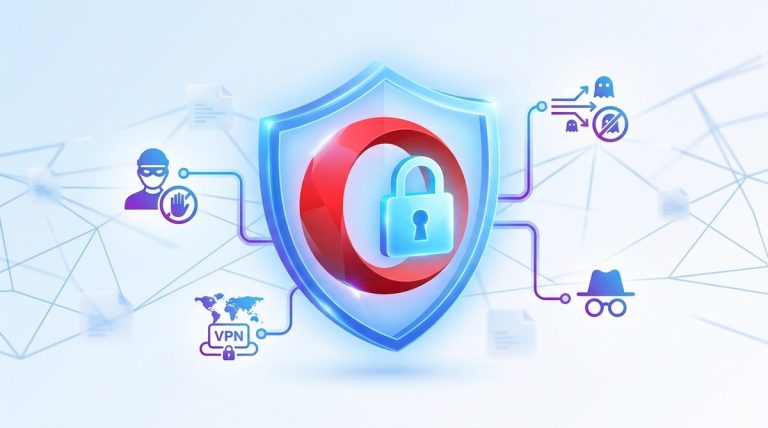
Opera is known for integrating privacy-focused tools directly into its browser. These include ad blockers, tracker blockers, VPN options, and controls over cookies and data collection. By understanding what each feature does, you can decide which ones to enable and customize.
Opera’s privacy options are designed to give you control over your browsing data. For example, the built-in VPN encrypts your traffic, hiding your IP address from websites. Tracker blockers prevent third-party scripts from following your activity, while cookie controls let you decide what data websites can store.
Getting familiar with these features is the first step to a secure browsing experience. Now, let’s look at how to adjust these settings for maximum privacy.
How to Access and Enable Privacy Settings in Opera
1. Open the Privacy and Security Menu
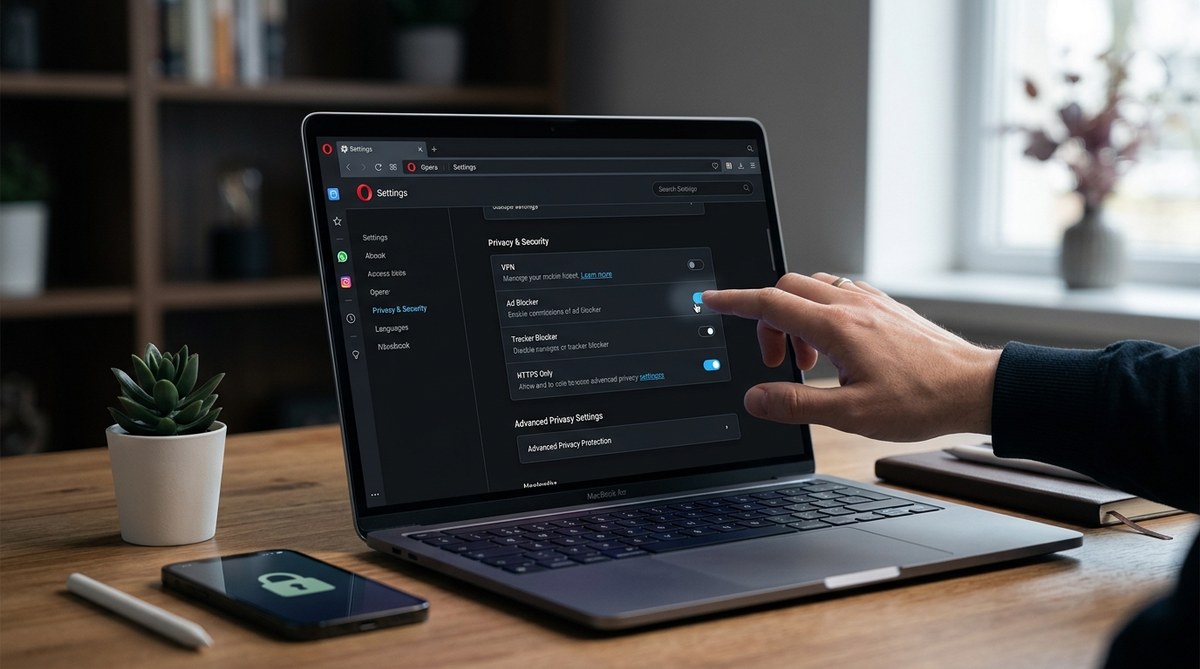
Start by launching Opera. To access privacy controls, click the menu icon in the top right corner. Select “Settings” from the dropdown menu. On the left sidebar, click on “Privacy & security.” This section houses most privacy-related options.
2. Enable the Built-in VPN
Opera offers a free, unlimited VPN service. To turn it on, toggle the switch labeled “VPN” at the top of the Privacy & security page. Once activated, a VPN icon appears in the address bar, showing that your traffic is encrypted.
3. Set Cookie Preferences
Cookies are small data files stored by websites. You can manage how Opera handles cookies by scrolling down to “Cookies and site data.” Choose “Block third-party cookies” to prevent trackers or “Allow all cookies” if you prefer convenience. For stricter privacy, select “Block all cookies” — but remember this may break some websites.
4. Manage Tracker and Ad Blocking
Opera’s built-in tracker blocker can be enabled to stop malicious scripts from following you online. Under “Privacy & security,” locate “Block trackers” and ensure it’s toggled on. Additionally, the browser’s ad blocker can be customized or turned off from the same menu.
5. Control Data Collection and Usage
Opera collects some data to improve performance but allows you to limit this. Look for options like “Help improve Opera” and disable any settings related to sending usage data or crash reports.
6. Use Private Browsing Mode for Sessions
For temporary privacy, use Opera’s private mode. Open a new private window by clicking the menu icon and selecting “New private window.” In this mode, browsing history, cookies, and site data are not saved after you close the window.
Fine-Tuning Privacy for Optimal Security
Customizing privacy settings is about balancing security with usability. Here are some additional tips:
- Activate the VPN before visiting sensitive sites. It encrypts your traffic and masks your IP.
- Restrict third-party cookies to reduce tracking across websites.
- Enable tracker blocking to prevent scripts from following your activity in real time.
- Disable or limit data sharing in settings that involve sending crash reports or usage statistics.
- Use private mode for confidential sessions, especially when accessing banking or personal accounts.
Practical steps for daily browsing:
- Always keep your browser updated to the latest version.
- Regularly review and adjust cookie and tracker settings.
- Turn on the VPN when on public Wi-Fi networks.
- Use strong, unique passwords for online accounts.
Common Mistakes to Avoid When Setting Privacy Options
| Mistake | Why it matters | How to avoid it |
|---|---|---|
| Leaving trackers enabled without review | Allows third-party scripts to follow you | Regularly check tracker blocker settings |
| Using the default cookie settings | May expose you to unnecessary tracking | Customize cookie options for stricter privacy |
| Not updating the browser | Security vulnerabilities remain | Enable automatic updates |
| Turning off VPN when visiting sensitive sites | Reduces encryption benefits | Make VPN activation part of your routine |
| Ignoring privacy prompts | Missing opportunities to enhance privacy | Review prompts and choose privacy-first options |
Expert Advice for a Smarter Privacy Approach
“Privacy is an ongoing process, not a one-time setup. Regularly review your browser settings and stay informed about new privacy features. Opera’s built-in tools make it easier to stay protected, but your awareness is key to maintaining security.”
Maintaining Your Privacy in Opera Over Time
Adjusting privacy settings is just the beginning. As you browse, stay vigilant about the websites you visit and the data you share. Regularly clear cookies and site data, especially after sensitive sessions. Consider installing additional privacy extensions if needed, but always verify their credibility.
Opera continues to improve its privacy features, so keep an eye out for updates. Engaging with privacy-conscious practices creates a safer browsing environment tailored to your needs.
Make Privacy a Priority in Your Browsing Routine
Taking control of your privacy in Opera doesn’t require complex technical skills. Just a few tweaks can substantially reduce your online footprint. Remember to review your settings periodically and stay informed about new features or updates.
By incorporating these practices into your daily routine, you enjoy a smoother, more private browsing experience. Protecting your data is an ongoing journey, and Opera provides the tools to help you stay ahead.
Final thoughts on boosting your Opera privacy
Adjusting your privacy settings in Opera is straightforward but powerful. It’s about making informed choices that suit your comfort level. Whether enabling the VPN, blocking trackers, or managing cookies, each step adds a layer of security.
Start with the basics, then explore advanced options as you become more comfortable. Privacy is about control, and Opera makes it easy to stay in charge of your data. Take these steps today, and browse with confidence tomorrow.