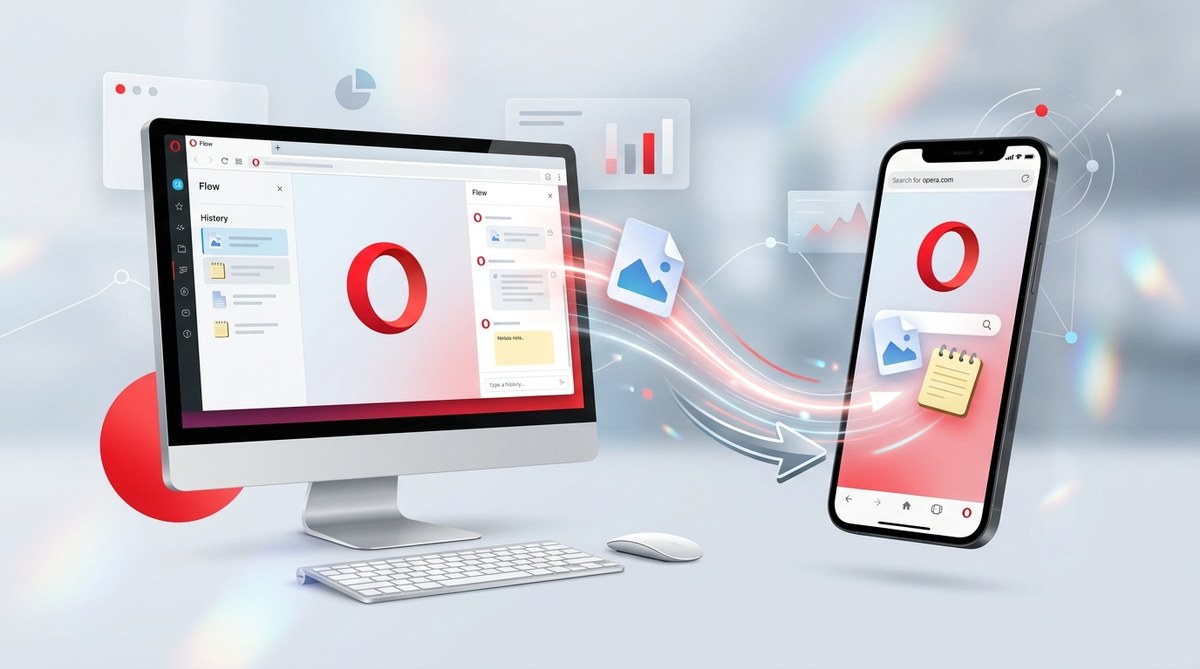
You are sitting on your couch with your phone, and you just found a perfect photo to use in a project. Your laptop is in the other room. Normally you would email it to yourself or open a messaging app. But that takes time and breaks your flow. What if your browser could handle that in one tap? Opera Flow does exactly that. It works inside Opera Browser on your computer and your mobile device. You get a private channel to send files, text notes, and links instantly. No cables. No third party apps. Just pure convenience.
Opera Flow creates a secure, encrypted connection between your desktop and mobile Opera browsers. You can send photos, documents, voice notes, and links in real time without leaving the browser. Setup takes under two minutes. Once active, it works like a private chat that lives inside your sidebar. No need for extra accounts or third party services.
What Is Opera Flow?
Opera Flow is a built in feature of Opera Browser that lets you transfer content between your devices. Think of it as a private messaging thread between your phone and your computer. It uses end to end encryption, so only you can see what you send. Unlike other file sharing tools, you do not need to install a separate app. The mobile version of Opera includes Flow in its main menu. On the desktop, you access it through the sidebar.
This feature was designed for people who work across multiple screens. You can grab a link on your phone and open it on your laptop later. You can take a voice note while walking and listen to it at your desk. The whole experience feels like a direct line between your devices.
How to Set Up Opera Flow on Desktop and Mobile
Setting up Opera Flow only takes a few steps. Follow this numbered guide to get started.
-
Install or update Opera Browser on both devices. Make sure you have the latest version of Opera on your desktop and on your phone. In 2026, both versions are stable and include Flow out of the box.
-
Open Opera Flow on your desktop. Click the Flow icon in the left sidebar. It looks like a small speech bubble with a lightning bolt. If you do not see it, open the sidebar menu and enable Flow from the list of tools.
-
Scan the QR code with your phone camera. The desktop will show a QR code. Open Opera on your phone, go to the menu (three dots), and select Flow. Point your phone at the QR code. The devices will pair automatically.
-
Confirm the pairing. After scanning, both screens show a confirmation. You can now send files and notes instantly.
That is all. Once paired, Flow stays connected as long as both devices are online. If you ever lose the connection, simply scan again. The pairing persists until you manually unlink.
Sending Files and Notes Between Devices
After setup, using Opera Flow is as simple as chatting with a friend. Here is how you perform the most common actions.
-
Send a file or photo. On desktop, drag a file into the Flow panel. On mobile, tap the plus icon and choose your file type. The file appears on the other device in seconds.
-
Send a note. Type a message in the text box at the bottom of Flow. It works like a chat. You can write reminders, shopping lists, or web addresses.
-
Send a link. Copy a URL and paste it into Flow. The other device gets a preview with a clickable link.
-
Record a voice note. On mobile, tap the microphone icon. Hold and speak. Release to send. Desktop users will see a playable audio file.
All transfers happen over an encrypted channel. Opera does not store your content on its servers. The data passes through a temporary relay and is deleted after delivery.
Opera Flow Tips and Tricks
To get the most out of Opera Flow, use these practical strategies.
- Keep your browser updated. New versions of Opera in 2026 regularly improve Flow reliability.
- Use the sidebar button to pin Flow for one click access. Learn how to customize your Opera Browser sidebar for even faster switching.
- Send file drafts to yourself. Write an idea on your phone, finish it on your desktop.
- Use voice notes for hands free reminders while driving or cooking.
- Send a photo you want to edit later. Flow preserves original quality for standard image types.
- If you lose internet, Flow will queue your messages and send them once you reconnect.
Common Mistakes to Avoid
Even a simple tool can trip you up. Here is a table of frequent errors and how to fix them.
| Mistake | What happens | How to fix it |
|---|---|---|
| Scanning the QR code with the wrong camera app | Pairing fails | Use the camera built into the Opera mobile app, not your phone’s default camera |
| Sending a file larger than 100 MB | File does not send | Compress the file or use a separate service for very large transfers |
| Closing the Flow panel without sending | Drafts are lost | Opera Flow does not save unsent messages; press send before closing |
| Unlinking devices by accident | Flow stops working | Rescan the QR code from the desktop to re-pair |
| Using an outdated Opera version | Flow may not appear | Update Opera to the latest version from 2026 |
Tip: Opera Flow uses end to end encryption by default. That means your messages are safe even if someone intercepts the data. For an extra layer of privacy, combine Flow with Opera’s built in VPN. Check our guide on how to use Opera’s built-in VPN to keep your entire browsing session secure.
Optimizing Your Workflow with Opera Flow
Opera Flow fits naturally into a larger productivity setup. You can pair it with other Opera features to save time.
Use the sidebar to keep Flow open while you browse. That way you can send a link without leaving your current page. If you use multiple devices regularly, make sure to sync your Opera browser across devices so your bookmarks and passwords move with you.
For frequent file senders, set up a keyboard shortcut to open Flow. On desktop, go to Settings > Advanced > Shortcuts and assign a combination like Ctrl+Shift+F. That lets you trigger Flow without reaching for the mouse.
Getting the Most Out of Opera Flow in 2026
Opera Flow is not a flashy feature. It is a quiet workhorse that solves a daily annoyance. Instead of fumbling with email or messaging apps, you get a direct line between your devices. It works on any platform where Opera runs: Windows, macOS, Linux, Android, and iOS.
Try this: next time you need to share a file, open Flow instead of a third party tool. You will see how much faster it is. The connection stays live in your sidebar. No extra logins. No waiting. Just send and go.
Opera Flow puts your files where you need them, when you need them. Set it up today and see how it changes your multi device routine.