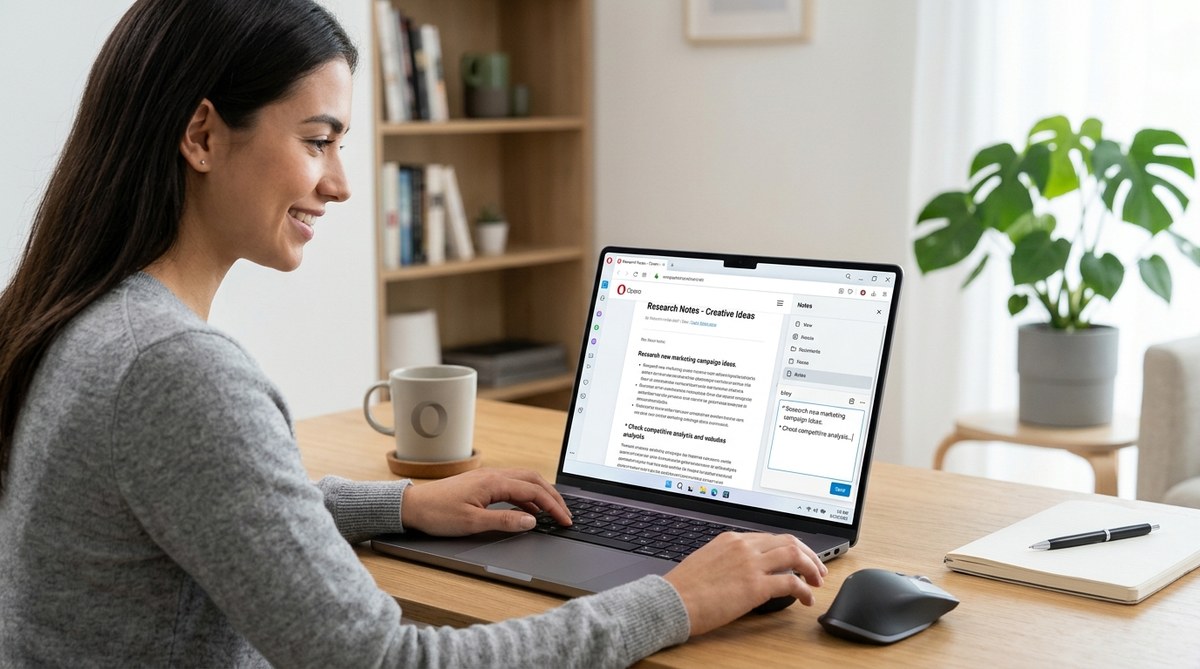
You are researching a term paper on sustainable agriculture. You find a perfect statistic in a blog post, then you open a blank text file to save it. Then you switch back to the browser. Then you type. Then you switch back to the article. This back-and-forth breaks your rhythm and costs you time.
The Opera browser notes tool fixes that. It lives inside your browser, so you never need to leave the page you are reading. You can highlight text, type your own thoughts, or paste a link. Everything stays in one place, synced across your devices. This guide shows you exactly how to use it, when to use it, and how to avoid common mistakes.
The Opera browser notes tool is a built-in sidebar feature that lets you capture and organize text snippets, URLs, and personal ideas without opening another app. You can sync notes across devices using your Opera account, format them with basic styling, and pin important notes for instant access. It is ideal for students, researchers, and anyone who wants to stay in the flow while browsing.
Finding the Notes Panel in Your Sidebar
The notes tool lives in the Opera sidebar. That is the vertical strip of icons on the left side of your browser window. If you do not see the sidebar, press Ctrl + Shift + E on Windows or Cmd + Shift + E on Mac to toggle it on.
Once the sidebar is visible, look for the icon that looks like a small notepad or a piece of paper with a pencil. Hover over each icon if you are unsure. The tooltip will say “Notes.” Click it, and the notes panel opens.
If you have never used it before, the panel will be empty. That changes fast.
Creating Your First Note
The interface is simple. There is a text field at the top of the panel and a list of your saved notes below. Here is how to add your first note:
- Click inside the text field that says “Take a note…”
- Type your text. You can paste a URL, a quote, or a full sentence.
- Press Enter on your keyboard.
Your note appears in the list below. By default, it saves the current date and time so you know when you captured it. You can click on any note later to edit or delete it.
That is the basic flow. But the real power comes from how you use it during real research sessions.
Using Notes to Capture Research Without Leaving the Page
Imagine you are reading a long article about renewable energy policy. You see three key statistics you want to save. Instead of copying them into a separate document, you can keep the notes panel open on the side.
Select the text you want in the article. Right-click and choose “Copy.” Then click into the notes panel and paste. Or use the keyboard shortcut Ctrl + V (Windows) or Cmd + V (Mac). The note saves instantly.
You can also type your own reactions. Maybe you have an idea for how to apply that statistic to your own project. Type it directly into the notes panel. The note gets a timestamp, so you can track when the idea came to you.
This method works well for:
- Saving quotations for a school paper
- Collecting product links while comparison shopping
- Jotting down questions that come up during reading
- Writing a summary of a long page before you close it
Formatting and Organizing Your Notes
Basic formatting is available. When you click on a saved note to edit it, a small toolbar appears. You can make text bold, italic, or add a hyperlink. You can also create bullet lists inside a single note by typing a hyphen at the start of a line.
Organizing happens through pinning. Hover over any note in the list. A small pin icon appears. Click it, and that note jumps to the top of the panel. Pinned notes stay there even after you add new ones. This is useful for important reminders or active project notes.
There is no folder system inside the notes tool. If you need heavy organization, consider using Opera’s Flow feature to send notes to another device. You can read more about that in our guide on how to use Opera’s Flow feature to send files and notes between devices.
Syncing Notes Across Your Devices
Your notes sync automatically if you are signed into your Opera account. This means the note you save on your desktop computer appears on your laptop later that day. To check your sync status, open the Opera menu, go to Settings, and look for the “Sync” section. Make sure the toggle for “Notes” is turned on.
Syncing is especially helpful for students who move between a library computer and a home laptop. You can start your research in one place and finish it in another without emailing files to yourself.
Common Mistakes and How to Avoid Them
The notes tool is straightforward, but a few habits can reduce its usefulness. Here is a table of common mistakes and the better approach.
| Mistake | Why It Hurts | Better Approach |
|---|---|---|
| Saving a note without context | You forget why you saved it later | Include the page title or a short description |
| Never deleting old notes | The list gets cluttered and hard to scan | Review and delete notes once a week |
| Relying on notes for long documents | The editor is not built for long writing | Use notes for snippets; move longer drafts to a dedicated app |
| Ignoring timestamps | You lose track of when you found something | Leave the automatic timestamp; do not delete it |
| Not pinning active notes | Important notes get buried under new ones | Pin any note you need within the next 24 hours |
When to Use Notes vs. Bookmarks vs. Flow
Opera gives you three ways to save things. Each has a different purpose.
- Bookmarks are for saving entire pages you want to revisit. Use them for articles you plan to read later or reference sites.
- Notes are for saving specific pieces of text, your own ideas, or a mix of both. Use them when you need to capture content from a page, not just the page address.
- Flow is for sending files or notes between your own devices quickly. It works like a private messenger. Use it when you need to transfer a note to your phone or another computer right now.
If you want to learn more about organizing your saved pages, check out our guide on how to master tab management in Opera browser for effortless browsing. It pairs well with the notes tool for a complete research workflow.
A Sample Workflow for a Research Project
Let us walk through a real example. You are writing a paper on urban farming. You open an article about rooftop gardens in Chicago. You keep the notes panel open on the right side of your screen.
While reading, you see a statistic: “Rooftop gardens can reduce a building’s energy costs by up to 15 percent.” You select it, copy it, and paste it into the notes panel. You add a line below it: “Check if this study controlled for building age.”
You scroll further and find a quote from a city planner. You copy that too and paste it into a new note. You write a quick thought: “This quote works for the introduction.”
When you finish the article, you have three notes. The first two are pinned because you need them tomorrow. The third is a reminder to find a second source. You close the article and move on.
Later that evening, you open your laptop at home. The notes are already there because sync is on. You open each note, copy the text into your paper draft, and delete the notes you have used.
Expert advice: Keep your notes panel visible while you read. The less you switch windows, the more you retain. A 2023 study from the University of Central Florida found that task switching can reduce productivity by up to 40 percent. The notes tool eliminates one common switch.
Customizing the Sidebar for Faster Access
You can rearrange the sidebar icons to put Notes where you want it. Right-click on the sidebar and choose “Customize sidebar.” Drag the Notes icon up or down. If you use Notes constantly, put it near the top so you can click it without thinking.
You can also use a keyboard shortcut to open the notes panel directly. Press Ctrl + Shift + E (Windows) or Cmd + Shift + E (Mac) to toggle the sidebar. If Notes was the last panel you used, it opens automatically. If not, click the Notes icon after the sidebar appears.
For more ways to tailor Opera to your workflow, see our guide on how to customize your Opera browser sidebar for quick access to tools.
Making the Notes Tool Part of Your Daily Routine
The notes tool is most useful when it becomes a habit. Here are three ways to build it into your day:
- Start your session by pinning a note. Before you begin browsing, open the notes panel and pin a note that says “Today’s goal.” Write one sentence about what you want to accomplish.
- Use it for quick reminders. If you remember something you need to do later, type it into a note instead of opening your phone or a separate to-do list.
- End your session by reviewing notes. Before you close your browser, scroll through your notes. Delete anything you no longer need. Copy anything you need for a project into your main document.
How the Notes Tool Compares to Other Built-in Features
Opera includes several tools that help with productivity. The notes tool is the simplest. It does not have folders, tags, or search. That is by design. It is meant for capture, not organization. If you need to organize your research heavily, combine notes with Opera’s workspaces.
Workspaces let you group tabs by project. You can keep one workspace for research, one for work, and one for personal browsing. Inside your research workspace, use the notes tool to capture snippets. This keeps everything related to a single project in one browser environment. Learn more in our guide on how to master Opera’s workspaces to organize tabs like a pro.
Putting the Notes Tool to Work for You
The Opera browser notes tool is not flashy. It does not have artificial intelligence or complex tagging. What it does is remove friction. You see something useful, you save it. You have an idea, you type it. You never leave the page. That simplicity makes it powerful.
Start using it today. Open the sidebar, click the Notes icon, and save one thing. Then save another. Within a week, the habit will feel automatic. Your research will flow more smoothly, and you will spend less time chasing down half-remembered facts. That is the whole point.