Your bookmark bar is probably a mess. You save a link, promise yourself you will sort it later, and then you never do. Months go by. The list grows. Finding that one recipe, that one tax document, or that one blog post becomes a chore. You end up searching for it on Google again instead of just clicking your saved link. That defeats the whole purpose of a bookmark.
The good news is that Opera includes a set of tools that can turn your chaotic bookmark collection into a personal library you can navigate in seconds. You just need a system. Here is how to organize Opera bookmarks so you can grab any link the moment you need it.
A clean bookmark system saves you time every single day. Start by deleting everything you no longer need. Then build a folder structure that mirrors your real life: work, personal projects, and reference. Use the sidebar for drag-and-drop sorting. Name your bookmarks with search in mind. Finally, sync your library across devices so you never lose a link again. This guide walks through each step.
Start with a ruthless cleanup
Before you build a new system, you have to tear down the old one. Open your Bookmarks Manager in Opera. You can get there by pressing Ctrl+Shift+B on Windows or Cmd+Shift+B on Mac, or by clicking the Opera menu and selecting “Bookmarks” then “Show all bookmarks.”
Look at every link and ask yourself one question: “Will I visit this again in the next 30 days?” If the answer is no, delete it. Be honest. That article about tax deductions from 2022 is probably outdated. That online store you liked once is not worth keeping.
After you remove the dead weight, look for duplicates. Opera does not have a built-in duplicate finder, but you can spot them by scanning the list. If you see the same URL twice, keep the one with the better name and toss the other.
This step is painful because it forces you to admit you are not going to read half of what you saved. Do it anyway. A lean bookmark list is a usable bookmark list.
Build a folder system that mirrors your life
Folders are the backbone of any system that helps you organize Opera bookmarks. Without them, everything sits in one flat list. With them, you can drill down to exactly what you need.
Start with three top-level folders:
- Work for anything job-related: project references, client sites, industry news.
- Personal for everything else: recipes, hobby forums, travel planning.
- Reference for tools you use often but do not fit neatly elsewhere: calculators, converters, documentation.
Inside each top-level folder, create subfolders only when a category has more than five bookmarks. For example, your Work folder might contain subfolders named “Clients,” “Tools,” and “Learning.” Your Personal folder might contain “Recipes,” “Fitness,” and “Finance.”
Do not go overboard. If you have only three bookmarks about cooking, do not create a Cooking folder. Just leave them in Personal. Folders are useful only when they group enough items to make navigation faster.
Here is a example of what a clean folder structure looks like:
Opera Bookmarks
|-- Work
|   |-- Clients
|   |-- Tools
|   |-- Learning
|-- Personal
|   |-- Recipes
|   |-- Fitness
|   |-- Finance
|-- Reference
You can create a new folder inside the Bookmarks Manager by clicking the folder icon or right-clicking in the sidebar. Drag and drop your bookmarks into the right folders. This takes ten minutes and saves you hundreds of clicks over the next year.
Use the sidebar for drag-and-drop sorting
The Bookmarks Manager is great for bulk editing, but for daily sorting, the sidebar is faster. Open the sidebar by clicking the sidebar icon on the left edge of the Opera window. Then click the bookmark icon (it looks like a ribbon). This shows your full bookmark tree.
Now you can drag a bookmark from your bar or from the list and drop it directly into a folder. This is the fastest way to sort a new bookmark you just saved. Instead of opening the manager, you simply drag the link into its proper home.
If you keep the sidebar open while you browse, you can save and sort in one motion. Find a page you like? Drag the URL from the address bar into the correct folder in the sidebar. Done. No extra clicks.
Name bookmarks for search, not for display
Most people save a bookmark with the default title. That is a mistake. Default titles are often long, full of SEO keywords, and useless for searching later.
When you save a bookmark, rename it to something you would actually type into a search bar. For example, instead of saving “The 7 Best Air Fryer Recipes for Busy Weeknights | Food Blog,” rename it to “Air fryer recipes.” That is what you will search for when you are hungry.
This trick works especially well if you use Opera’s bookmark search feature. Press Ctrl+B to open the bookmark search and start typing. If your bookmarks have clean names, you will find what you need in two seconds.
Here is a table that shows the difference between bad and good bookmark names:
| Bad bookmark name | Good bookmark name |
|---|---|
| 10 Ways to Save Money on Groceries Without Coupons in 2026 | Grocery savings tips |
| How to Change a Tire Step by Step Guide for Beginners | Change a tire |
| The Ultimate Guide to Planting Tomatoes in Small Spaces | Plant tomatoes small space |
| Yoga for Back Pain: 15 Minute Routine for Office Workers | Yoga back pain 15 min |
Keep names short. Use keywords you would actually search for. This one habit makes the biggest difference when you need to organize Opera bookmarks for real speed.
Sync your bookmarks across devices
A bookmark system is only useful if it follows you everywhere. Opera offers a sync feature that ties your bookmarks, passwords, and settings to your Opera account.
To turn it on, click the Opera menu and go to “Settings.” Look for the “Sync” section. Sign in with your Opera account or create one if you do not have it. Then toggle on “Bookmarks.” Now every bookmark you save on your desktop appears on your laptop, phone, or tablet.
This is critical for professionals who switch between devices during the day. You might save a link on your work computer, then need it later on your personal laptop. With sync, it is already there.
If you ever lose your bookmarks due to a crash or a mistake, you can restore them from the sync backup. This is a safety net that every power user should enable. For more details on keeping your data safe, check out our guide on mastering Opera browser privacy settings for safer browsing.
Avoid these common bookmark mistakes
Even with a good system, it is easy to slip back into bad habits. Here are the mistakes that destroy a clean bookmark library, and how to avoid them:
- Saving every link you find. Be selective. If it is not useful today or tomorrow, do not save it.
- Using too many folders. If you have folders with only one bookmark inside, flatten them.
- Ignoring the sidebar. The sidebar is the fastest way to sort. Use it.
- Forgetting to clean up. Set a reminder every three months to delete dead links.
Expert advice: Treat your bookmark bar like a kitchen counter. You only put the tools you use every day on the counter. Everything else goes in a drawer. In Opera, that means only your top five most-used bookmarks should sit on the bookmark bar. Everything else belongs in folders.
How to organize Opera bookmarks with tags and speed dial
Opera includes two features that most people overlook: tags and Speed Dial.
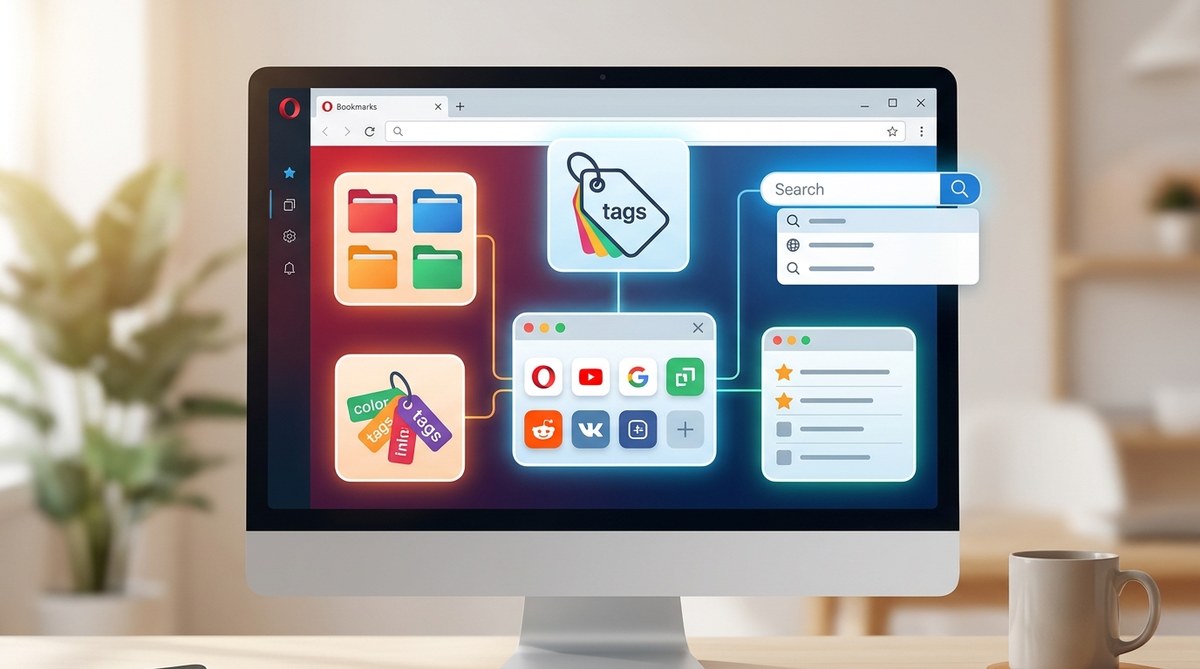
Tags are labels you can attach to bookmarks. They work like folders but a bookmark can have multiple tags. For example, a recipe for chicken tacos could have the tags “Recipes,” “Mexican food,” and “Dinner.” When you search for any of those terms, the bookmark appears.
To add a tag, right-click a bookmark in the manager and choose “Edit.” Type your tags in the tags field, separated by commas. This is more flexible than folders because a single bookmark can live in multiple categories.
Speed Dial is the grid of thumbnails you see when you open a new tab. You can pin your most important bookmarks there. Think of Speed Dial as your home base. Keep it limited to the pages you open every morning: email, calendar, project management tool, news site.
Do not clutter Speed Dial with random links. Keep it tight. If you need to change your Speed Dial layout, read our guide on how to customize your Opera browser sidebar for quick access to tools.
Set a quarterly bookmark audit
A system is only as good as its maintenance. Schedule a 15-minute bookmark audit every three months. Pick a date, put it on your calendar, and stick to it.
During the audit, do three things:
- Delete bookmarks you have not used since the last audit.
- Rename bookmarks that have vague titles.
- Merge small folders into larger ones if they have fewer than three items.
This keeps your library lean. It also forces you to confront the fact that you probably do not need that article about “10 ways to boost your productivity” that you saved two years ago.
If you want to take your browser performance further, check out our article on top performance tweaks to speed up your Opera browser experience. A fast browser paired with organized bookmarks is a productivity powerhouse.
Your bookmark system, your rules
The best system is the one you actually use. You do not need to follow every tip in this guide perfectly. Pick the two or three that solve your biggest pain points. Maybe you need to clean up duplicates. Maybe you need to start using the sidebar. Maybe you need better folder names.
Start small. Clean out one folder tonight. Rename five bookmarks tomorrow. Sync your account this weekend. Each small step moves you closer to a bookmark library that works for you, not against you.
Your bookmarks are a collection of the things you found interesting, useful, or inspiring. Treat them with respect. Give them a home. And when you need them, they will be there in a single click.