Opera browser offers a suite of advanced features designed for tech-savvy users who want more control over their browsing. Whether you are looking to prioritize privacy, streamline your workflow, or personalize your environment, Opera’s tools make it possible. With options like a built-in VPN, customizable sidebars, and innovative tab management, you can tailor your web experience to fit your needs perfectly. Let’s explore some of the most powerful features Opera offers and how they can elevate your everyday browsing.
Opera’s suite of features, including integrated VPN, customizable interfaces, and innovative tab management tools, empowers users to create a faster, safer, and more personalized browsing environment. Mastering these tools can significantly enhance your online experience and productivity.
Unlocking the Potential of Opera’s Built-in VPN and Privacy Features
Opera’s integrated virtual private network (VPN) is a game-changer for users who prioritize privacy and security. Unlike many browsers that require third-party extensions, Opera’s VPN is built into the browser itself, making it easy to activate whenever you need it.
How to enable Opera’s VPN
- Open Opera and click on the menu icon in the top-left corner.
- Go to Settings (or Preferences on Mac).
- Scroll down to the Privacy & security section.
- Toggle the VPN switch to turn it on.
- You can now select the virtual location you prefer from the VPN badge in the address bar.
This feature masks your IP address and encrypts your data, offering a safer browsing experience, especially on public Wi-Fi networks. Additionally, Opera’s VPN does not log your activity, which adds an extra layer of privacy. For those wanting to learn more about safeguarding their browsing, the Mastering Opera Browser Privacy Settings for Safer Browsing guide provides detailed tips.
Practical uses of Opera’s VPN
- Bypass geo-restrictions for streaming services.
- Secure your connection on public networks.
- Maintain privacy when researching sensitive topics.
Mastering Tab Management with Opera’s Innovative Features
Tab overload can make browsing chaotic. Opera addresses this with features designed to organize tabs efficiently.
Key tab management features:
- Tab Islands: Group related tabs into islands for easier access.
- Tab Emojis: Assign emojis to tabs for quick identification.
- Workspaces: Create dedicated workspaces for different projects or interests.
- Search in Tabs: Find specific tabs instantly by searching through your open tabs.
How to set up Tab Islands and workspaces
- Right-click on a tab and select “Add to island” to create a Tab Island.
- To create a workspace, click the sidebar icon and select “Workspaces”.
- Drag and drop tabs into different workspaces according to your needs.
- Use the search in tabs feature to locate any tab quickly.
These tools help keep your browsing environment clean and organized. They’re especially useful for users juggling multiple projects or research topics.
Scanning for efficiency
- Use Tab Islands to separate work and leisure.
- Assign emojis to prioritize or identify tabs at a glance.
- Create workspaces for different workflows to stay focused.
Enhancing Workflow with Opera’s Sidebar and Custom Tools
Opera’s sidebar is a versatile space for quick access to tools, extensions, and services.
Customizing your sidebar
- Click the sidebar button on the left.
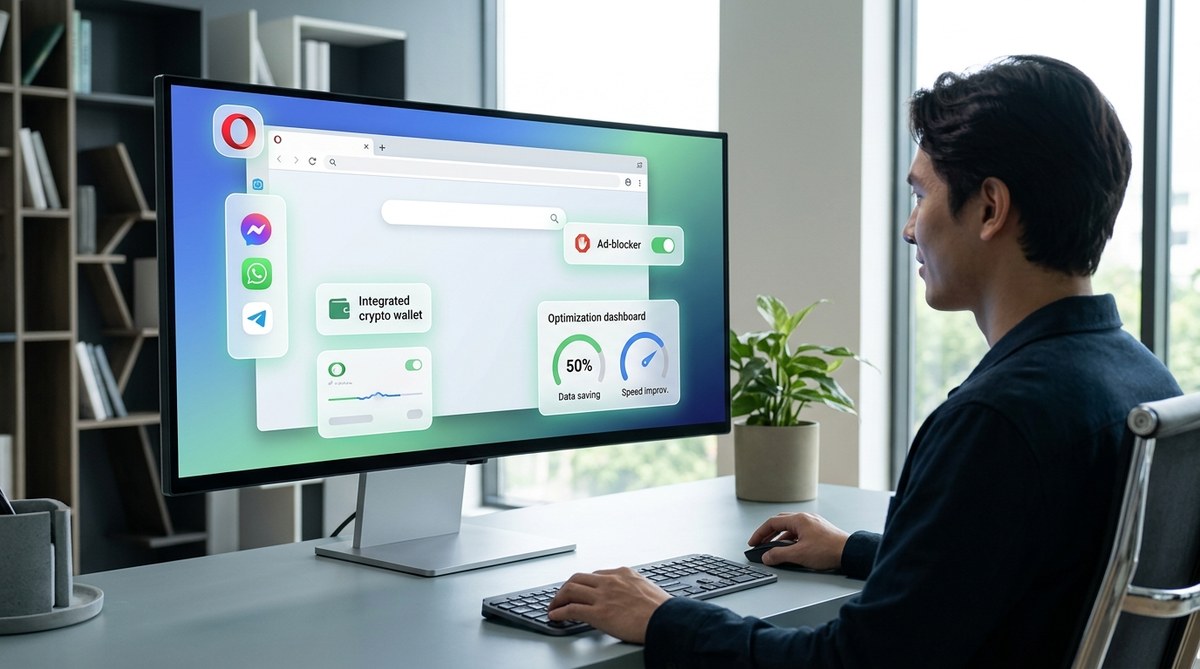
- Add or remove icons for services like WhatsApp, Telegram, or Messenger.
- Integrate favorite tools or extensions for faster access.
Useful sidebar features
- Messenger integrations: Chat directly within the browser.
- Flow file sharing: Send files seamlessly between devices.
- Notes and screenshots: Quickly jot down ideas or capture web content.
Practical steps to optimize your sidebar
- Pin your most-used messaging apps.
- Add a note-taking extension for quick ideas.
- Enable Flow for effortless file sharing across devices.
Personalizing Your Browsing Experience
Opera allows for extensive customization to match your style and workflow.
Themes and appearance
- Choose from a variety of themes or create your own.
- Adjust the start page speed dial for quick links.
- Customize the toolbar to include your favorite buttons.
Extensions and integrations
While Opera supports extensions from the Chrome Web Store, you can also use built-in features for added convenience.
- Install extensions for ad blocking, password management, or productivity.
- Use Opera’s built-in screenshot tool for capturing web content.
- Enable translation features to read pages in different languages.
How to tweak settings for your needs
- Access Settings > Appearance.
- Choose themes, customize the start page, or change toolbar options.
- Visit the Extensions menu to browse or add new tools.
Advanced Features to Power Up Your Browsing
Opera offers a range of tools for developers, power users, and those who want to push the limits.
Developer tools
- Access via the menu or by pressing Ctrl+Shift+I.
- Use for inspecting elements, debugging, or testing websites.
Experimental features
- Activate in Settings under “Browser experiments”.
- Test new ideas before they become standard.
Techniques to optimize performance
| Technique | How to Implement | Common Mistakes |
|---|---|---|
| Enable hardware acceleration | Settings > Advanced > System > Use hardware acceleration | Forgetting to restart after changes |
| Clear cache regularly | Settings > Privacy & security > Clear browsing data | Clearing cookies unintentionally |
| Use power saving mode | Settings > Browser > Power saving | Overusing power saving mode, impacting performance |
“Getting familiar with Opera’s developer tools can significantly improve your ability to troubleshoot and customize your browsing experience,” advises web developer Jane Doe.
Harnessing Opera’s Media and Content Features
Opera isn’t just about browsing faster—it’s also about engaging with content easily.
Built-in media player
- Play music or videos directly within the browser.
- Control playback from the sidebar.
Video pop-out
- Watch videos in a separate floating window.
- Activate via the right-click menu on videos.
Translation and reading tools
- Translate entire pages with a click.
- Use reader mode to simplify cluttered pages.
Final Thoughts: Make Opera Work for You
Opera’s suite of features is designed to give you more control, privacy, and customization options. By mastering tools like the VPN, tab management, and sidebar integrations, you can craft a browsing experience that’s faster, safer, and uniquely yours. Take the time to explore these features and implement the ones that suit your workflow best. Your web experience can be more efficient and enjoyable when you harness the full power of Opera.
Whether you’re managing multiple projects, protecting your privacy, or customizing your interface, Opera’s features are built to adapt to your needs. Start experimenting today and see how these tools can transform your browsing journey.