Looking for ways to protect your online privacy while using Opera? The browser packs some hidden features that can significantly boost your security without requiring complex setups. These features can help you browse more anonymously, control data sharing, and keep your activity private from trackers and third parties. Whether you’re a privacy veteran or just want to tighten the security of your online presence, unlocking Opera’s hidden tools offers a simple, effective way to browse with confidence.
Opera browser contains numerous hidden features designed to improve your privacy. From enabling private browsing modes to customizing security settings, these tools help you control what data is shared and how your activity is tracked. Activating and configuring these features allows tech-savvy users to create a browsing environment tailored to their privacy needs, making Opera a powerful choice for those who value online security.
Unlocking Opera’s secret privacy features
Opera is renowned for its user-friendly interface and built-in privacy tools. However, many of its most powerful privacy-enhancing features are hidden behind menus, settings, or require some manual activation. Let’s uncover some of these lesser-known options that can elevate your browsing privacy.
How to activate private browsing mode effectively
Opera’s private window offers more than just a temporary incognito session. When used correctly, it minimizes data traces such as cookies and history. To make it even more secure:
- Open a new private window by clicking the menu icon and selecting “New private window” or pressing Ctrl+Shift+N.
- Adjust privacy settings within the private window by navigating to Settings > Privacy & security.
- Enable “Block third-party cookies” to prevent trackers from following your activity across sites.
- Use the “Clear browsing data on exit” feature to automatically delete your history, cookies, and cache each time you close the window.
This simple technique ensures your activity stays private during each session, reducing the chances of data leakage or targeted ads.
Tweak hidden security settings for maximum privacy
Opera offers several hidden options that can be customized through its experimental features. These are not always visible by default but can be enabled via the opera://flags page. Be cautious when modifying these settings but know that they can boost privacy:
- Disable WebRTC: WebRTC can leak your IP address even when using a VPN. To prevent this, search for “WebRTC” on
opera://flagsand disable it. - Block cryptomining scripts: Some sites run cryptojacking scripts without your consent. You can enable the “Crypto Mining Blocker” flag for added protection.
- Limit telemetry data: Opera collects some usage data. To minimize this, visit Settings > Browser > Privacy and disable “Allow Opera to send usage statistics.”
Making these tweaks helps prevent unwanted data collection and enhances your overall security footprint.
Use the built-in VPN to surf anonymously
Opera’s free VPN service is a standout feature for privacy-minded users. It encrypts your traffic and masks your IP address, making it harder for trackers to identify your location or monitor your activity. To activate and configure it:
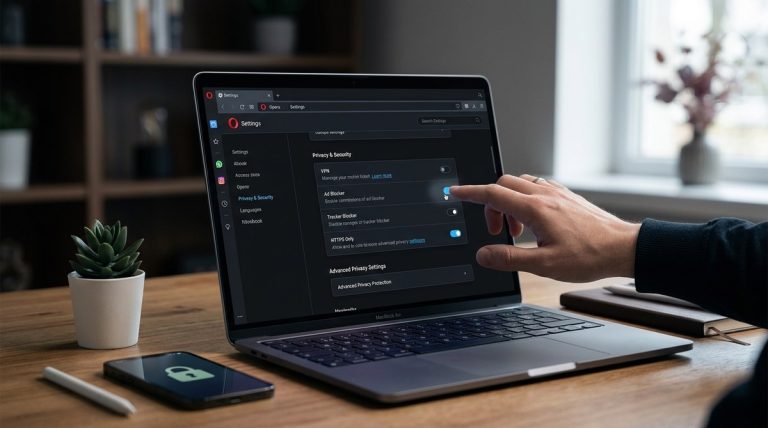
- Go to Settings > Privacy & security.
- Turn on the “VPN” toggle.
- Click on the VPN badge in the address bar to select a virtual location or enable “Always-on VPN” for continuous protection.
- Be aware that Opera’s VPN is a proxy service, not a full VPN. It’s great for hiding your IP but does not encrypt all your traffic outside the browser.
Using Opera’s VPN alongside other privacy measures creates a layered defense against online tracking.
Manage and customize data sharing options
Opera provides several ways to control what data is shared with websites and third parties:
- Disable location access: Prevent sites from tracking your geolocation by navigating to Settings > Privacy & security > Site Settings > Location and toggling it off.
- Block pop-ups and redirects: Under Settings > Privacy & security > Site Settings > Pop-ups and redirects, turn this off.
- Control camera and microphone access: Manage permissions under Settings > Privacy & security > Site Settings > Camera and Microphone.
Regularly reviewing and adjusting these settings ensures you do not accidentally reveal sensitive information.
Use hidden flags to access advanced privacy controls
Opera’s opera://flags page hosts experimental features that are not available through normal settings. Here are some that improve privacy:
| Technique | How to Enable | Potential Mistake |
|---|---|---|
| Disable WebRTC | Search for “WebRTC” and disable it | Might break some media features |
| Enable strict site isolation | Search for “Site isolation” and turn it on | Might impact performance |
| Block automatic downloads | Search “Automatic downloads” and disable | Could interfere with some downloads |
Expert Tip: Always back up your settings before modifying flags and restart Opera after changes to ensure they take effect.
Clearing data and managing cookies effectively
Regularly deleting browsing data prevents accumulation of trackers and cached info. Opera allows you to:
- Manually clear browsing data via
opera://history> “Clear browsing data.” - Set Opera to clear data automatically on exit (Settings > Privacy & security > Clear browsing data on exit).
- Manage cookie settings to block third-party cookies by default.
Using these controls reduces the risk of your activity being recorded long-term.
Additional privacy tips for power users
- Disable push notifications: Stop websites from sending unwanted alerts through Settings > Privacy & security > Site Settings > Notifications.
- Use extensions wisely: Choose privacy-focused extensions from reputable sources. Avoid unnecessary permissions.
- Regularly update Opera: Keep your browser up to date to benefit from the latest security patches.
Keeping your digital footprint small
Opera’s hidden features provide powerful tools to customize your privacy. By actively managing settings, enabling the VPN, and tweaking experimental options, you can create a browsing environment tailored for your needs. Remember, privacy isn’t a one-time setup. Regular review and adjustment are key to staying protected.
How to make privacy a habit in Opera
Take a few moments each week to review your privacy settings. Adjust your VPN, clear browsing data, and disable features that no longer serve your needs. With these simple steps, you harness Opera’s full potential for safe, private browsing.
A warm reminder to stay secure online
Privacy is an ongoing journey, not a destination. Opera’s hidden features are there to help you stay one step ahead. Experiment with these options, find what works best for you, and enjoy a safer browsing experience every day. Your online activity should be your own—control it with confidence.