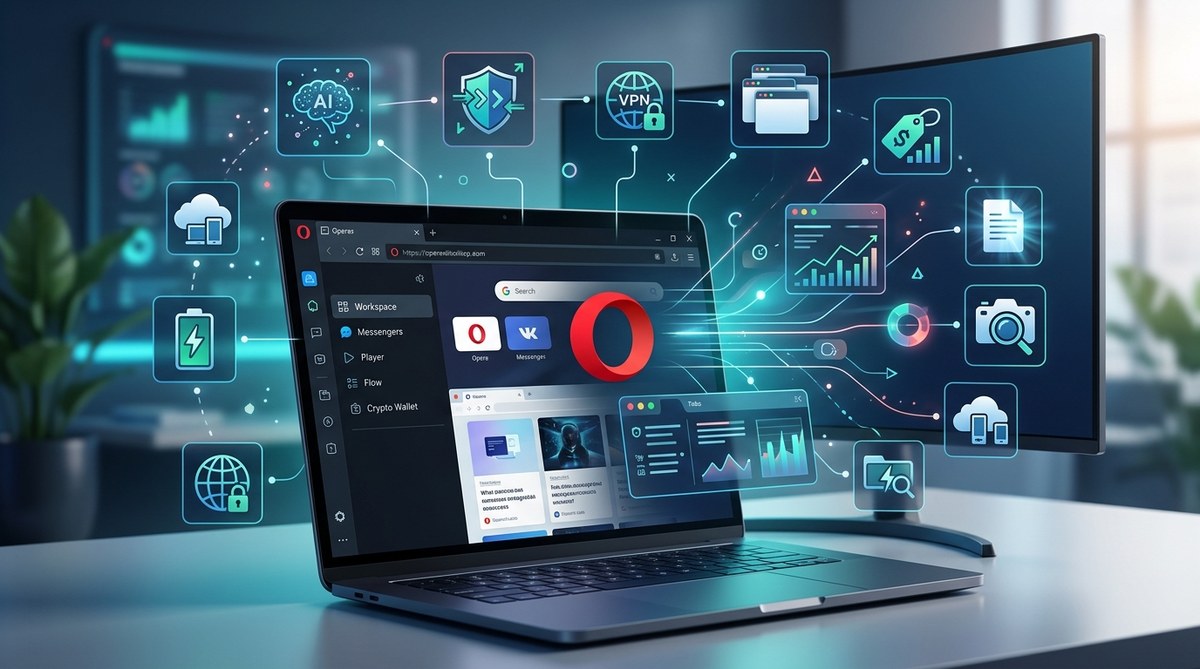
You already know Opera is fast and includes a free VPN. But did you know there are tools hiding just beneath the surface that can change how you browse every day? These aren’t the obvious settings everyone talks about. They are the ones you might never notice unless someone points them out. In 2026, Opera has refined many of these under-the-radar capabilities to make your online life smoother, quieter, and more private. Whether you want to skip video ads, keep a chat app in the sidebar, or test future features before they launch, these hidden gems are worth your time. Let’s walk through ten of the best Opera browser hidden features you should be using right now.
Opera contains several powerful features that aren’t visible by default. This article reveals ten of the most useful hidden tools, including Early Bird experimental mode, video ad skipping, translucent picture-in-picture, sidebar messengers, split screen, volume booster, enhanced privacy settings, AI disabling, advanced keyboard shortcuts, and a built-in screenshot tool. Each one is simple to activate and can save you time, protect your privacy, or make multitasking easier. Give them a try to get more from your browser.
Use Early Bird to Test Future Features First
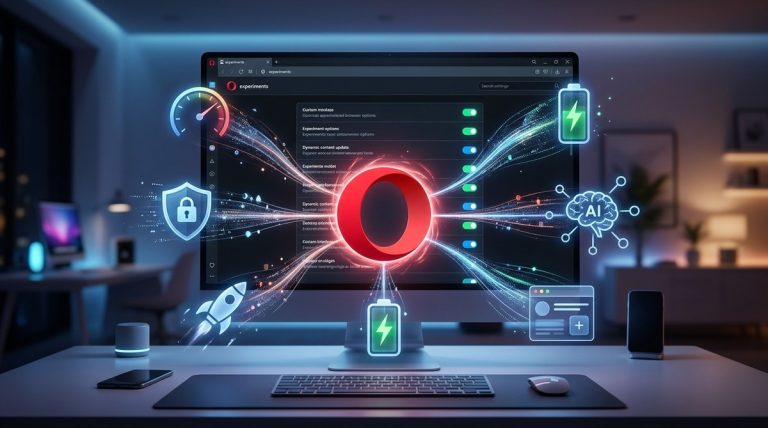
Opera sometimes releases experimental capabilities that aren’t ready for the main channel. With Early Bird, you can opt in to try these before anyone else. This is great for tech enthusiasts who want a sneak peek at what’s coming.
To turn it on:
1. Open Opera and type opera://flags in the address bar.
2. Search for “Early Bird” in the flags list.
3. Enable the flag and restart the browser.
Once enabled, you’ll see a small chick icon in the address bar. Click it to access a menu of upcoming experiments. Some of these eventually become standard features, while others remain as optional extras. For example, in early 2026, Opera tested a tab group sharing feature through Early Bird that later rolled out to everyone. If you like being on the leading edge, this hidden tool is a no-brainer.
Skip Unskippable Ads With Video Skip
Video ads that force you to wait drive everyone crazy. Opera’s Video Skip feature detects unskippable pre-roll or mid-roll ads and lets you bypass them. It works on most streaming sites, including YouTube, Hulu, and network TV players.
To use it, enable Video Skip in Settings:
– Go to Settings > Advanced > Features.
– Turn on “Video Skip.”
– When an ad appears, a small “Skip” button shows up automatically.
The feature is intelligent enough to skip only ads, not the content itself. You can also set it to skip silently in the background. For heavy video watchers, this alone is a reason to keep Opera installed.
Make Picture-in-Picture Windows Translucent
Opera’s picture-in-picture (PiP) mode is already handy for watching videos while working in other tabs. But there is a hidden option to make the PiP window translucent. That way you can see what’s behind it while still keeping an eye on your video.
Activate this by right-clicking the PiP window and selecting “Opacity.” A slider appears that lets you adjust transparency from 10% to 100%. This is perfect for watching a tutorial while following along in a document, or keeping a sports match visible while browsing stats.
Chat Directly From the Sidebar
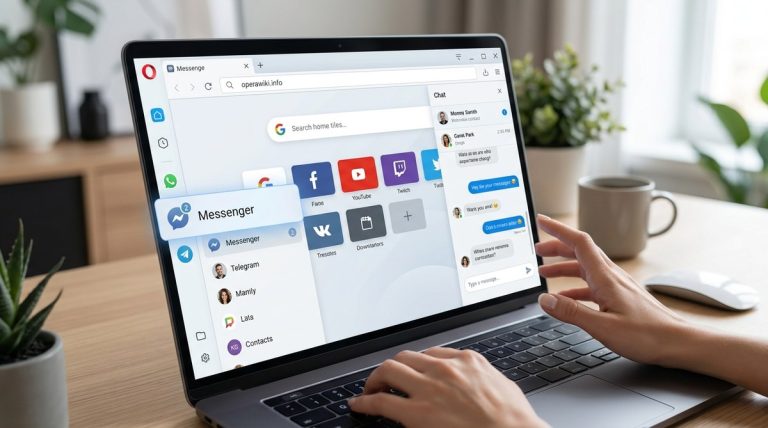
Opera’s sidebar can host your social and messaging apps. You already know it can show WhatsApp, Telegram, Facebook Messenger, and others. But many users don’t realize you can add any website as a sidebar panel. This means you can pin Slack, Discord, or your email client directly to the side of the browser.
To add a custom site:
– Click the “+” icon in the sidebar.
– Select “Add a custom site” and enter the URL.
– The site opens in a narrow panel that stays open even when you switch tabs.
You can even use it for productivity tools like Trello or Google Keep. This feature keeps your communication and tasks visible without cluttering your desktop.
Split Screen Without Extra Software
Opera includes a built-in split screen mode that divides your window into two tabs side by side. It’s great for comparing products, writing notes from a source, or watching a video while reading comments.
Enable it by clicking the split screen icon (two rectangles) next to the address bar. If you don’t see it, go to Settings > Advanced > Features and turn on “Split Screen.” You can then drag tabs from the tab bar to either side.
Unlike using Windows snap, this keeps both tabs active and scrollable independently. The split persists even if you resize the browser window. It’s a simple tool that saves you from constantly alt-tabbing.
Boost Audio With Volume Booster
Some videos or audio streams are just too quiet, even at max system volume. Opera’s Volume Booster amplifies audio up to 200% without distortion. It works on any tab playing sound.
Find it by clicking the speaker icon in the address bar while a tab is playing audio. A slider appears that lets you boost or reduce the volume independently for that tab. This is especially useful for podcasts with low recording levels or quiet dialogue in movies.
Note that the booster is a one-tab control. If you switch tabs, you’ll need to adjust again. For regular use, consider pinning the tab that needs a boost.
Activate a Hidden Enhanced Privacy Mode
Opera already offers a built-in VPN and ad blocker. But there is a deeper privacy mode that prevents websites from using your browser’s fingerprinting techniques. This feature, called “Enhanced Privacy Mode,” blocks tracking scripts that collect data about your screen resolution, installed fonts, and plugins.
To enable it:
1. Go to Settings > Basic > Privacy & security.
2. Switch on “Block trackers” and select “Enhanced.”
3. Also enable “Do Not Track” and “Disable WebRTC IP leakage.”
These settings work together to minimize your digital footprint. For even stronger protection, you can complement them with additional steps from our guide on Mastering Opera Browser Privacy Settings for Safer Browsing. The enhanced mode is perfect when you’re on public Wi-Fi or researching sensitive topics.
Disable Unwanted AI Features for Less Clutter
Since 2025, Opera has integrated AI assistants like Aria into the sidebar. While helpful for some, others find them distracting or resource-heavy. You can easily turn off these AI features to streamline the interface.
Open Settings > Advanced > Features and toggle off “Aria” or “AI Assistant.” You can also remove the sidebar icon entirely from the sidebar customization menu. Doing this frees up memory and reduces visual noise. If you ever change your mind, you can re-enable them with one click.
For more performance improvements, check out our article on Top Performance Tweaks to Speed Up Your Opera Browser Experience.
Customize Keyboard Shortcuts Like a Pro
Opera lets you remap nearly every keyboard shortcut. This hidden settings page gives you control over navigation, tab management, and even gestures. You can set a single key to open bookmarks, close all tabs, or switch to a specific workspace.
Navigate to opera://settings/keyboardShortcuts. You’ll see a list of actions with editable key binds. For example:
– Assign Ctrl+Shift+S to open the screenshot tool.
– Map Alt+W to close the current tab.
– Create a shortcut for “Toggle split screen.”
I recommend printing out your custom shortcuts or saving them as a note. Once you get used to them, you’ll navigate the browser much faster.
Capture Full Pages With the Built-In Screenshot Tool
Opera’s screenshot tool can capture an entire webpage, not just the visible portion. It also includes annotation options like arrows, highlights, and text.
Access it from the sidebar (camera icon) or press Ctrl+Shift+S. Choose between “Visible portion” or “Full page.” After capture, you can edit and save as PNG or copy to clipboard. This is perfect for saving receipts, recipe pages, or long articles for offline reading.
The tool even supports scrolling capture in most sites. If you encounter a page that doesn’t scroll properly, try adjusting the zoom level first.
| Feature | Best For | How to Access |
|---|---|---|
| Early Bird | Testing experimental features | opera://flags and enable Early Bird |
| Video Skip | Skipping unskippable ads | Settings > Advanced > Features |
| Translucent PiP | Watching video while working behind | Right-click PiP window > Opacity |
| Sidebar custom sites | Adding any web app to the sidebar | Click “+” in sidebar > Add custom site |
| Split Screen | Multitasking with two tabs side by side | Split screen icon or Settings |
| Volume Booster | Amplifying quiet audio | Speaker icon in address bar while playing |
| Enhanced Privacy | Blocking fingerprinting and trackers | Settings > Privacy > Enhanced tracking |
| Disable AI | Removing Aria and other AI assistants | Settings > Advanced > Features |
| Keyboard shortcuts | Customizing every key binding | opera://settings/keyboardShortcuts |
| Screenshot tool | Full-page captures with annotations | Sidebar camera icon or Ctrl+Shift+S |
Pro tip: Combine the screenshot tool with the sidebar to capture chat conversations or instructions while you work. It’s a simple way to make your own quick reference guides.
Workspaces for Thematic Tab Organization
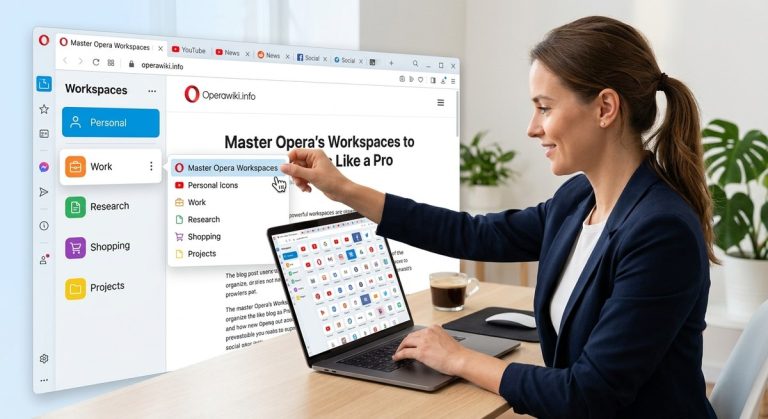
Workspaces aren’t new, but many users still don’t use them. This hidden productivity feature lets you group tabs by project, mood, or purpose. For example, create a “Work” workspace with email and spreadsheets, a “Study” workspace with research tabs, and a “Leisure” workspace for social media and videos.
To create a workspace, right-click the tab bar area and select “Create workspace.” Name it and assign an icon. You can then drag tabs into the appropriate workspace. Switching between workspaces is instantaneous and removes tab clutter.
Workspaces sync across devices if you’re logged into your Opera account. So you can pick up where you left off on another computer.
Put These Hidden Features to Work
Opera browser hidden features can transform how you interact with the web. They save time, protect your privacy, and keep you focused. Start with one or two that solve a problem you face daily. For instance, if video ads annoy you, enable Video Skip. If you need to multitask, activate split screen. Each small change adds up to a smoother experience.
Remember to revisit the settings every few months. Opera updates often introduce new experimental flags in Early Bird or tweak existing features. Staying current means you never miss a tool that could make your browsing faster or more enjoyable.
For even more ways to customize Opera and boost performance, read our guide on How to Optimize Opera Browser for Faster Web Browsing. And if privacy is your top concern, our tips on Boost Your Privacy with These Hidden Opera Browser Features will take you further.
Now go ahead and open Opera. Try one of these features today. Your future self will thank you.