Your browser knows a lot about you. Your location, your IP address, your browsing habits. Every website you visit can see these details unless you take steps to hide them. Opera’s built-in VPN gives you a simple way to mask your identity online without installing extra software or paying a monthly fee. It lives right inside your browser, ready to turn on with a few clicks. Whether you are working from a coffee shop, checking your bank account on public Wi-Fi, or just want to keep your browsing private, this tool can help. Let me show you exactly how to use Opera built-in VPN, what it can and cannot do, and how to get the most out of it in 2026.
Opera’s free built-in VPN is a handy privacy tool that hides your IP address and encrypts your traffic inside the browser. It works on desktop and mobile with no subscription needed. You can enable it from the settings menu in under a minute. While it is not a full device-level VPN, it offers solid protection for everyday browsing, especially on public networks. Use it to access region-locked content and stop trackers from following you around the web.
What Is Opera’s Built-In VPN and How Does It Work
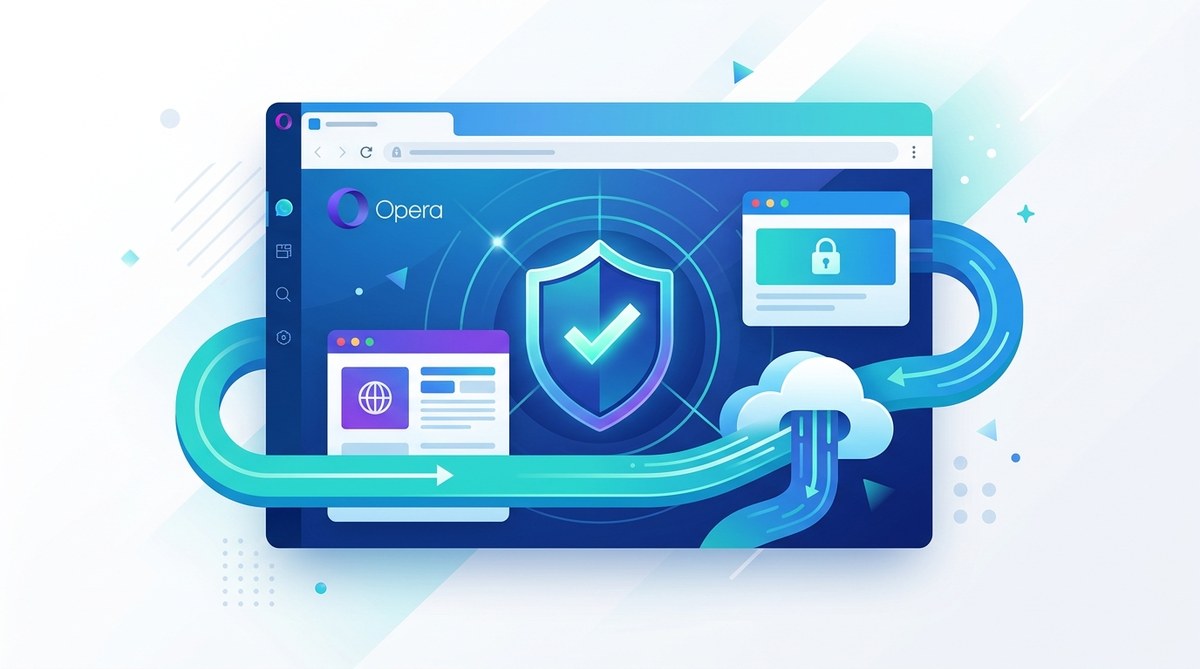
Opera includes a free VPN service directly in the browser. No extensions, no sign-ups, no credit card required. When you turn it on, your web traffic gets routed through a secure tunnel to one of Opera’s servers. Your real IP address gets replaced with one from the server’s location. This makes it look like you are browsing from a different city or country.
The VPN uses 256-bit encryption, which is the same standard many paid services use. It also follows a no-logs policy, meaning Opera does not track or store your online activity while the VPN is active. An independent audit in recent years confirmed this policy is legit.
One important thing to understand: this VPN works only inside the Opera browser. It does not protect traffic from other apps on your device, like email clients, games, or streaming apps you run separately. For many people, that is perfectly fine. Most of your personal browsing happens inside a browser anyway.
Step-by-Step Guide: How to Use Opera Built-In VPN on Desktop
Turning on the VPN in Opera for Windows or Mac takes less than 30 seconds. Here is the exact process.
Step 1: Open Your Opera Browser
Make sure you are running the latest version of Opera. The VPN feature has been available since version 51, but you want the most up-to-date build for security and speed. To check for updates, click the Opera menu in the top-left corner, go to Update & Recovery, and let the browser check for a newer version.
Step 2: Open the Settings Panel
Click the Menu button (the three horizontal lines or the Opera logo in the top-left corner). Then select Settings from the dropdown. You can also press Alt + P on Windows or Command + , on Mac to jump straight there.
Step 3: Find the VPN Section
In the Settings tab, look at the sidebar on the left. Click Privacy & Security. Then scroll down until you see the VPN heading. It is usually near the top of that section.
Step 4: Toggle the VPN On
You will see a switch labeled Enable VPN. Click it so it turns blue. A small VPN badge will appear in the address bar to the left of the URL field. That badge shows the VPN is active.
Step 5: Choose Your Virtual Location
Click the VPN badge in the address bar. A small panel opens where you can see your current virtual location. You can pick from several regions, including the Americas, Europe, and Asia. Select the one that works best for what you need. If you want to watch content available only in another country, choose that location. If you just want privacy, pick the closest server for better speed.
Step 6: Confirm the VPN Is Working
Visit a site like whatismyipaddress.com before and after turning on the VPN. Your IP address and location should change. If they do, you are all set.
How to Use Opera Built-In VPN on Mobile
The VPN works on Opera for Android and iOS too. The setup is just as simple.
- Open the Opera browser app on your phone.
- Tap the O icon at the bottom of the screen.
- Scroll down and tap Settings.
- Toggle on the VPN option under the Privacy section.
- A VPN icon will appear in the address bar. Tap it to change your virtual location or turn the VPN off.
On mobile, the VPN also works only inside the Opera browser. It does not protect other apps. But it does encrypt your browsing data on any Wi-Fi network, which is a big win when you are using public hotspots at airports, hotels, or coffee shops.
When Should You Use Opera’s Built-In VPN?
The free Opera VPN is not a replacement for a full security suite, but it handles several common situations really well.
- Public Wi-Fi protection. When you connect to a network at a cafe or library, the VPN encrypts your traffic so others on the same network cannot see what you are doing.
- Hiding your IP address. Websites, advertisers, and trackers use your IP to figure out your general location and browsing habits. The VPN masks this.
- Accessing region-locked content. Some streaming libraries, news sites, or sports broadcasts block viewers from certain countries. With the VPN, you can set your virtual location to a place where the content is available.
- Avoiding price discrimination. Airlines, hotels, and shopping sites sometimes show different prices based on your location. Using a VPN can help you see the local rates.
- Bypassing school or work restrictions. If your network blocks certain sites, the VPN can help you get around those filters. Just be mindful of your school or employer’s policies.
What Opera’s VPN Does Not Do
It helps to be honest about the limits. Opera’s built-in VPN is free and convenient, but it has trade-offs.
- Browser only. It protects traffic inside Opera, not your whole device. Apps like Slack, Zoom, or your email client stay on their regular connection.
- Limited server locations. You get a handful of virtual regions to choose from, not the dozens or hundreds that paid services offer.
- No kill switch. If the VPN connection drops, your traffic could leak onto the regular internet without you knowing. Paid VPNs usually include a kill switch that blocks all traffic until the VPN reconnects.
- Not designed for torrenting. Opera’s VPN does not support P2P file sharing. If you download torrents, you need a different solution.
- Speed can vary. Because the service is free and shared by many users, you may notice slower speeds during peak hours.
Common Mistakes When Using Opera VPN
There are a few pitfalls that beginners run into. Here is what to watch out for.
| Mistake | Why It Happens | How to Avoid It |
|---|---|---|
| Leaving the VPN on constantly | You forget to turn it off after a session | Turn it off when you do not need it to save battery and bandwidth |
| Not changing the virtual location | You stay on the default server even when you need a different region | Check the location in the VPN panel and change it if needed |
| Assuming it protects all apps | You think your whole phone or computer is covered | Remember it only works inside Opera |
| Using it for banking without checks | Some banks block VPN traffic | Turn the VPN off when logging into sensitive financial accounts |
| Ignoring the no-logs policy | You worry about privacy but never verify | Read Opera’s privacy policy to understand what they do and do not track |
Expert advice: Treat Opera’s built-in VPN as a privacy layer for casual browsing, not a full anonymity tool. It is great for hiding your IP from advertisers and securing public Wi-Fi. For high-stakes privacy needs, like journalism or activism, pair it with a trusted paid VPN that offers a kill switch and device-wide protection.
How to Optimize Opera VPN for Daily Use
Getting the most out of this feature means making it part of your routine. Here are some practical tips.
- Use the VPN badge. The icon in the address bar changes color when the VPN is active. Green means connected. Gray means off. A quick glance tells you your status.
- Set a preferred virtual location. If you always want to appear in the same region, pick your location once and leave it. The browser remembers your choice.
- Turn it on before connecting to public Wi-Fi. Make it a habit. Open Opera, enable the VPN, then connect to the network.
- Disable it for local services. If you are ordering food delivery or checking the weather, turn the VPN off. Local sites work better without it.
- Combine with Opera’s ad blocker. Opera has a built-in ad blocker that works well alongside the VPN. Together, they reduce tracking and speed up page loads. You can learn more about how to fine-tune these tools in our guide on mastering Opera browser privacy settings for safer browsing.
Performance Considerations in 2026
As of 2026, Opera’s VPN has seen steady improvements. The team behind the browser has added more server capacity and improved connection stability. Most users report that the VPN works well for everyday browsing, email, and social media. Video streaming in standard definition works fine too.
If you notice the VPN slowing down your connection, try switching to a virtual location closer to you. For example, if you are in New York and you pick a server in Europe, your data has to travel across the Atlantic and back. Choosing a server in the United States reduces that distance and improves speed.
For users who want even better performance, Opera offers a paid VPN tier called Opera VPN Pro. It gives you unlimited data, more server locations, and access to the VPN outside the browser through a dedicated app. But the free version handles most needs well.
Keeping Your Opera Browser Secure Beyond the VPN
The VPN is one piece of the privacy puzzle. There are other settings and features inside Opera that make your browsing safer. You can enable strict ad blocking, block fingerprinting scripts, and use the private window for sessions where you do not want any history saved. Our article on top privacy settings every Opera user should activate for safe browsing walks through each of these protections.
Also consider how extensions can affect your privacy. Some extensions can see your browsing data even when the VPN is on. Stick with trusted extensions from Opera’s add-ons store. If you want recommendations, check out our list of must-have Opera extensions that respect your privacy.
When You Might Need a Different VPN Solution
Opera’s built-in VPN is excellent for its price (free) and simplicity, but it is not right for every scenario. If any of the following apply to you, consider adding a separate VPN service.
- You need to protect apps outside the browser.
- You download files through peer-to-peer networks.
- You want to stream video in 4K without buffering.
- You require a kill switch to prevent data leaks.
- You need customer support available by chat or phone.
In those cases, a paid VPN like Mullvad, ProtonVPN, or IVPN gives you more control and stronger guarantees. You can still use Opera as your browser and pair it with a system-wide VPN for full coverage. The two work well together.
Getting Started: Your First Week with Opera VPN
If you are new to VPNs, here is a simple plan to get comfortable.
- Day 1: Enable the VPN and browse your normal sites. Notice the VPN badge in the address bar.
- Day 2: Check your IP address before and after turning the VPN on so you can see the difference.
- Day 3: Try changing your virtual location to a different country and see what content changes on news sites or streaming services.
- Day 4: Use the VPN while on public Wi-Fi at a library or cafe and notice the extra sense of security.
- Day 5: Turn the VPN off for a few hours and back on again. Practice toggling it so it becomes automatic.
- Day 6: Read Opera’s privacy policy to understand their no-logs commitment.
- Day 7: Decide if the free VPN meets your needs or if you want to look into a paid option.
Final Thoughts on Browsing with Opera VPN
The web does not have to expose you. Opera’s built-in VPN gives you a free, simple way to take back some of that privacy. It encrypts your connection, hides your IP, and lets you appear to browse from anywhere in a handful of global regions. For millions of users, that is enough.
If you are already using Opera, there is no reason not to try it. The feature is already built into your browser. It takes seconds to turn on. And it could save you from having your data scooped up on an unsecured network.
Start with the steps above and see how it feels to browse with a layer of protection between you and the websites you visit. Once you get used to that green VPN badge, you will wonder why you waited so long. For more ways to improve your browsing, check out our tips on how to optimize Opera browser for faster web browsing and top performance tweaks to speed up your Opera browser experience.