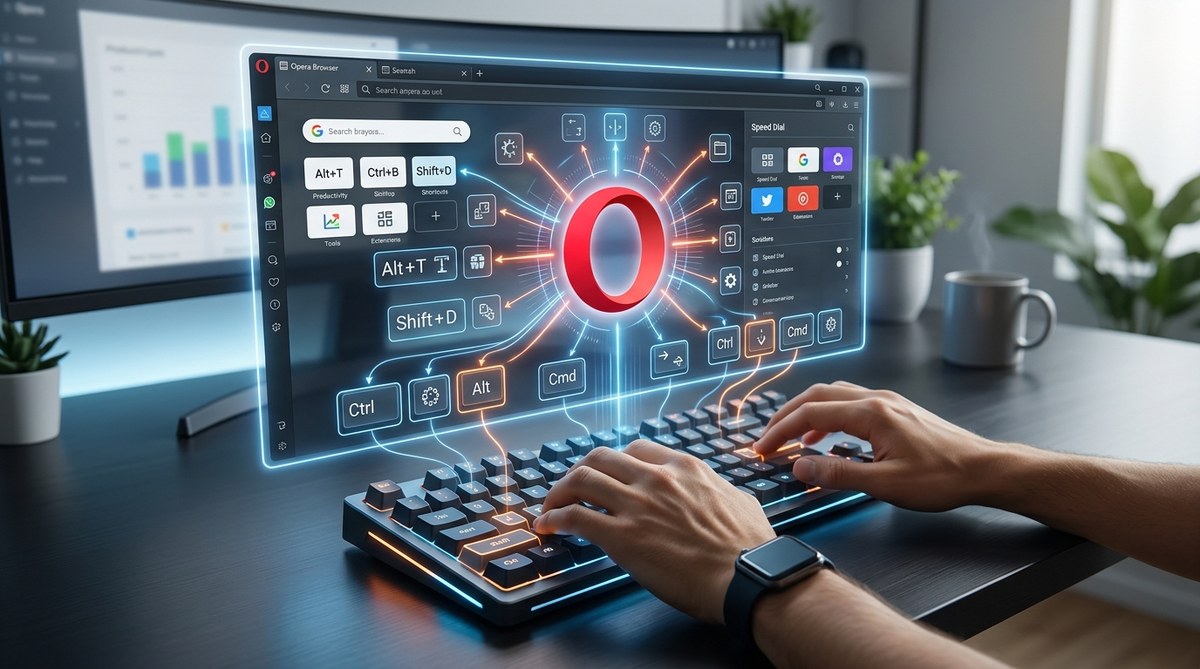
Your browser is the one tool you use more than almost any other during a workday. For gamers and power users running Opera GX, every second counts. Reaching for the mouse to open a new tab, switch a workspace, or mute a page adds up to minutes of lost momentum. The fix is simple: custom keyboard shortcuts. Opera GX lets you remap almost any action to a key combination you choose. When you set up custom keyboard shortcuts in Opera GX, you stop navigating menus and start commanding your browser like a pro.
Opera GX includes a hidden shortcut editor that lets you assign any keyboard combination to browser actions. You can remap default keys, add new shortcuts for extensions, and even create macros for multi-step tasks. This guide shows you exactly how to access the editor, avoid conflicts, and build a personalized command center that cuts your daily clicking by hundreds of repetitions.
Why Default Shortcuts Are Not Enough
Opera GX ships with a solid set of default keyboard shortcuts. Ctrl + T opens a new tab. Ctrl + W closes the current one. Ctrl + Shift + Tab cycles backward through tabs. These work fine for basic browsing, but they were designed for the average user, not for someone who manages multiple projects, streams, or research sessions at once.
Think about your actual workflow. You might need to switch between five workspaces while keeping an eye on Discord. You might want to open the GX Control panel without digging through menus. You might want a single key to toggle the ad blocker or open a specific website. Default shortcuts cannot handle these tasks. Custom keyboard shortcuts in Opera GX can.
The real power comes from mapping your most frequent actions to keys that feel natural to your hands. If you are used to Shift + 1 through Shift + 5 for weapon slots in a game, why not use the same muscle memory to switch workspaces? Opera GX lets you do exactly that.
How to Access the Hidden Shortcut Editor
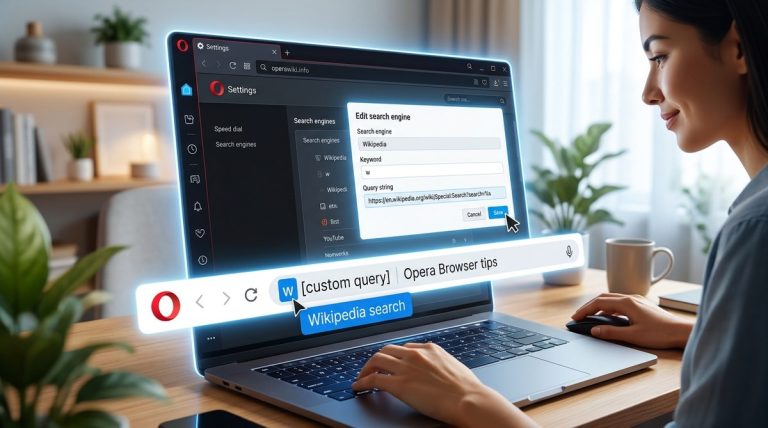
Opera GX hides its keyboard shortcut editor in a place most people never think to look. It is not in the main Settings menu. You need to type a special address into the URL bar.
- Open Opera GX and click into the address bar.
- Type
chrome://settings/keyboardand press Enter. Yes, that address works in Opera GX because the browser shares a core with Chromium. - A page titled “Keyboard shortcuts” appears. It lists every action the browser recognizes and the key combination currently assigned to it.
- Click any row to change the shortcut. Press the new key combination on your keyboard.
- Click the “Reset” button on a row if you want to return to the default.
- Close the tab when you are done. Changes save automatically.
That is it. The interface is clean and straightforward. You can edit, add, or remove shortcuts for almost every function in the browser.
Actions Worth Mapping to Custom Shortcuts
Not every action deserves a custom key. You want to prioritize the tasks you repeat most often. Here is a bulleted list of high-value actions that benefit from custom keyboard shortcuts in Opera GX:
- Switch between workspaces. Workspaces are one of Opera GX’s best features, but clicking the sidebar to move between them slows you down. Map each workspace to
Ctrl + Shift + 1throughCtrl + Shift + 9. - Open GX Control. The control panel lets you limit CPU, RAM, and network usage. Assign
Ctrl + Shift + Cto open it instantly. - Toggle the ad blocker. If you visit a site that breaks without ads, you need to turn the blocker off and on. Map it to
Ctrl + Shift + A. - Open the bookmarks manager.
Ctrl + Shift + Bis standard, but you can change it to something more comfortable likeCtrl + Bif you rarely use bold formatting. - Mute or unmute the current tab. Assign
Ctrl + Shift + Mso you never have to right-click a tab again. - Open a specific website. Use the “Open URL” action type to assign a key combination to your most visited page, such as your email or a project dashboard.
Common Mistakes and How to Avoid Them
When you start remapping keys, it is easy to create conflicts or break shortcuts you rely on. The table below outlines the most common mistakes and the best ways to avoid them.
| Mistake | Why It Hurts | How to Avoid It |
|---|---|---|
Using a single modifier key like Ctrl + E |
Conflicts with browser functions like focusing the address bar | Always use at least two modifiers, such as Ctrl + Shift or Ctrl + Alt |
Overwriting a system shortcut like Ctrl + C |
Breaks copy functionality across all apps | Check the “Used by system” warning in the editor before saving |
| Mapping too many shortcuts at once | Hard to remember, leads to frustration | Start with 3 to 5 shortcuts and add more over a few days |
| Ignoring extension conflicts | A browser extension may already use the same key | Disable extensions one by one to find the conflict |
| Forgetting to test the new shortcut | The key may not work in certain contexts like full-screen mode | Open a real page and test the shortcut immediately after setting it |
Expert advice: Keep a small text file on your desktop with your custom shortcuts for the first week. Your muscle memory will take over after about 30 repetitions. Once you stop looking at the list, delete the file.
How to Create Shortcuts for Extensions
Opera GX does not natively let you assign keyboard shortcuts to every extension, but many popular extensions include their own shortcut settings. You can access them from the same keyboard shortcuts page.
- Open
chrome://settings/keyboardagain. - Scroll past the browser actions to the section labeled “Extensions and shortcuts”.
- You will see a list of installed extensions that support keyboard mapping.
- Click the pencil icon next to an extension and press your desired key combination.
- Click “OK” to save.
For extensions that do not appear in this list, check the extension’s own settings page. Many ad blockers, tab managers, and productivity tools include a dedicated shortcuts section.
Building Your Personal Command Center
A command center is not just a list of shortcuts. It is a system that matches how you think and move. Here is a practical process to build yours.
- Audit your week. For three days, write down every action you repeat in the browser. Include tab management, workspace switching, extension use, and navigation.
- Rank by frequency. Put the top 10 actions at the top of your list. These are your candidates for custom shortcuts.
- Assign by hand position. Group shortcuts so your hands rarely leave the home row. For example, use
Ctrl + Shift + E,R,T,Yfor your four most common workspaces. - Test for one day. Use only your new shortcuts. If you find yourself reaching for the mouse for a specific action, remap that action.
- Iterate. Your workflow changes over time. Revisit your shortcuts every few months and adjust them.
When Custom Shortcuts Save the Most Time
The biggest time savings come from actions that require multiple mouse clicks. For example, opening the GX Control panel normally takes three clicks: click the GX logo, click “Control”, then adjust a slider. With a custom shortcut, you open the panel in one keystroke.
Another big win is workspace switching. If you use four workspaces for work, gaming, social media, and research, clicking the sidebar to switch between them takes about one second per switch. Over a 10-hour day, you might switch workspaces 50 times. That is nearly a full minute of wasted time. Custom shortcuts cut that to zero.
You can also combine custom keyboard shortcuts in Opera GX with other browser optimizations. For instance, check out top performance tweaks to speed up your Opera browser experience to pair your new shortcuts with faster load times.
What to Do When a Shortcut Stops Working
Sometimes a shortcut that worked yesterday stops working today. This usually happens for one of three reasons.
- An extension update added a conflicting shortcut. Open the keyboard shortcuts page and look for a red warning icon next to the conflicting action.
- You installed a new app that uses the same global hotkey. Check your system tray for apps like Discord, OBS, or Spotify that may have captured the key.
- A browser update reset your shortcuts. This is rare, but it happens. Keep a backup list of your custom shortcuts so you can reapply them in under a minute.
If none of these solve the issue, restart Opera GX. A simple restart clears most temporary conflicts.
Taking It Further with Macros
Opera GX does not have a built-in macro system, but you can simulate one using the “Open URL” action. For example, you can assign a shortcut to open a bookmark folder that contains all the sites you open at the start of a work session. When you press the shortcut, Opera GX opens every site in that folder at once.
You can also chain shortcuts by using a tool like AutoHotkey (Windows) or Keyboard Maestro (macOS). These apps let you record a sequence of keystrokes and trigger them with a single hotkey. For example, you could create a macro that opens Opera GX, switches to your work workspace, opens three specific tabs, and mutes the audio on one of them. The macro runs in less than a second.
Matching Shortcuts to Your Hardware
If you use a gaming keyboard with extra programmable keys, you can assign those keys to Opera GX shortcuts. Most gaming keyboards include software that lets you map a hardware key to a specific keystroke combination. Map your “G1” key to Ctrl + Shift + W for switching workspaces, for example.
The same applies to mice with extra buttons. Map your mouse’s forward thumb button to Ctrl + Shift + T to reopen the last closed tab. This keeps your hands on the mouse and reduces movement.
For more ways to streamline your setup, read about how to customize your Opera browser sidebar for quick access to tools. A well-organized sidebar combined with custom shortcuts creates a nearly mouse-free browsing experience.
Your Shortcuts, Your Rules
The beauty of custom keyboard shortcuts in Opera GX is that no two setups need to look the same. A streamer might map shortcuts to mute alerts and switch scenes. A developer might map shortcuts to open terminals and documentation. A student might map shortcuts to switch between research papers and note-taking apps.
Your setup should reflect your actual habits, not someone else’s idea of productivity. If you never use workspaces, do not map shortcuts to them. If you open your email 40 times a day, give that action the most comfortable key combination on your keyboard.
Start with three shortcuts today. Open the keyboard shortcuts page, remap your most frustrating action, and test it for an hour. Add more as you notice other repetitive tasks. Within a week, you will have a personalized command center that makes Opera GX feel like it was built just for you.
For even more ways to own your browsing experience, learn how to master Opera’s hidden features to elevate your browsing experience. Your keyboard is the fastest tool you own. Put it to work.