You open Opera, type “yt cat videos” into the address bar, and hit Enter. Instead of a generic Google results page, you land directly on YouTube’s search results for cat videos. That is the power of Opera custom search shortcuts. They let you skip the middleman and jump straight to any website’s internal search feature. For tech-savvy users who live in their browser, this small tweak saves dozens of clicks every single day. The best part? Setting them up takes less than a minute once you know the trick. Let’s walk through everything you need to build your own personal search command center inside Opera.
Opera custom search shortcuts let you type a keyword like “yt” or “wiki” into the address bar and search specific websites instantly. You create them by adding the site’s search URL with a %s placeholder. This guide covers the setup process, advanced tips, common mistakes, and how to organize your shortcuts for maximum efficiency in 2026.
What Exactly Are Opera Custom Search Shortcuts?
Think of them as speed dials for search. Instead of navigating to a website first and then typing your query into its search box, you combine both steps into one action. You type a keyword, a space, and then your search term. Opera recognizes the keyword and sends you straight to the results page on that site.
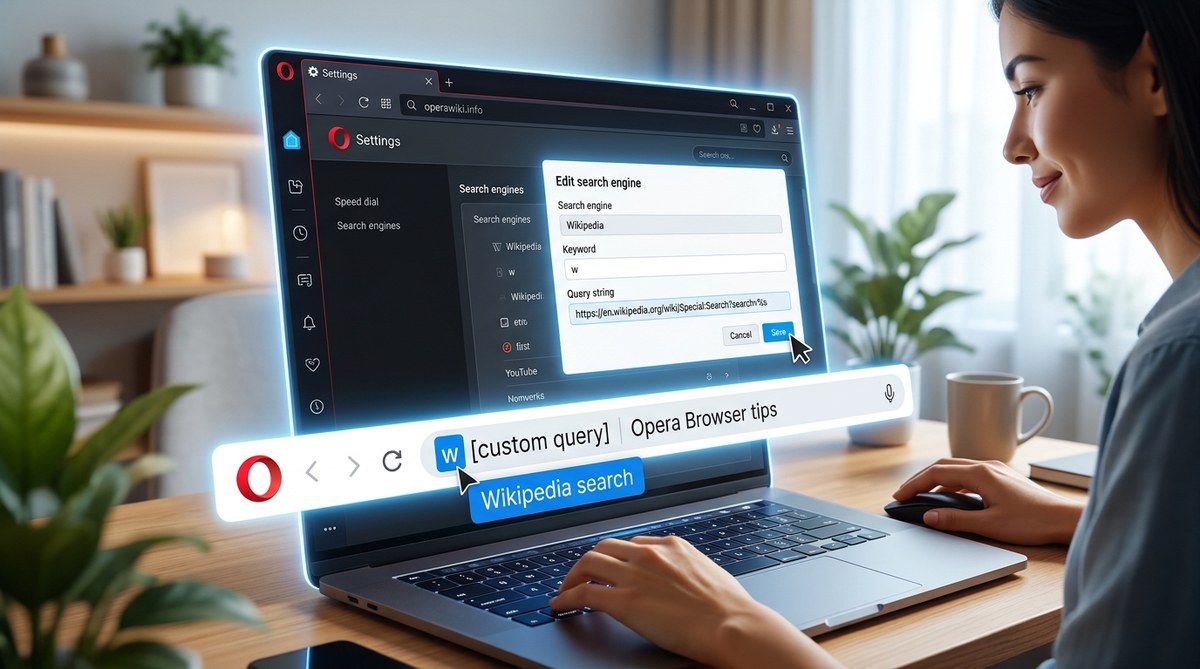
For example, you could set up a shortcut with the keyword “wiki” and the URL for Wikipedia. Then typing “wiki Abraham Lincoln” in your address bar would take you directly to the Wikipedia article for Abraham Lincoln. No extra clicks. No waiting for the Wikipedia homepage to load first.
Opera comes with a few default shortcuts for Google, Bing, DuckDuckGo, and Amazon. But the real magic happens when you start adding your own for sites you visit regularly.
How to Create Your First Custom Search Shortcut
Here is the step by step process. It works the same in Opera for Windows, Mac, and Linux in 2026.
- Navigate to the website you want to create a shortcut for. Let’s use YouTube as an example.
- Use the site’s search function. Type something random like “test” into YouTube’s search bar and press Enter.
- Look at the URL in your address bar after the search results load. It should look something like this:
https://www.youtube.com/results?search_query=test - Copy that full URL. Then open Opera’s Settings by pressing Alt+P or clicking the menu icon in the top left corner.
- In the Settings sidebar, click on “Search engine” or type “Search” into the settings search box at the top.
- Scroll down to the section labeled “Custom search engines” or “Manage search engines.” You will see a button that says “Add.”
- Click “Add.” A form will appear with three fields: Name, Keyword, and Address.
- Fill in the fields:
- Name: YouTube (this is just a label for your reference)
- Keyword: yt (this is what you will type in the address bar)
- Address: Paste the URL you copied, but replace the search term with
%s. So it becomeshttps://www.youtube.com/results?search_query=%s - Click “Save.” You are done.
Now open a new tab, type “yt Opera browser tutorial” into the address bar, and press Enter. You should land directly on YouTube’s search results for that query.
Advanced Tips for Power Users
Once you get the hang of the basic setup, you can tailor your shortcuts for even faster browsing.
Use Shorter Keywords
The keyword can be as short as a single letter. For instance, use “a” for Amazon, “r” for Reddit, or “m” for Maps. Just make sure the keyword does not conflict with a website you might type normally. If you use “a” for Amazon, typing just “a” in the address bar will try to search Amazon instead of going to a website that starts with A.
Create Shortcuts for Niche Sites
You are not limited to major platforms. Create shortcuts for your work tools, school portals, or local news sites. If the site has a search function, you can build a shortcut for it.
Use the Same Shortcut on Multiple Devices
Opera syncs your search shortcuts if you have sync enabled. Log into your Opera account on your phone or another computer, and your custom shortcuts will appear there too. This is especially useful if you use Opera on both your work and home machines. Check out our guide on how to sync your Opera browser across devices seamlessly for more details.
Common Mistakes and How to Avoid Them
Even experienced users can trip up on a few details. Here is a table that breaks down the most frequent errors and their fixes.
| Mistake | What Happens | The Fix |
|---|---|---|
| Using the wrong URL format | The shortcut sends you to the homepage instead of search results | Make sure the URL contains %s in place of the search term. Do not just paste the homepage URL. |
| Keyword conflicts with a real website | Opera tries to search instead of navigating to the site | Choose unique keywords. Avoid common words like “google” or “facebook” unless you want to search those sites. |
| Forgetting to save after adding | The shortcut does not appear in your list | Always click the “Save” button before closing the settings window. |
| Using a site that requires JavaScript for search | The shortcut might not work on some dynamic sites | Test the shortcut immediately. If it fails, the site may use a non-standard search method. |
| Not including the full URL path | The shortcut might break if the site changes its search structure | Copy the URL directly from the address bar after performing a search. Do not guess the URL. |
Organizing Your Shortcuts for Maximum Efficiency
As you build up a collection of shortcuts, keeping them organized becomes important. Opera does not offer folders for search shortcuts, but you can use a naming convention to stay sane.
- Prefix your keywords with a category code. For example, use “w” for work tools, “s” for social media, and “n” for news.
- Keep your list under 20 shortcuts. Too many options defeat the purpose of speed.
- Delete shortcuts you never use. Opera will not remove them automatically, so clean house every few months.
If you want to take your browser optimization further, you might enjoy our article on top performance tweaks to speed up your Opera browser experience. It covers other ways to shave seconds off your daily routine.
When Shortcuts Do Not Work: Troubleshooting
Sometimes a shortcut that worked perfectly yesterday stops functioning. Here are the usual suspects and how to fix them.
- The website changed its search URL. This happens when a site updates its design. You need to repeat the setup process with the new URL.
- The keyword got deleted. Opera occasionally resets settings after an update. Check your search engine list to see if the shortcut is still there.
- You are using the wrong keyboard layout. If you type “yt” but the shortcut does not trigger, make sure you are not accidentally including a space or punctuation before the keyword.
- The site blocks automated search queries. Some sites use anti-bot measures that interfere with custom search shortcuts. There is no workaround for this. You have to visit those sites manually.
If a shortcut breaks, do not panic. Just re-create it using the same method. The process takes less than 30 seconds once you have done it a few times. Keep a text file with your favorite shortcuts and URLs so you can rebuild them quickly after a browser reset.
A Shortcut for Every Part of Your Day
Imagine your morning routine. You check Wikipedia for a fact, look up a product on Amazon, search for a recipe on a cooking site, and read a thread on Reddit. Without shortcuts, that is four separate website visits. With Opera custom search shortcuts, you do all of that from the address bar without ever seeing a homepage.
Here are some ideas to get you started:
- yt for YouTube
- red for Reddit
- wiki for Wikipedia
- amz for Amazon
- maps for Google Maps
- imdb for IMDb
- stack for Stack Overflow
- dict for dictionary.com
- news for your local news site
You can also create shortcuts for internal company tools, project management software, or any database you search regularly. The only limit is the number of sites you use.
How This Fits Into Your Larger Workflow
Custom search shortcuts are one piece of the puzzle when it comes to browser efficiency. Pair them with Opera’s built-in ad blocker to speed up page loads, and use the sidebar to keep your most visited sites one click away. For a deeper look at customizing your workspace, read our guide on how to customize your Opera browser sidebar for quick access to tools.
You might also want to combine shortcuts with keyboard navigation. Use Ctrl+L to jump to the address bar, type your keyword, and press Enter. Your hands never leave the keyboard. This is the kind of flow that makes you feel like the browser is an extension of your own brain.
Final Thoughts on Building Your Shortcut Library
Spend ten minutes today setting up your most used sites. Test each one to make sure the URL format is correct. Then use them for a week. You will notice the difference in how quickly you move between tasks. The small friction of loading a homepage and typing into a search box disappears. What used to take three steps now takes one.
Opera custom search shortcuts are a classic example of a small feature that delivers outsized results. They are easy to ignore, but once you build the habit, you will wonder how you lived without them. Start with five shortcuts. Add more as you encounter sites you search frequently. Within a month, your browser will feel like it was built just for you.
For more ways to fine tune your setup, check out our article on how to optimize Opera browser for faster web browsing. It covers additional techniques that complement your new shortcut workflow.
Go ahead and open your settings. Add that first shortcut. You will be glad you did.