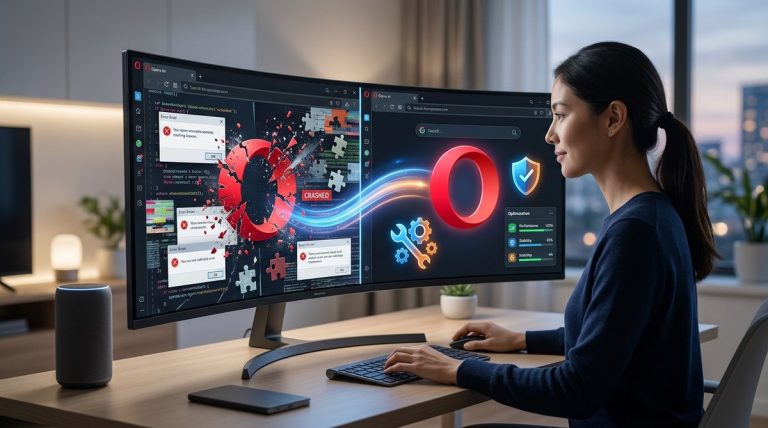
Your Opera browser freezes again. The cursor stops moving. The page turns white. You wait a few seconds, then the dreaded “Not Responding” message appears. This happens several times a day, and it is driving you crazy. You are not alone. Many users in 2026 face this exact problem, and the good news is that the root cause is usually something you can fix yourself. You do not need to be a tech expert or dig through complicated system files. You just need a clear plan to find out what is wrong.
Opera browser freezes usually come from five main sources: a bloated cache, a misbehaving extension, outdated hardware drivers, a corrupted browser profile, or a conflict with hardware acceleration. This guide walks you through each suspect in order. By testing one thing at a time, you will isolate the real cause without guesswork. Most freezes can be resolved in under 15 minutes.
Start with the Easy Checks First
Before you start changing settings, rule out the simplest issues. These are the things that cause freezing more often than you might think.
- Check your computer’s memory usage. Open Task Manager on Windows (press Ctrl + Shift + Esc) or Activity Monitor on Mac. If your RAM is consistently above 85 percent, your system is choking. Close other programs like Slack, Spotify, or a dozen Chrome tabs.
- Look at your internet connection. A slow or unstable connection can make Opera appear frozen when it is actually just waiting for data. Run a speed test to confirm.
- Restart Opera completely. Close the browser, then open it again. This clears temporary glitches that build up over a long session.
If the freezing continues after these checks, move on to the next step.
The Five-Minute Extension Audit
Extensions are the number one cause of Opera browser freezing. They run in the background and can conflict with each other or with new browser updates. In 2026, many extensions are not updated as often as they should be.
- Open Opera and click the Opera menu icon (the red O in the top left corner).
- Go to Extensions and then Manage Extensions.
- Look at the list. Disable every extension by toggling the blue switch off for each one.
- Restart Opera and use it normally for a few minutes.
If the freezing stops, you found the problem. Enable your extensions one at a time, testing between each one, until the freezing returns. That last extension you turned on is the culprit. Remove it permanently or look for an updated version.
Expert advice: Keep your extension list lean. Each active extension uses memory and CPU cycles. If you have more than ten extensions running, you are asking for trouble. Stick to the ones you actually use every week.
Clear the Cache and Browsing Data
A bloated cache can cause Opera to freeze, especially if it has not been cleared in months. The cache stores images and files from websites to load them faster later, but when it gets too large, it slows everything down.
Here is how to clear it without losing your passwords or bookmarks:
- Click the Opera menu and select Settings.
- Scroll to Privacy & Security and click Clear browsing data.
- In the time range dropdown, choose All time.
- Check only Cached images and files. Do not check cookies or browsing history unless you want to log in to sites again.
- Click Clear data.
Test Opera after this. If the freezing persists, the cache was not the issue. Move on to the next step.
Turn Off Hardware Acceleration
Hardware acceleration lets Opera use your graphics card to render pages and video. It sounds like a good thing, and usually it is. But on some systems, especially older laptops or machines with outdated graphics drivers, it causes freezing and stuttering.
To disable it:
- Go to Opera Settings.
- Scroll down to System.
- Find the toggle for Use hardware acceleration when available and turn it off.
- Click Restart to apply the change.
Use Opera for a while. If the freezing stops, hardware acceleration was the problem. You can leave it off, or you can update your graphics drivers and try turning it back on later. For a deeper look at overall speed, check out our guide on top performance tweaks to speed up your Opera browser experience.
Create a Fresh Opera Profile
Sometimes your browser profile becomes corrupted. This can happen after a crash, an incomplete update, or just from long term use. A corrupted profile can cause random freezes that seem to have no pattern.
You can test this by creating a new profile without deleting your old one.
| Step | Action | What to Expect |
|---|---|---|
| 1 | Close Opera completely | Make sure no Opera processes are running in the background |
| 2 | Press Win + R (Windows) or open Finder (Mac) | You need to access the user data folder |
| 3 | Type %appdata%\Opera Software\Opera Stable (Windows) or ~/Library/Application Support/com.operasoftware.Opera (Mac) |
This opens the folder where Opera stores your profile |
| 4 | Rename the Default folder to Default_old |
Opera will create a brand new Default folder when you restart |
| 5 | Open Opera again | You will see a fresh browser with no extensions, no history, and default settings |
Test the new profile. If Opera runs smoothly, your old profile was corrupted. You can copy your bookmarks and passwords from the Default_old folder manually, or simply start fresh. It is a good idea to sync your Opera browser across devices seamlessly to keep your data safe in the future.
Update Everything
Outdated software is a hidden cause of freezing. This includes Opera itself, your operating system, and your graphics drivers.
- Update Opera: Go to the Opera menu, hover over Update & Recovery, and click Check for update. Install any available updates.
- Update Windows or macOS: Run system updates from your computer settings. A missing system patch can cause browser instability.
- Update graphics drivers: On Windows, visit your GPU manufacturer’s website (NVIDIA, AMD, or Intel) for the latest driver. On Mac, drivers are included in system updates.
After updating everything, restart your computer and test Opera again.
Disable Built-in Features That Hog Resources
Opera comes with several built-in tools like the ad blocker, VPN, and messenger integrations. These are convenient, but they all use system resources. If you are on a machine with limited RAM or an older processor, having all of them active can push your browser over the edge.
Go to Settings and try turning off these features one at a time:
- Built-in ad blocker
- VPN (unless you need it for privacy)
- Crypto wallet
- Messenger sidebar integrations
- Energy saver mode (it can conflict with some systems)
Test after disabling each feature. You might find that turning off just the ad blocker or the VPN solves the freezing issue entirely. For a complete list of tools that can help you stay safe, read our guide on how to set up Opera browser for maximum privacy in 2026.
When Nothing Else Works
If you have gone through all these steps and Opera still freezes, the problem might not be the browser itself. It could be your computer. Run a full virus scan. Malware can cause random application freezes. Also check your hard drive or SSD for errors. On Windows, open a command prompt as administrator and type chkdsk /f. On Mac, use Disk Utility to run First Aid.
If your computer passes those checks, consider a clean reinstall of Opera. Uninstall it completely, download the latest version from the official website, and install it fresh. This wipes out any corrupted files that a simple update cannot fix.
Keep Your Browser Running Smoothly
Freezing is frustrating, but it is almost never a mystery. By following this diagnostic path, you will find the real cause and fix it. Start with extensions, then move to cache, hardware acceleration, and your profile. Most people solve their freezing issue by the third step.
Once your browser is stable again, take a few minutes to master Opera browser performance with these simple configuration hacks. A little maintenance now will save you from future headaches. You deserve a browser that works as hard as you do.