You are in the middle of a ranked match on Valorant, and your favorite streamer just went live on Twitch. You want to watch, but you cannot tab out without losing the game. Or maybe you are buried in spreadsheets, and a tutorial video would make the work easier. Opera video pop out is the trick that keeps you in the action. It pulls a video from any tab into a small, floating window that stays on top of everything else. You can move it, resize it, and keep watching while you do other things. In 2026, this feature is smoother than ever. Let us show you how to make it work for your setup, whether you are gaming, coding, or just binge watching a series while browsing.
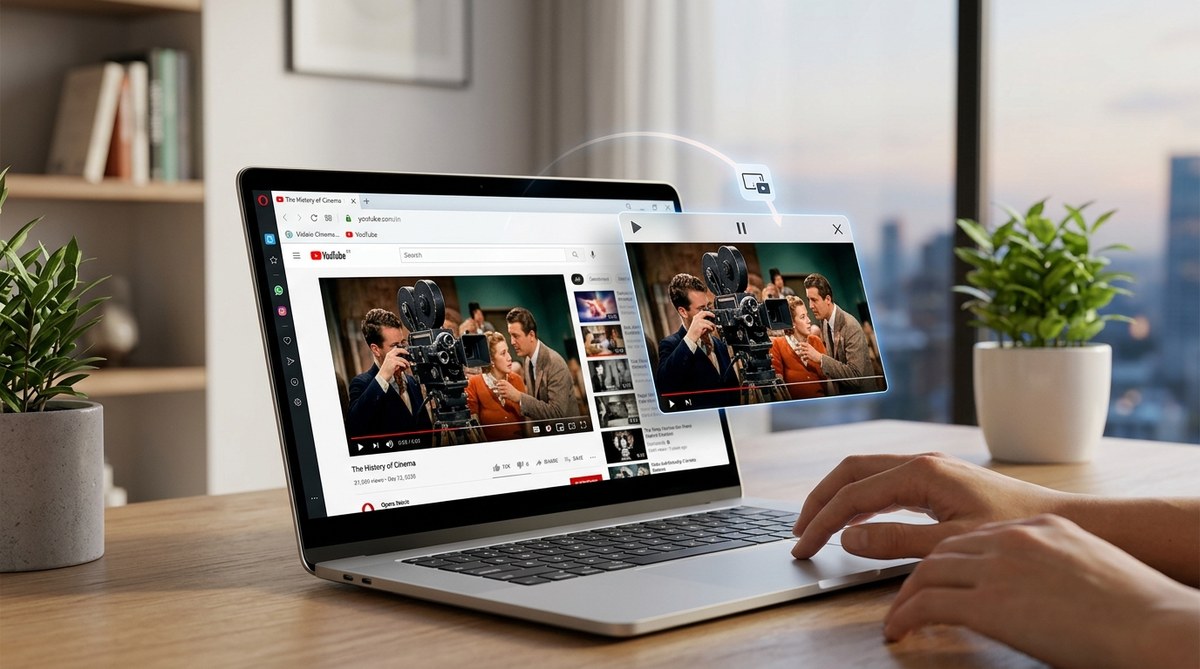
Opera video pop out turns any supported video into a floating player that stays visible over games, apps, and other browser windows. You enable it by hovering over a video and clicking the pop out icon, or by right clicking the video and selecting the option. The floating window lets you resize, move, pause, and scrub through content without leaving your main task. Troubleshooting is straightforward: update the browser, disable blocking extensions, or check for site restrictions.
What Exactly Is Opera Video Pop Out?
Video pop out is Opera’s built in picture in picture mode. It works on YouTube, Twitch, Netflix, Hulu, Vimeo, and most other streaming sites. The floating player sits above everything on your screen, so you can multitask without missing a frame. Gamers use it to keep an eye on live chats or walkthroughs. Remote workers watch meeting recordings while replying to emails. Students follow lectures while taking notes.
The feature is not limited to video. Some audio players and video calls also trigger pop out. But for most users, it is about watching content without being tied to a single tab.
How to Enable Opera Video Pop Out: Step by Step
Follow these steps to start using the feature on Opera or Opera GX in 2026.
- Open a video in Opera. Go to any site that streams video, like YouTube or Twitch.
- Hover your mouse over the video. A small icon appears in the top right or bottom right corner of the video player. It looks like a tiny window with an arrow pointing outward.
- Click the pop out icon. The video instantly detaches into a floating window. The original tab still shows the video, but it is dimmed or paused depending on the site.
- Position and resize the window. Drag the floating player by its title bar to any corner of your screen. To resize, drag a corner or edge.
- Control playback. Use the inline controls on the floating player: play, pause, skip forward, change volume, or toggle subtitles. On Opera GX, you can also control playback from the sidebar.
- Close the pop out. Click the X on the floating window or click the pop out icon again in the original tab.
That is it. No settings to toggle. No extensions to install. The feature works out of the box.
Where Video Pop Out Shines
The floating player is not just for watching YouTube while you shop. Here are the scenarios where it really changes how you use your computer.
- Gaming without alt tabbing. Keep a walkthrough, stream, or music video visible on top of your full screen game. Opera GX users can even set the floating window to stay above the game while the browser is minimized.
- Live stream monitoring. Content creators track their own stream or a co streamer’s feed while managing OBS or chatting on Discord.
- Video calls with notes. Pop out a Zoom recording or a Loom tutorial and take notes in a document right below it.
- Coding and tutorials. Watch a coding tutorial while writing code in an IDE. No more split screen fiddling.
- Workout videos. Follow a fitness routine while your workout playlist runs in another tab.
Common Mistakes and Fixes
Sometimes the pop out button does not show up, or the floating window behaves oddly. Use the table below to diagnose and fix frequent issues.
| Problem | Likely Cause | Solution |
|---|---|---|
| Pop out icon does not appear on video | Site restricts picture in picture (e.g., some streaming services) | Try right clicking the video and selecting “Picture in picture” from the context menu. If that fails, the site may block it. |
| Floating window is black or blank | Outdated browser version or GPU driver conflict | Update Opera to the latest version. On Opera GX, go to opera://about. Also update your graphics drivers. |
| Video audio plays but no video | Hardware acceleration conflict | Go to opera://settings/system and toggle “Use hardware acceleration when available” off, then restart the browser. |
| Floating window disappears when clicking outside | Another application is stealing focus | Ensure no other app is set to “always on top”. Try clicking the floating window’s title bar to reassert it. |
| Cannot resize the floating window | Fixed size mode for certain sites | Drag from the very edge of the player. On some sites, only preset sizes are available. |
| Pop out icon missing after update | Extension interference or corrupted settings | Disable ad blockers or privacy extensions temporarily. Reset Opera settings to default via opera://settings/reset. |
If nothing works, visit the Opera support forums. The community is active, and the Opera team often posts fixes.
Advanced Tips for Power Users
Once you have the basics down, here are a few tricks to get more out of Opera video pop out.
- Keyboard shortcut. Press Ctrl+Shift+P (Windows) or Cmd+Shift+P (Mac) to pop out the current video. This works on many sites but not all.
- Multiple pop out windows. Usually only one floating video is allowed. But you can open a second window by launching a new Opera instance and popping out a different video there.
- Pop out audio only. Some music sites like Spotify do not video, but their player can still pop out as a small window with controls.
- Volume adjustment. Use your system volume mixer to adjust the floating window independently of other audio sources.
- Keep it above games. On Opera GX, enable “Always on top” for the floating window. Right click the window’s title bar and select “Always on top”.
Expert tip: If you are a streamer, use the Opera GX sidebar to control Twitch chats and notifications without leaving the floating video. The sidebar integrates directly with Twitch, so you can see who is speaking while the video stays in the corner.
Why Gamers and Multitaskers Love This Feature
Opera video pop out removes the friction between watching and doing. You no longer have to choose between keeping up with a live event and being productive. The feature is especially useful during esports tournaments, where you might want to follow a secondary stream while playing. It also helps people with smaller monitors get more out of their screen real estate.
The Opera team has continued to refine the pop out experience. In 2026, the floating window remembers its position and size across sessions. It also integrates with the built in ad blocker, so pop out ads do not sneak in. And on Opera GX, the pop out player can use GX Control to limit CPU and RAM usage when you are gaming.
When the Pop Out Feature Does Not Work
A handful of streaming services actively block picture in picture. As of 2026, some live sports platforms and certain pay per view events disable pop out to prevent screen recording. There is no workaround within Opera itself. You might try using the browser’s normal tab view instead.
For YouTube TV or Hulu, the pop out often works, but you may lose the ability to skip ads. That is a limitation of the service, not the browser.
If you encounter a site where the pop out icon appears but the window is empty, check if the video is DRM protected. Opera supports most DRM, but some corporate or academic portals restrict it.
Tying It All Together: Make Opera Video Pop Out Your Daily Driver
Opera video pop out is one of those features that feels small until you use it. Then you wonder how you ever managed without it. Whether you are a gamer keeping tabs on a raid stream, a student watching a lecture while writing an essay, or a professional juggling video calls and reports, this tool frees you from tab switching.
To get the most out of your browser, you might also want to check out our guides on optimizing Opera for faster browsing and mastering Opera’s hidden features. They work well alongside the pop out feature.
Try the pop out button the next time you watch a video. Place it in a corner of your screen, start your main task, and see how much smoother your workflow becomes. You will be surprised how often you reach for it.