You open Opera to check one thing. Twenty minutes later, you have fourteen tabs scattered across the screen. Sound familiar? Tab overload is the enemy of focus, but Opera has built a whole set of tools to help you stay organized. The trick is knowing which feature to use and when. In 2026, Opera’s tab management system is more powerful than ever. Let’s walk through the exact steps to tame your tabs and reclaim your workflow.
Opera offers a range of tab management tools that can reduce clutter and boost focus. Workspaces let you separate projects, Tab Groups keep related pages together, and Pin tabs save space for essentials. Advanced features like Tab Search, Flow, and visual tab cycler give you quick access. By combining these tools, you can cut down decision fatigue and browse with a clear plan each day.
Why Tab Management Matters in 2026
Every open tab eats a little memory. Even idle tabs use system resources, slowing down your computer over time. Beyond performance, a messy tab bar hurts your concentration. When you see a wall of favicons, your brain spends energy deciding which tab to click. The result? More time finding and less time doing.
A well organized browser saves you mental effort. You know exactly where each project lives. You can close a group of work tabs at the end of the day without losing personal research. And when you need a specific page, you can find it in seconds.
- Less memory usage means faster page loads.
- Clearer focus because you only see relevant tabs.
- Faster task switching between different contexts (work, personal, research).
- Reduced anxiety from visual clutter.
Opera treats tabs as a first class part of the browsing experience. Instead of just stacking them, you can sort, group, and even search them. Let’s look at the main tools Opera gives you.
Opera’s Built In Tools to Tame Your Tabs
Opera includes several features that work together to keep your tab bar clean. You might know some of them already, but using them in combination makes the real difference.
Workspaces
Workspaces let you create separate tab collections, almost like having multiple browsers open at once. Each workspace has its own set of tabs and even its own sidebar configuration. You can switch between workspaces with a click or a keyboard shortcut.
Tab Groups
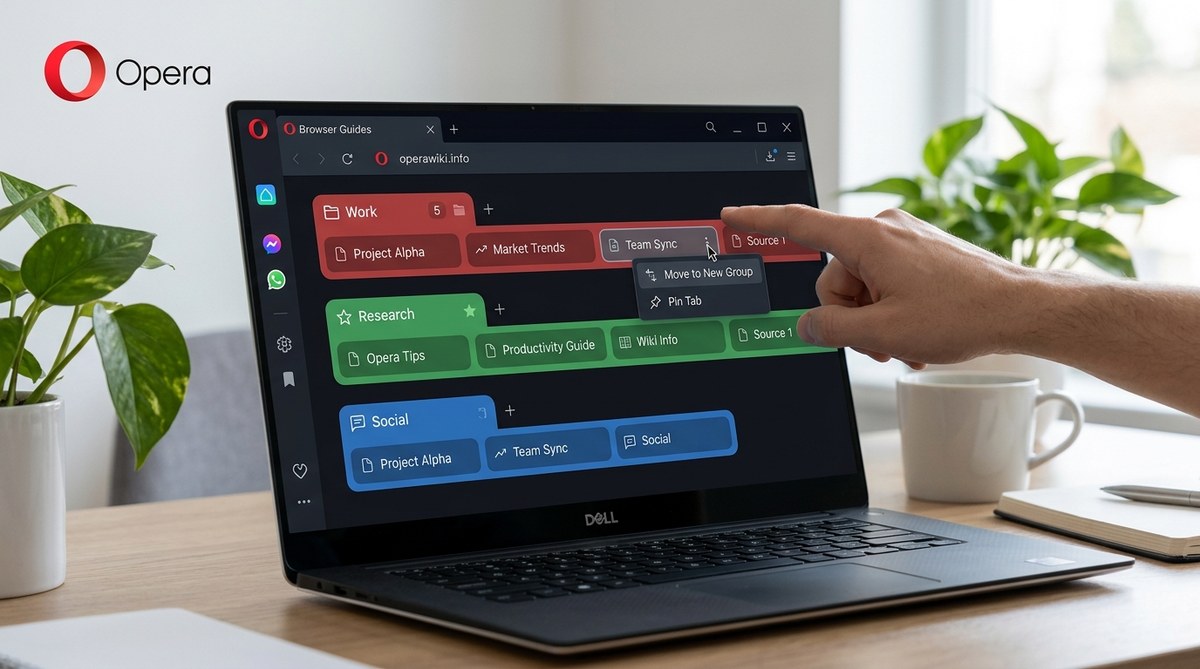
Tab groups allow you to bundle related tabs together inside the tab bar. You can name the group and choose a color. This way, five tabs about a single topic become one compact group label.
Pin Tabs
Pinned tabs stay small and permanent at the left side of the tab bar. They are perfect for services you use all day, like email, calendar, or a music player.
Tab Search
If you have dozens of tabs open, scrolling through them is slow. Opera’s tab search (Ctrl+Shift+A / Cmd+Shift+A) lets you type part of the page title or URL and jump straight to the matching tab.
Visual Tab Cycler
Press Ctrl+Tab (or Cmd+Tab) to see a popup with previews of all open tabs. It’s like Alt+Tab for your browser. You can cycle through thumbnails and pick the one you want.
Tab History
Each tab remembers its back/forward history. You can use the right click menu to jump back to any page you visited earlier in that tab, without losing your current spot.
These tools are the foundation. Now let’s put them to work.
How to Set Up Workspaces for Different Projects
Workspaces are the most effective way to separate your browsing contexts. Follow these steps to create a workspace for each major area of your life.
- Click the workspace icon (it looks like a small grid) on the right side of the tab bar.
- Click “Add new workspace”.
- Give it a name like “Work”, “Personal”, “Research”, or “Trip Planning”.
- Optionally choose an emoji to visually identify the workspace.
- Open the tabs you need in that workspace. They will stay separate from other workspaces.
- To switch, click the workspace icon and select the one you want. You can also use Ctrl+[1-8] to jump between workspaces.
Once you have set up a workspace, all tabs you open while in that workspace remain inside it. When you close Opera and reopen, each workspace remembers its own tabs. This is perfect for project based work. For example, you could have a workspace for a client project with their site, a competitor analysis, and a design tool, while your personal workspace holds social media, a recipe, and a news article.
If you want to move a tab from one workspace to another, right click the tab, choose “Move to another workspace”, and select the destination. Or drag the tab to the workspace icon and drop it on the target workspace name.
Using Tab Groups to Stay Organized
Workspaces are great for broad separation. But inside a single workspace, you might still have many tabs. That’s where tab groups shine.
To create a tab group:
- Hold Ctrl (or Cmd) and click multiple tabs to select them.
- Right click one of the selected tabs and choose “Add to new group”.
- Type a name for the group, like “Research” or “Design References”.
- Pick a color from the palette that appears.
- The group will collapse into a single label. Click the label to expand it again. Clicking away collapses it back.
You can also drag a tab directly onto another tab to create a group instantly. Opera groups them automatically in some cases, but manual grouping gives you more control.
Tab groups help you keep related pages together without making the tab bar wider. For instance, while writing this article, I have a group for “Screenshots” and another for “Sources”. When I finish the section, I close the group and all tabs inside it go away at once.
Common Tab Management Mistakes and How to Fix Them
Even with great tools, people fall into habits that create chaos. Here’s a table of common mistakes and the simple fixes.
| Mistake | How to Fix It |
|---|---|
| Keeping every tab open “just in case” | Use bookmarks for reference pages. Close tabs you are not actively using. Bookmark them into a folder if needed. |
| Never using workspaces because you forget they exist | Set a weekly reminder to organize your tabs. Start with just two workspaces: Personal and Work. |
| Pin tabs but never remove old ones | Review pinned tabs every month. Unpin any that you have not used in two weeks. |
| Opening a new tab instead of searching for an existing one | Use Tab Search (Ctrl+Shift+A). Type a keyword and press Enter to go to the matching tab. |
| Letting tab groups grow too large | Split one big group into smaller, topic specific groups. Or move some tabs to a dedicated workspace. |
| Ignoring the visual tab cycler | Try pressing Ctrl+Tab once an hour. After a few days, it becomes a habit. You will find tabs much faster. |
By recognizing these habits, you can shift to a more organized approach. The payoff is a browser that feels lighter and more responsive.
Advanced Tricks: Flow, Pin, and Tab Commands
Once you have the basics down, Opera has a few more tricks to speed up your tab workflow.
- Flow: Opera’s Flow feature syncs notes, links, and files between your desktop and phone. You can send a link from your phone to Flow, then open it on your desktop in the correct workspace. No more emailing yourself URLs.
- Pin to Start: Right click a tab and choose “Pin to Start” to add a shortcut to Opera’s start page. It’s not a tab, but a speed dial entry. Good for pages you open every session.
- Tab Commands: In the address bar, type “open tab [search term]” and Opera will jump to an existing tab that matches. For example, type “open tab weather” and it goes to the tab with weather.com. This works even faster than Tab Search.
- Close Duplicate Tabs: Right click the tab bar and choose “Close duplicate tabs”. Opera will keep the first copy and remove any extras. Very handy after opening multiple links from an email.
Combine these with workspace switching and you have a system that feels almost like a second desktop.
Expert Advice for Power Users
“The key to long term tab sanity is not just cleaning up once, but building a routine. Every evening, spend two minutes to review your open tabs. Close what you finished, group what you keep, and move anything that belongs in another workspace. Over a month, that tiny habit saves you hours of searching.” — Opera veteran user, 2026
That routine is simple but powerful. It prevents the “tab avalanche” that happens when you ignore the bar for a week. And it makes opening Opera the next day feel like a fresh start.
If you want to go further, consider combining tab management with performance tweaks. A clean browser runs faster, and you can learn more about that in our guide on Similarly, adjusting your privacy settings can reduce interruptions from trackers, which also helps keep your tab bar cleaner. Read about that in
Putting It All Together for a Cleaner Browsing Workflow
Now you have a full toolkit: workspaces, tab groups, pin tabs, search, and a daily review habit. Start small. This week, create one additional workspace for a project you care about. Then add a tab group inside your main workspace for a handful of related pages. Once that feels natural, try pinning your most used site and using Tab Search instead of manually scanning.
You will notice the difference quickly. Your tab bar will shrink, your computer will feel snappier, and your brain will thank you for the clarity. Opera’s tab management is not just about cleaning up; it is about designing your digital space to work for you, not against you.
Go ahead, give it a try. Open Opera right now and drag those scattered tabs into a group. You will wonder why you waited so long.