Looking to boost your online privacy while using Opera? With its built-in features and adjustable settings, Opera offers many ways to keep your browsing safe and your data under your control. Whether you’re concerned about trackers, cookies, or digital fingerprinting, knowing how to fine-tune these options makes a big difference. This guide walks you through the most effective privacy settings in Opera, so you can browse confidently and privately.
Adjusting Opera’s privacy settings enhances your security by blocking trackers, managing cookies, and enabling private browsing. Customizing these options helps protect your data from unwanted surveillance and keeps your online activities discreet.
How to activate essential privacy features in Opera
Opera is packed with privacy tools designed to give you more control over your browsing experience. Here are the primary settings to optimize for privacy:
1. Enable built-in ad blocker and tracker blocker
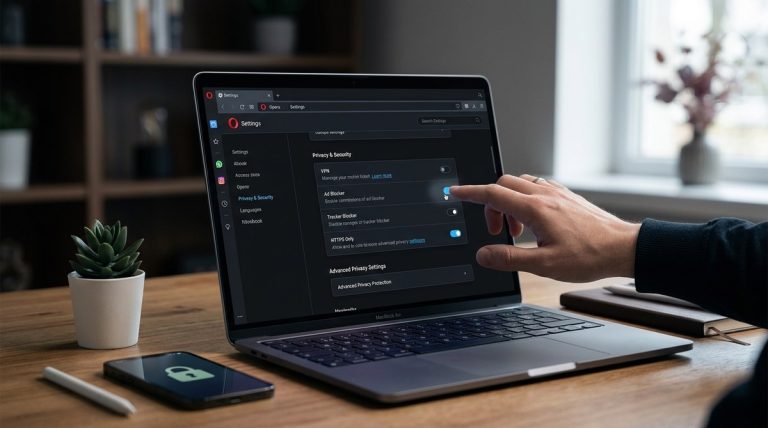
Opera’s integrated ad blocker is a straightforward way to prevent intrusive ads and stop trackers from following you around the web. To turn it on:
- Open Opera and click on the menu icon in the top-left corner.
- Select “Settings” from the dropdown menu.
- Navigate to the “Privacy & security” section.
- Find the “Block ads and trackers” toggle and switch it to on.
This feature improves page load times and shields you from invasive tracking scripts. You can customize filter lists to allow or block specific content, giving you control over what gets blocked.
2. Activate private browsing mode
Using Opera’s private window prevents the browser from saving your history, cookies, or site data after you close it. To open a private window:
- Click the Opera menu icon.
- Select “New private window.”
- Alternatively, press Ctrl+Shift+N (Windows) or Cmd+Shift+N (Mac).
In private mode, your browsing remains discreet, making it ideal for sensitive searches or when using a shared device.
3. Adjust cookie and site data settings
Cookies can track your activity across sessions. Managing them effectively reduces fingerprinting risks. To do this:
- Go to “Settings” and then “Privacy & security.”
- Click on “Cookies and site data.”
- Choose “Block third-party cookies” or “Clear cookies and site data when you close Opera.”
You can also add specific sites to an allow or block list, giving you granular control over your cookie management.
4. Enable VPN for added privacy
Opera offers a free, built-in VPN that masks your IP address and encrypts your traffic. To activate it:
- In “Settings,” scroll to “Privacy & security.”
- Switch on the “VPN” toggle.
- Once enabled, a VPN icon appears in the address bar.
- Click the icon to select server locations or toggle the VPN on/off.
Using the VPN helps you access geo-restricted content and keeps your browsing activities hidden from your ISP or network administrator.
5. Manage security certificates and HTTPS settings
Opera allows you to view and manage security certificates, ensuring you’re visiting legitimate sites. To do this:
- Go to “Settings” > “Privacy & security.”
- Select “Manage certificates.”
- Here, you can view trusted authorities and manage exceptions.
Always ensure you’re visiting secure sites with valid HTTPS certificates. Opera will warn you about invalid certificates, so pay attention to these alerts to avoid potential threats.
Additional privacy controls to consider
Beyond the core features, Opera provides several other options for advanced privacy:
- Tell sites not to track your activity: Enable the “Send a Do Not Track request” checkbox in “Privacy & security.” While not all sites honor this request, it signals your preference for less tracking.
- Clear browsing data regularly: Use the “Clear browsing data” option to remove history, cookies, cached images, and more. Automate this process on exit for ongoing privacy.
- Manage security badges: Check site security indicators in the address bar to verify HTTPS status and site authenticity.
- Unblock insecure content cautiously: In private mode, you can choose to load insecure (HTTP) content, but this can expose you to risks.
Comparing privacy techniques and common pitfalls
| Technique | What it does | Common mistake |
|---|---|---|
| Enabling ad and tracker blocker | Prevents ads and third-party trackers | Forgetting to update filter lists |
| Using private browsing | Deletes history after session | Accidentally closing private window |
| Managing cookies | Controls data stored by sites | Allowing all cookies by default |
| Turning on VPN | Hides your IP address | Relying solely on VPN for privacy |
| Managing security certificates | Ensures site authenticity | Ignoring warning alerts |
“Always verify that your privacy settings are active before browsing sensitive content. Combining multiple features like VPN, tracker blockers, and private mode creates a layered shield.” — Privacy expert
Keep your browsing private with these simple tweaks
Adjusting your Opera privacy settings doesn’t require complicated steps. Small changes, when combined, significantly improve your online security. Regularly review your settings to stay ahead of new privacy challenges. Remember, the internet is a dynamic space, and staying informed helps you maintain control over your data.
Final thoughts on mastering Opera’s privacy features
Taking control of your privacy in Opera is straightforward once you understand the available options. From enabling the built-in VPN to customizing cookie policies, applying these settings keeps your browsing discreet and protected. Make these adjustments your routine to enjoy a safer, more private online experience. Your data deserves respect, and with Opera’s privacy tools, you hold the power to safeguard it effectively.