You are deep into research mode. A dozen tabs are open, each one a wall of text. You need the core idea from each page, but reading everything would take an hour. This is exactly the moment Opera’s AI assistant was built for. It lets you summarize web pages in seconds, cutting through the noise so you can grab the key points and move on. No more copy-pasting into separate tools. No more skimming paragraphs hoping to find the main idea. The feature lives right inside your browser, ready to help the moment you need it.
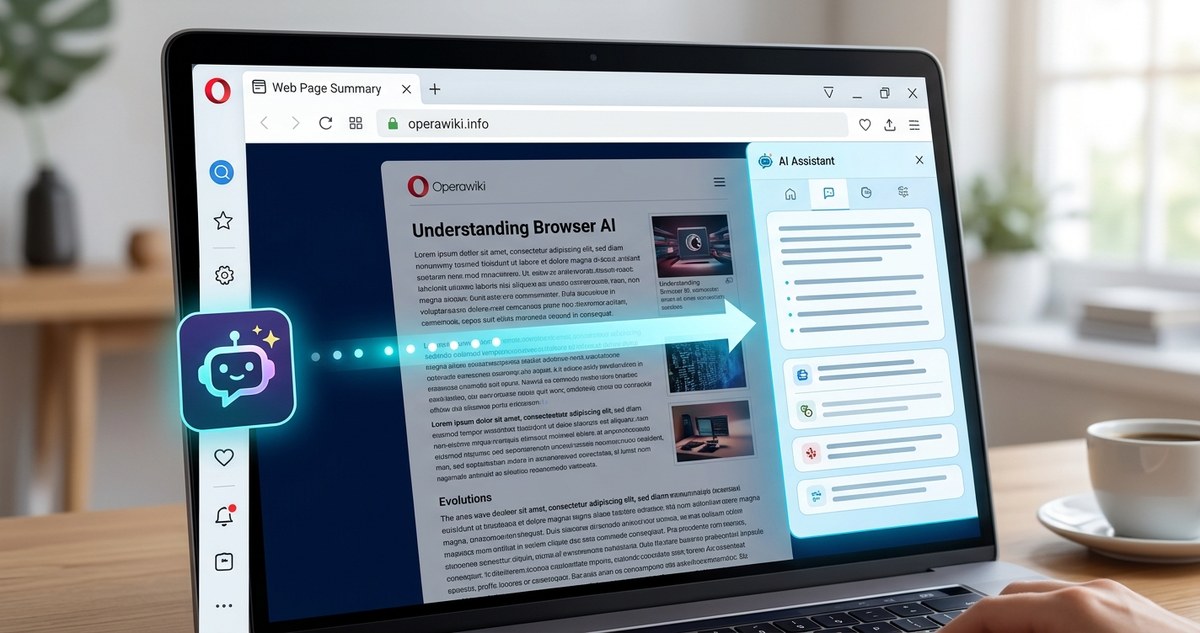
Opera’s AI assistant turns lengthy articles, reports, and blog posts into short, readable summaries without leaving your current tab. You activate it from the sidebar, choose your preferred length, and get a clean breakdown of the main ideas. This feature saves time during research, helps you decide if a page is worth reading in full, and keeps your workflow inside one window.
How the Opera AI Assistant Works
The AI assistant in Opera is not a separate app or a clunky plugin. It is a native part of the browser, accessible from the sidebar panel. When you land on a page that feels too long to read right now, you can ask the assistant to condense it for you. The technology uses a language model trained to understand context, identify the most important sentences, and rewrite them into a coherent summary.
The best part is speed. The assistant processes the page content and returns a summary in a few seconds. You do not need to wait for a separate window to load or sign up for a third-party service. Everything happens within the Opera ecosystem, which means your data stays more private than if you pasted a URL into an external tool.
Step-by-Step Guide to Summarizing a Page
Getting a summary is straightforward. Follow these steps the next time you face a long article.
-
Open the sidebar. Look for the sidebar icon on the left edge of the Opera window. Click it to expand the panel. If you do not see the sidebar, press
Ctrl + Shift + Son Windows orCmd + Shift + Son Mac to toggle it on. -
Select the AI assistant icon. Inside the sidebar, you will see several icons for different tools. The AI assistant icon looks like a small chat bubble or a star, depending on your Opera version. Click it to open the chat interface.
-
Paste or type your request. You can simply type “Summarize this page” or a similar phrase. The assistant will automatically detect the content of the active tab. Alternatively, you can paste a specific URL if you want to summarize a page you are not currently viewing.
-
Choose a summary style. The assistant often offers options like “Short summary,” “Bullet points,” or “Key takeaways.” Pick the style that fits your current need. A short summary works best for a general overview, while bullet points help when you need to scan facts.
-
Read and copy the result. The summary appears in the chat panel. You can copy the text directly from there and paste it into a note, document, or email. If the summary is not detailed enough, ask the assistant to expand on a specific section.
When to Use the Summarization Feature
The AI assistant is not just for lazy reading. It is a productivity tool that fits into several common scenarios.
- Research and study. If you are gathering information from multiple sources, summarizing each one helps you compare arguments without getting lost in details.
- News consumption. News articles often bury the lead. A summary pulls the most important facts to the top, so you understand the story in under a minute.
- Professional reports. Long PDFs or corporate documents can be overwhelming. Use the assistant to get a digest before a meeting or a deadline.
- Blog and tutorial previews. Before committing to a 20-minute read, check the summary to see if the post covers what you need.
Expert advice: Use the summary as a starting point, not a replacement. The assistant is great for getting the gist, but you should still read the original for nuance, data sources, and context. Treat the summary like a movie trailer. It shows you the highlights, but the full film has more depth.
Summary Styles and When to Pick Each One
The assistant offers different formats for its output. Choosing the right one can save you even more time.
| Summary Style | Best Used For | Example Output Length |
|---|---|---|
| Short paragraph | Getting the main idea fast | 2 to 4 sentences |
| Bulleted list | Scanning key facts or steps | 5 to 8 bullet points |
| Detailed summary | Understanding multiple angles | 1 to 2 short paragraphs |
| Q&A format | Preparing for a quiz or discussion | 3 to 5 questions with answers |
If you are not sure which style to pick, start with the short paragraph. It gives you enough context to decide whether you need more detail. You can always ask the assistant to switch formats without losing the conversation.
Common Mistakes and How to Avoid Them
The AI assistant is powerful, but it works best when you use it correctly. Here are a few pitfalls to watch out for.
- Asking for a summary before the page loads. The assistant reads the content of the active tab. If the page is still loading or if it is a video page with little text, the summary will be empty or useless. Wait for the page to fully render before making your request.
- Using the feature on login-gated content. If a page requires you to sign in to view the full article, the assistant may only see the login prompt. Log in first, then ask for the summary.
- Expecting perfect accuracy on very long documents. The assistant handles standard articles well, but an entire novel or a 100-page research paper may produce a summary that misses some sections. For very long pages, try summarizing in parts.
- Forgetting to check the summary for bias. AI models summarize based on what they identify as important. If the original text is biased, the summary may reflect that bias. Always keep a critical eye.
How This Compares to Other Methods
Before Opera added this feature, you had a few options. You could use a dedicated summarization website, install a separate browser extension, or read the page manually. Each option had downsides. External sites required you to copy and paste the URL, which broke your flow. Extensions added clutter to your toolbar and sometimes slowed down the browser. Reading everything took too long.
The Opera AI assistant solves all three problems. It is built in, so there is no extra installation. It works on the current tab, so you do not need to switch contexts. And it is fast, so you save time without sacrificing comprehension.
For users who already rely on Opera for daily browsing, this feature turns the browser into a more capable research tool. Combine it with other built-in tools like the ad blocker, the VPN, and the sidebar messengers, and you have a workstation that handles privacy, speed, and productivity in one package. You can learn more about making the browser work harder for you by reading our guide on mastering Opera’s hidden features.
Customizing the AI Assistant Behavior
Opera allows some customization for the AI assistant. You can adjust settings to change how the assistant responds. For example, you can set a default summary length or choose a preferred tone for the output. These options live in the browser settings under the AI section.
If you find that the summaries are too short or too long, adjust the length preference. If the language feels too formal, switch the tone to casual. These small tweaks make the assistant feel more personal and aligned with how you like to read.
A Practical Example
Imagine you are researching the best laptops for remote work. You find a review site with a 3,000-word article comparing ten different models. Instead of reading every paragraph, you open the sidebar and ask the assistant to summarize the page. Within seconds, you get a bulleted list of the top three recommendations, each with the key pros and cons. You now have enough information to narrow down your choices. You can then click through to the specific sections that interest you, reading only the parts that matter.
This workflow saves you about 15 minutes per article. If you research five articles a day, that is over an hour of time saved every week.
When Not to Rely on the Summary
There are situations where the summary is not enough. If you are analyzing a legal document, a medical study, or a technical specification, the original text contains details that an AI model might overlook. Summaries are not a substitute for careful reading in high-stakes scenarios. Use the feature to get oriented, but always verify critical information against the source.
Similarly, do not use summaries for creative writing or poetry. The AI focuses on factual content and may strip away the artistic elements that make a piece meaningful. Save the summaries for informational pages where the goal is to transfer knowledge.
Making the Assistant Part of Your Daily Routine
Once you get used to the AI assistant, you will find yourself using it more often than you expect. It becomes a natural part of how you process information online. You can pair it with other Opera features for an even smoother experience. For instance, use the tab management tools to organize your research sessions, and enable the built-in ad blocker to make pages load faster before summarizing them.
The key is to treat the assistant as a collaborator. It handles the first pass of reading, and you handle the thinking. This partnership lets you process more information without feeling overwhelmed.
Opera AI Assistant and Your Privacy
Privacy is a valid concern when using any AI tool. Opera processes your requests within the browser, and the company states that it does not store the content of the pages you summarize for training purposes. If you want an extra layer of security, you can combine this feature with the Opera VPN to encrypt your connection while you browse and summarize.
For users who are privacy-conscious, this is a better option than pasting URLs into free online summarizers that may log your data or use it for their own models. Keeping everything inside the browser reduces the number of parties that have access to your reading habits.
Getting the Most Out of Your AI Assistant
To truly make this feature a habit, try these tips.
- Use keyboard shortcuts. Memorize the shortcut to open the sidebar. The faster you can access the assistant, the more likely you are to use it.
- Ask follow-up questions. The assistant remembers the context of your current page. After getting a summary, you can ask for more details on a specific point without retyping the URL.
- Combine with bookmarks. When you find a useful summary, bookmark the original page and save the summary text in the bookmark description. This creates a searchable archive of condensed knowledge.
- Experiment with different phrasings. If the summary is not useful, try rephrasing your request. For example, instead of “Summarize this,” try “Give me the main argument” or “List the statistics mentioned.”
Final Thoughts on Summarizing with Opera
The Opera AI assistant changes how you interact with long-form content online. It removes the friction of reading every word while still keeping you informed. Whether you are a student, a professional, or just someone who likes to stay updated, this tool helps you spend less time reading and more time acting on what you learn.
Open Opera right now, find a long article you have been putting off, and try the summarization feature. Within a minute, you will have a clear picture of the content. Once you see how much time it saves, it will become one of your most-used browser tools.