If you keep thirty tabs open because you are afraid to close any of them, you are not alone. That crowded tab bar is a productivity trap. Every extra tab steals a sliver of your focus and slows your browser down. The good news is that Opera browser tab management has matured into a serious toolset in 2026. You do not need to live with digital clutter anymore. With a few deliberate changes, you can turn that messy row of tabs into a clean, logical system that works the way your brain does.
Opera browser tab management is about grouping your work into separate spaces instead of stacking everything in one place. Use Workspaces to separate projects, personal browsing, and research. Combine that with Tab Islands for related pages and the search feature to find any tab instantly. This approach cuts visual noise, reduces memory use, and helps you finish tasks faster without losing context.
Why Your Tab Bar Feels Like a Nightmare
Think about your typical work session. You open an email, click a link, open a second link from that page, then open a document for reference. Before you know it, you have fifteen tabs open for one project. Then you switch to a personal task and add five more. By lunchtime, your tab bar shows tiny favicons that all look the same.
This happens because browsers traditionally treat every tab as equal. A tab for your bank login sits next to a tab for a work spreadsheet. There is no separation between contexts. Your brain has to constantly refocus every time you switch.
Opera solves this by letting you create containers for different parts of your life. The core of Opera browser tab management is the idea that context matters. When you separate your work tabs from your personal tabs, your brain can switch modes cleanly. You stop wasting mental energy on filtering out irrelevant information.
The Workspaces Feature That Changes Everything
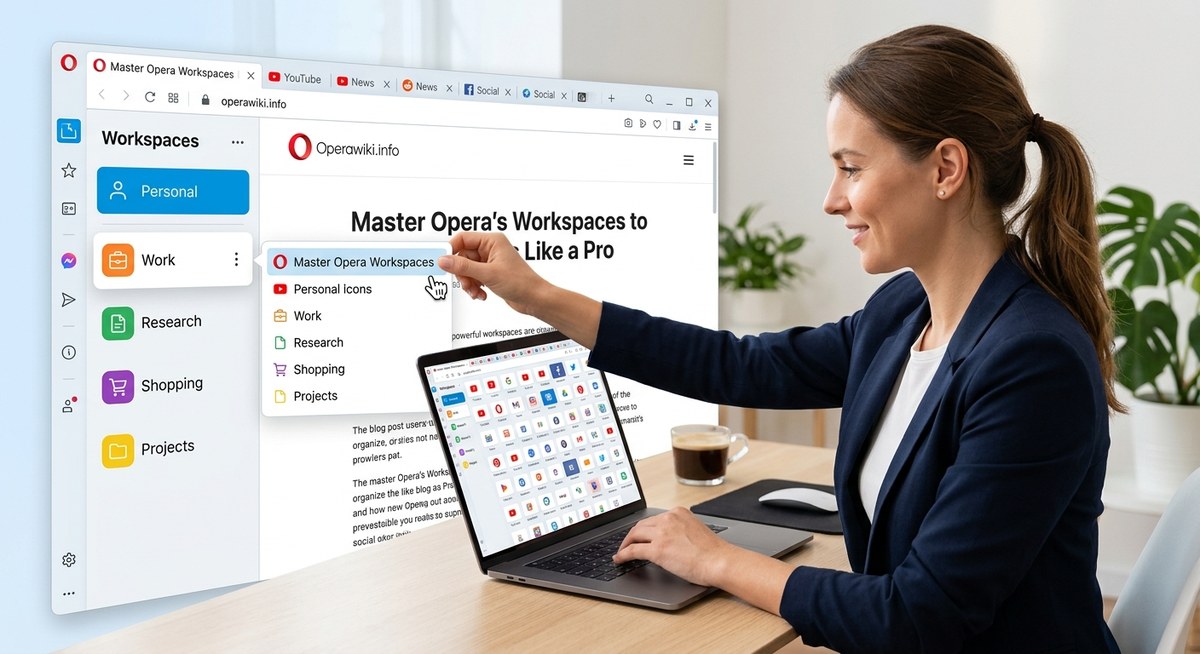
Workspaces are the foundation of a clean Opera setup. They let you create separate tab groups that live in their own space. Each workspace holds its own set of tabs, and you can switch between them with a single click.
Here is how to set up Workspaces for your daily workflow:
- Click the Workspaces icon in the sidebar (it looks like a small grid of squares).
- Click “Add workspace” and give it a name. Use something descriptive like “Work Projects” or “Research.”
- Open the tabs you need for that workspace. They stay contained there.
- Switch to a different workspace when you change tasks. Your other tabs are saved but hidden from view.
You can also assign a custom icon to each workspace. Choose a color or symbol that matches the vibe of that space. Red for urgent work, green for personal, blue for learning. This visual cue helps your brain recognize the context before you even read a tab title.
Workspaces are especially useful for professionals who juggle multiple roles. If you manage a team, run a side business, and study for a certification, you can keep each domain in its own workspace. No more accidentally closing a work tab while you are browsing personal sites.
Tab Islands Keep Related Pages Together
Opera introduced Tab Islands to solve a specific problem: pages that belong together but are not part of a permanent workspace. A Tab Island is a group of tabs that are visually connected. When you open a link from a page, Opera can automatically group the new tab with the original one.
This feature is perfect for research sessions. Say you are reading a news article and click three related links. Instead of scattering those tabs across your bar, Opera groups them into an island. You can collapse the island to save space or expand it when you need to access the pages.
To use Tab Islands effectively:
- Enable the feature in Settings under “User interface” or “Tabs.”
- When you open a link from a page, the new tab appears as part of an island.
- Drag tabs together manually to create your own islands.
- Right click an island to close all tabs in that group at once.
Tab Islands work well for temporary tasks. You might create an island for booking a flight, another for comparing product reviews, and a third for planning a weekend trip. When the task is done, you close the entire island in one action. No leftover tabs cluttering your workspace.
How to Find Any Tab in Seconds
Even with Workspaces and islands, you might still lose track of a specific tab. Opera includes a tab search feature that is faster than scanning the bar. Press Ctrl + Space (or Cmd + Space on Mac) to open the search overlay. Start typing the page title or URL, and Opera shows matching tabs instantly.
This feature saves you from clicking through every open tab to find the one you need. It is especially useful when you have multiple tabs with similar names, like several Google Docs or email threads.
You can also search across all workspaces at once. If you remember opening a page but cannot remember which workspace it belongs to, the search tool finds it regardless. This is one of those small Opera browser tab management features that feels trivial until you use it daily.
A Table of Common Tab Mistakes and Fixes
| Common Mistake | Why It Hurts | The Opera Fix |
|---|---|---|
| Keeping all tabs in one window | Mental fatigue from constant context switching | Use Workspaces to separate projects |
| Opening links in new tabs without grouping | Tab bar becomes a random list | Enable Tab Islands for automatic grouping |
| Never closing tabs | Browser slows down, memory usage climbs | Close entire islands when a task finishes |
| Searching for tabs by clicking each one | Wastes time and breaks focus | Use Ctrl + Space for instant tab search |
| Using the same workspace for work and personal | Blurred boundaries between tasks | Create separate workspaces for each role |
The Hidden Power of Tab Suspension
Opera includes a built-in tab suspension feature that helps with performance. When you leave a tab inactive for a while, Opera unloads it from memory. The tab stays visible in the bar, but it does not consume resources until you click it again.
This is a lifesaver if you tend to keep many tabs open for reference. You can have twenty tabs in a research workspace without slowing down your computer. When you return to that workspace the next day, the tabs reload on demand.
You can adjust the suspension timing in Settings. Set it to suspend tabs after five minutes of inactivity for aggressive memory savings, or after thirty minutes if you switch between tabs frequently. Find the balance that works for your workflow.
Using the Sidebar for Tab Management
The Opera sidebar is not just for messengers and music players. You can use it to manage your tabs more efficiently. Pin the sidebar to show your Workspaces and Tab Islands at all times. This gives you a visual overview of everything open across all contexts.
You can also drag tabs from the main window into the sidebar area to create new islands or move them between workspaces. This drag and drop approach is intuitive once you get used to it. It turns tab management into a physical action rather than a menu hunt.
For power users, the sidebar shows a list of all open tabs in the current workspace. You can scroll through this list and click to jump to a specific tab. This is faster than hunting through a crowded tab bar when you have more than a dozen tabs open.
Practical Workflows for Real People
Let us look at how you can apply Opera browser tab management to your actual day. Here is a workflow for a typical knowledge worker:
- Create a workspace called “Morning Review.” Open your email, calendar, and task manager there.
- When you start a specific project, create a workspace for it. Open the project management board, the relevant documents, and any reference links.
- Use Tab Islands for research rabbit holes. When you find a useful article, open its links in the same island.
- At lunch, switch to a “Personal” workspace. Open your social media, news sites, and any personal tasks.
- At the end of the day, review each workspace. Close any islands that are no longer needed. Suspend the rest.
This structure keeps your browser organized without requiring constant maintenance. You spend less time managing tabs and more time doing actual work.
What About Extensions for Tab Management
Opera supports Chrome extensions, so you can add extra tab management tools if you want. But before you install anything, try the built-in features first. Many users find that Workspaces, Tab Islands, and search cover all their needs.
If you do want extensions, look for ones that enhance Opera’s native features rather than replace them. A good extension might add visual tab previews or let you save entire workspace states. But avoid extensions that promise to “magically organize” your tabs. They often add complexity without real benefit.
For a deeper look at browser optimization, check out these top performance tweaks to speed up your Opera browser experience. Performance and tab management go hand in hand.
Common Questions About Opera Tab Management
Can I sync Workspaces across devices?
Yes, if you enable Opera Sync. Your workspaces and their tabs sync to other devices running Opera. This is great for moving between your desktop and laptop.
Do Tab Islands work with pinned tabs?
Tab Islands and pinned tabs are separate systems. You can pin important tabs in a workspace and use islands for temporary groups within that same workspace.
Will closing a workspace delete my tabs?
Closing a workspace removes the tabs from view, but they are not permanently deleted. You can reopen the workspace and your tabs will be there. If you want to clear a workspace completely, close the tabs manually first.
Is there a limit to how many workspaces I can create?
There is no hard limit, but for practical sanity, keep it under ten. Too many workspaces create the same problem as too many tabs.
Put These Ideas into Action Today
You do not need to overhaul your entire browsing habit in one sitting. Start with one change. Create a workspace for your main project tomorrow morning. Move the relevant tabs into that workspace. See how it feels to switch between contexts without the visual noise of unrelated tabs.
Once that becomes natural, add Tab Islands for your research sessions. Then enable tab search and learn the keyboard shortcut. Each step builds on the last. Within a week, your tab bar will look cleaner, your browser will feel faster, and your focus will improve.
Opera browser tab management is not about having fewer tabs. It is about having the right tabs in the right place at the right time. That small shift in perspective makes all the difference.
For more ways to get the most out of your browser, read our guide on how to master tab management in Opera browser for effortless browsing. It covers advanced techniques for power users who want total control.
Start with one workspace tomorrow. Your future self will thank you when you are not hunting through a sea of favicons to find that one tab you need.