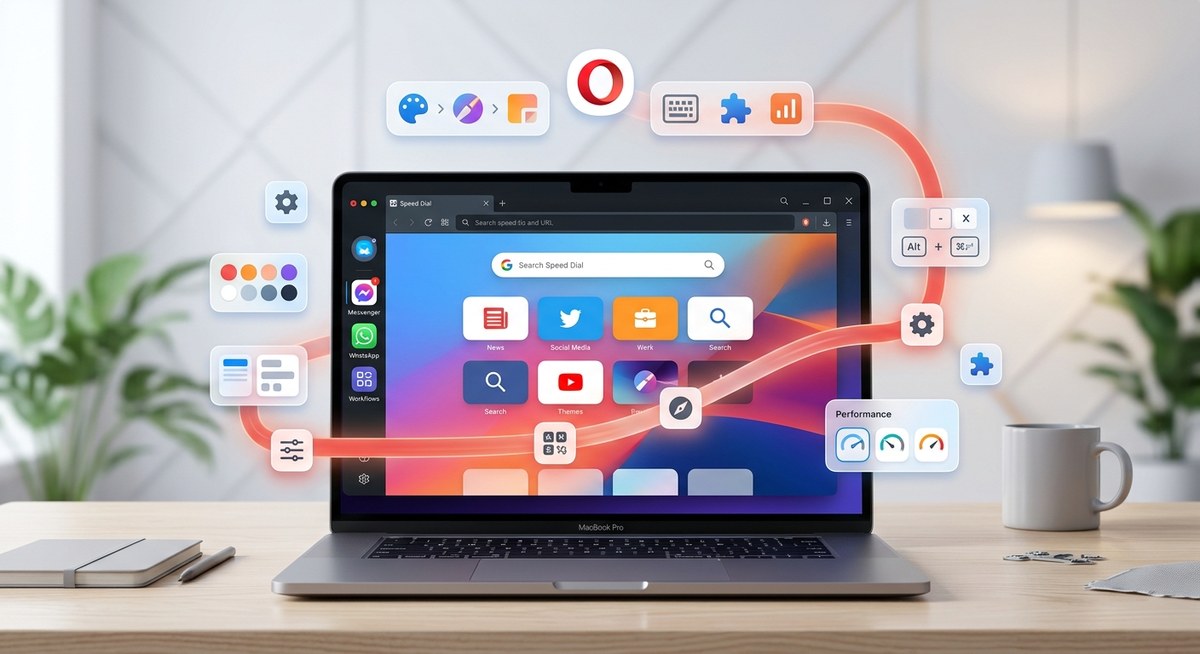
Unlocking the full potential of your Opera browser means more than just browsing. Customization allows you to craft an environment that fits your style and workflow perfectly. Whether you want to change themes, add extensions, or tweak settings, Opera offers a flexible platform for tech enthusiasts eager to personalize every detail. This guide covers practical tips and tricks to help you transform your browsing experience into something uniquely yours.
Customizing Opera involves adjusting themes, extensions, sidebar, and settings to match your style. Practical steps include using the Easy Setup panel, installing extensions, and personalizing themes for a unique, efficient browsing environment.
Making the most of Opera’s customization options
Opera is packed with features that go beyond basic browsing. To truly make it your own, start with its intuitive customization tools. From themes to extensions, the browser offers endless possibilities to enhance both appearance and functionality.
Personalizing the look with themes and wallpapers
Changing the visual style of Opera can make your workspace more inspiring or calming. Opera supports dynamic themes that shift based on your preferences or time of day. You can also select wallpapers to add a personal touch to your start page.
Adjusting the interface with the sidebar and panels
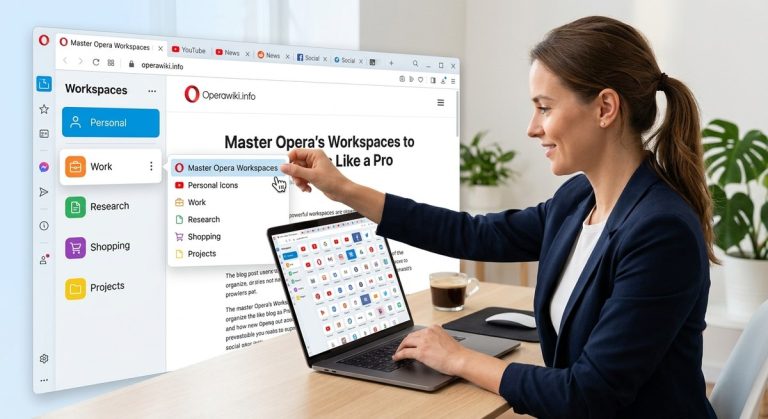
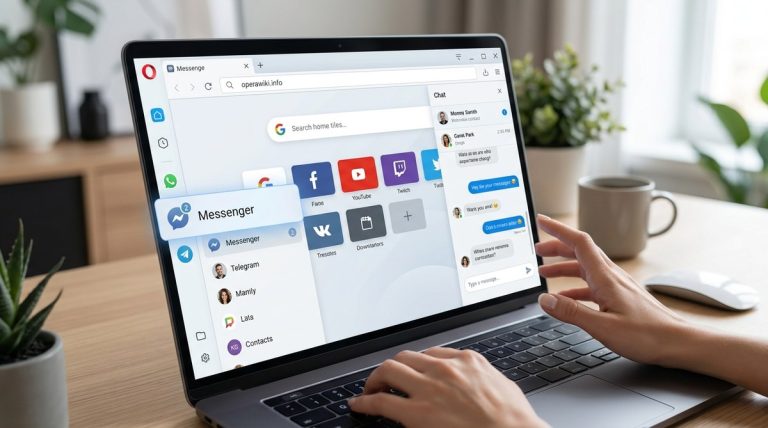
The sidebar in Opera is a powerful hub for quick access to your favorite sites and tools. You can customize its content, position, and appearance. Adding messenger integrations or quick links makes your browsing smoother and more personalized.
Fine-tuning settings for a tailored experience
Opera’s settings menu allows you to control everything from privacy to startup behavior. Tweaking these options ensures your browser functions exactly how you want. For instance, you can set up session restore, manage cookies, or enable hardware acceleration.
Practical steps to customize your Opera browser
Here are simple, actionable methods to personalize your Opera setup:
-
Open the Easy Setup panel: Click the Easy Setup icon located at the top right corner of the browser. Here, you can quickly toggle themes, wallpapers, and the sidebar.
-
Choose a theme or wallpaper: In the Easy Setup menu, select “Appearance.” You can pick from pre-installed themes or upload your own wallpaper images to give Opera a fresh look.
-
Install extensions for extra functionality: Head to the Opera add-ons store or enable Chrome extensions by visiting opera://extensions and turning on “Allow extensions from other stores.” Popular extensions include ad blockers, productivity tools, and custom themes.
-
Customize the sidebar: Right-click on the sidebar to add, remove, or rearrange shortcut icons. You can also enable messenger integrations like WhatsApp or Telegram for quick messaging access right from your browser.
-
Adjust advanced settings: Dive into the full settings menu via the menu button. Here, you can manage privacy options, set startup preferences, and configure advanced browsing features.
-
Create your own themes: For those who want a fully personalized look, Opera allows creating custom themes. Use tools like Theme Creator to design your own or edit existing ones.
Tips for efficient customization
- Use keyboard shortcuts to access settings quickly, such as Alt+P for preferences.
- Regularly update your extensions to ensure compatibility.
- Backup your settings and bookmarks before making major changes.
Common pitfalls and how to avoid them
| Technique | Mistake | Solution |
|---|---|---|
| Installing too many extensions | Browser slowdown | Limit to essential extensions and remove unused ones. |
| Using low-quality wallpapers | Distraction or poor performance | Choose high-resolution images optimized for web. |
| Ignoring privacy settings | Security risks | Regularly review and update privacy preferences. |
| Over-customizing the sidebar | Cluttered workspace | Keep sidebar simple with only necessary shortcuts. |
“Remember, the goal of customization is to enhance your browsing without cluttering your workspace. Balance aesthetics with functionality for the best experience.” — Tech expert Jane Doe
Elevate your browsing with tailored Opera features
Personalizing your browser extends beyond looks. Opera includes features like built-in VPN, snapshot tools, and quick access to your favorite services. Adjusting these settings makes your browsing safer, faster, and more aligned with your needs.
Using the sidebar for quick access
The sidebar can host links to email, social media, or news sites. To customize, right-click the sidebar, select “Edit,” and add your preferred sites or services. This setup saves time and keeps your workspace organized.
Managing privacy and security
Opera’s privacy settings allow you to control data sharing and tracking. You can enable the built-in VPN for secure browsing or disable telemetry data collection. Regularly review your privacy preferences to stay safe online.
Custom shortcuts and gestures
Opera supports keyboard shortcuts and mouse gestures for quicker navigation. Customize shortcuts for common actions like opening new tabs or switching windows through the settings menu. This boosts efficiency, especially for power users.
Final touches for a truly personalized browser
Remember to keep your browser updated to access the latest customization features. Regularly clean out unnecessary extensions and wallpapers to maintain optimal performance. Use the Opera Sync feature to share your personalized setup across devices easily.
Additional resources
For detailed instructions on enhancing your privacy, visit Mastering Opera Browser Privacy Settings for Safer Browsing. It offers expert advice to keep your browsing secure while personalizing your experience.
Making customization a regular habit
Taking time to personalize Opera ensures a more enjoyable and efficient browsing journey. Whether you prefer a dark theme for late-night work or a colorful wallpaper to boost creativity, small tweaks can significantly impact your daily experience. Experiment with different settings and extensions to find what works best for you.
Remember, your browser is your digital workspace. Craft it to match your style and needs, and browsing will become a more engaging activity. Dive into the customization options today and make Opera truly yours.