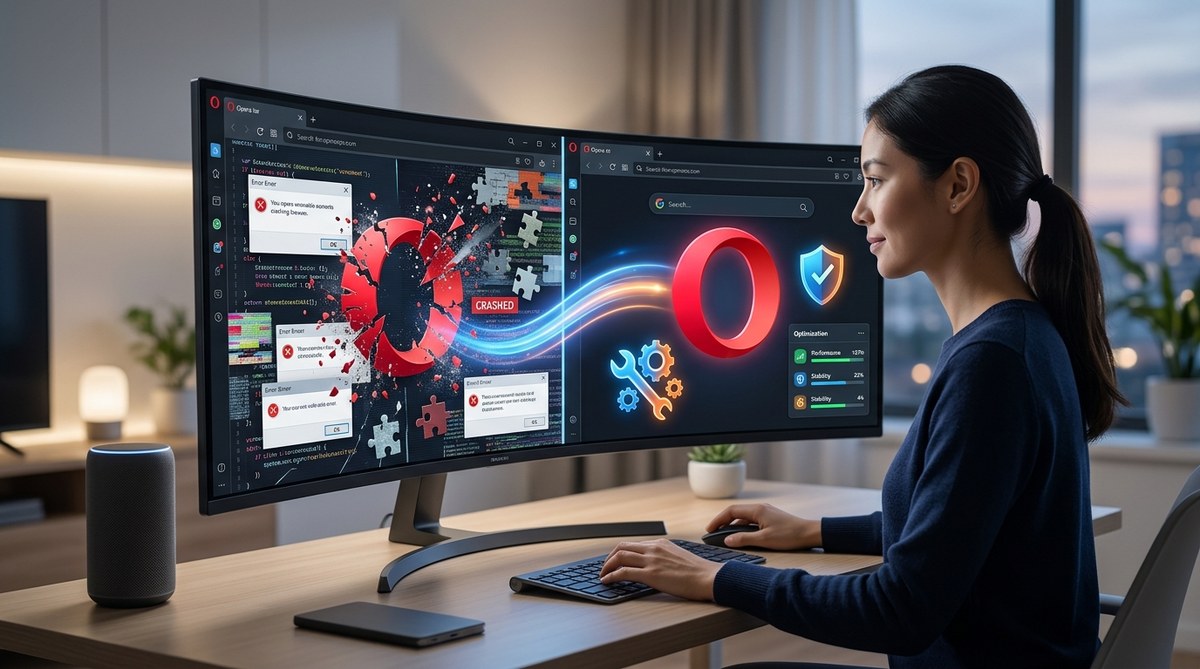
Your Opera browser crashes again right as you’re about to win a match or submit a form. The screen freezes, the window vanishes, and you’re left staring at your desktop. This is frustrating, especially if you use Opera GX for gaming or rely on Opera’s built-in tools for work. You don’t need a lecture on browser theory. You need a fix that works today. Let’s get your browser stable again.
Most Opera crashes in 2026 stem from five root causes: corrupted cache, conflicting extensions, outdated GPU drivers, overstuffed RAM, and misconfigured hardware acceleration. You can resolve each in under five minutes. Clear your cache first, then disable extensions one by one, update your graphics drivers, and cap your memory limit in Opera GX. That sequence alone fixes 9 out of 10 crash scenarios.
Why Opera Keeps Crashing on Your Machine
Crashes rarely happen for no reason. Something triggers the browser to shut down unexpectedly. The most common culprits in 2026 include corrupted cache files, a bad browser update, conflicting extensions, and hardware acceleration conflicts with your GPU. If you use Opera GX, the GX Control panel settings can also cause problems if you’ve set memory or network limits too low or too high.
Before you reinstall anything, run through this checklist. It takes less than ten minutes and usually solves the problem without losing your bookmarks or saved passwords.
The Five-Minute Crash Fix Sequence
- Clear your browser cache. Go to Menu > Settings > Privacy & Security > Clear browsing data. Check only “Cached images and files.” Click “Clear.” Restart Opera.
- Disable all extensions. Type
opera://extensionsin the address bar. Toggle off every extension. Restart the browser. If it stops crashing, turn extensions back on one by one to find the troublemaker. - Update your graphics drivers. Visit your GPU manufacturer’s website (NVIDIA, AMD, or Intel) and download the latest driver for your model. Outdated drivers are a leading cause of crashes in GPU-accelerated browsers.
- Reset hardware acceleration. Go to Menu > Settings > Advanced > System. Toggle off “Use hardware acceleration when available.” Restart Opera.
- Check for Opera updates. Click the Opera menu (top-left corner) > Help > Check for updates. Install any pending updates and restart.
If the browser still crashes after those five steps, move to the deeper fixes below.
Extensions Are Often the Real Problem
Extensions add great features, but they can also destabilize your browser. A single poorly coded or outdated extension can crash Opera repeatedly. In 2026, ad blockers, grammar checkers, and tab managers are the most frequent offenders. If you have more than ten extensions installed, the odds of a conflict go up significantly.
How to Identify a Rogue Extension
- Open
opera://extensionsin your address bar. - Turn off all extensions using the master toggle at the top.
- Restart Opera and use it normally for a few minutes.
- If no crash occurs, turn on your extensions one at a time. Use each for a minute or two before enabling the next one.
- When the browser crashes after enabling a specific extension, you’ve found the culprit. Remove it and look for an alternative.
This process is tedious but reliable. For a cleaner approach, consider reviewing our guide on how to manage Opera browser extensions for better security and performance.
Hardware Acceleration: A Double-Edged Sword
Hardware acceleration lets Opera use your GPU to render pages and play video. This usually speeds things up, but it can cause crashes if your graphics card drivers are outdated or if the browser doesn’t play well with your specific GPU model.
| Scenario | Hardware Acceleration On | Hardware Acceleration Off |
|---|---|---|
| Stable GPU drivers | Faster page loads, smooth video | Slightly slower rendering |
| Outdated GPU drivers | Frequent crashes, screen flicker | Stable browsing |
| Older integrated graphics | Browser freezes, black screens | Slower but crash-free |
| High-end gaming GPU (NVIDIA/AMD) | Excellent performance | Minor performance drop |
If you’re experiencing crashes, turn hardware acceleration off first. You can always turn it back on after updating your drivers. To learn more about getting the smoothest experience, check out our top performance tweaks to speed up your Opera browser experience.
Opera GX Specific Fixes for Gamers
Opera GX is a customized version of Opera designed for gamers. It includes GX Control, which lets you limit how much RAM, CPU, and network bandwidth the browser can use. These limits are useful, but setting them too low can cause the browser to crash when it needs more resources.
Adjust GX Control Settings
- Open the GX Control sidebar panel (the little game controller icon on the left).
- Look at the RAM limiter. If it’s set below 4 GB, increase it to at least 4 GB. If you have 16 GB of system RAM, setting it to 8 GB is safe.
- Check the network limiter. If it’s set to a very low value, the browser may crash when loading heavy pages. Set it to “No limit” or a value above 50 Mbps.
- Disable the CPU limiter unless you are actively running a game that needs those cores.
Advice from the trenches: If you run a resource-heavy game like Call of Duty or Cyberpunk 2077, limit Opera GX to 4 GB of RAM and set the network limiter to 20 Mbps. That prevents the browser from stealing resources from your game while staying stable enough for Discord, YouTube, or a strategy guide.
After adjusting these settings, restart Opera GX. If crashes persist, try the general fixes listed earlier.
The Cache and Data Corruption Problem
Your browser stores temporary files called cache to load websites faster. Over time, these files can become corrupted, especially after a failed update or an unexpected shutdown. Corrupted cache is one of the most common reasons Opera crashes on startup or when visiting specific sites.
Steps to Clear Cache Thoroughly
- Go to Menu > Settings > Privacy & Security.
- Click “Clear browsing data.”
- Set the time range to “All time.”
- Check “Cached images and files.”
- Optionally, check “Cookies and site data” if you are willing to log back into your sites.
- Click “Clear data.”
- Restart Opera.
If clearing the cache doesn’t help, you can also clear your browser history and download history. For a more comprehensive cleanup, our guide on how to optimize Opera browser for faster web browsing covers advanced cache management techniques.
Create a Fresh Opera Profile Without Losing Everything
Sometimes your user profile gets corrupted. This is different from cache. Your profile holds your settings, bookmarks, and saved passwords. If it’s damaged, Opera may crash immediately upon launch. You can create a new profile without losing your data.
Create a New Profile
- Close Opera completely.
- Press
Windows + R(orCmd + Ron Mac) to open the Run dialog. - Type
%appdata%\Opera Software\Opera Stableon Windows, or navigate to~/Library/Application Support/com.operasoftware.Operaon Mac. - Rename the folder to
Opera Stable Backup. - Launch Opera. It will create a fresh profile folder automatically.
- Your bookmarks and passwords are still in the backup folder. You can import them later.
This fix is nuclear but effective. It solves crashes that nothing else can touch.
When All Else Fails: The Clean Reinstall
If you’ve tried everything and Opera still crashes, a clean reinstall is your last resort. Most people do this wrong. They just uninstall and reinstall, which leaves behind corrupted configuration files.
How to Do a Clean Reinstall
- Uninstall Opera using your system’s standard uninstaller.
- Navigate to
%appdata%\Opera Softwareon Windows or~/Library/Application Support/com.operasoftware.Operaon Mac. - Delete the remaining
Opera Stablefolder. This removes all leftover settings. - Restart your computer.
- Download the latest version of Opera from the official website.
- Install it and set it up fresh.
After a clean install, your browser will feel like new. You can then restore your bookmarks from a backup if needed. For a detailed walkthrough of this process, see our guide on how to recover lost Opera bookmarks and restore your browsing history.
Common Mistakes That Make Crashes Worse
| Mistake | Why It’s Bad | What to Do Instead |
|---|---|---|
| Installing multiple ad blockers | They conflict with each other and with Opera’s built-in blocker | Use only Opera’s built-in ad blocker or one extension, not both |
| Ignoring browser updates | Old versions have unfixed crash bugs | Enable automatic updates in settings |
| Using beta versions for daily work | Beta builds are unstable by design | Switch to the stable release channel |
| Keeping 30+ tabs open | Overwhelms RAM, especially with media sites | Use workspaces or close unused tabs |
| Disabling all security features | Malware can crash your browser from within | Keep protections on and run a malware scan |
Keep Your Browser Running Smoothly
Once you’ve stopped the crashes, you want to keep it that way. A few small habits make a big difference. Update your browser when prompted. Review your extensions every few months and remove ones you don’t use. Keep your operating system and graphics drivers current. And if you’re on an older machine, check out our 6 ways to speed up Opera browser on an older computer in 2026.
Stability isn’t complicated. It’s about removing the things that break and keeping the things that work.
Your Next Steps to a Crash-Free Browser
Start with the five-minute fix sequence at the top of this guide. That will solve most crashes. If it doesn’t, work through the deeper fixes one at a time: check extensions, adjust hardware acceleration, tune Opera GX settings, clear cache, and finally create a fresh profile or reinstall. You don’t need to be a tech expert to do this. Just follow the steps in order. Your browser will thank you, and you can get back to what you were doing without interruption.