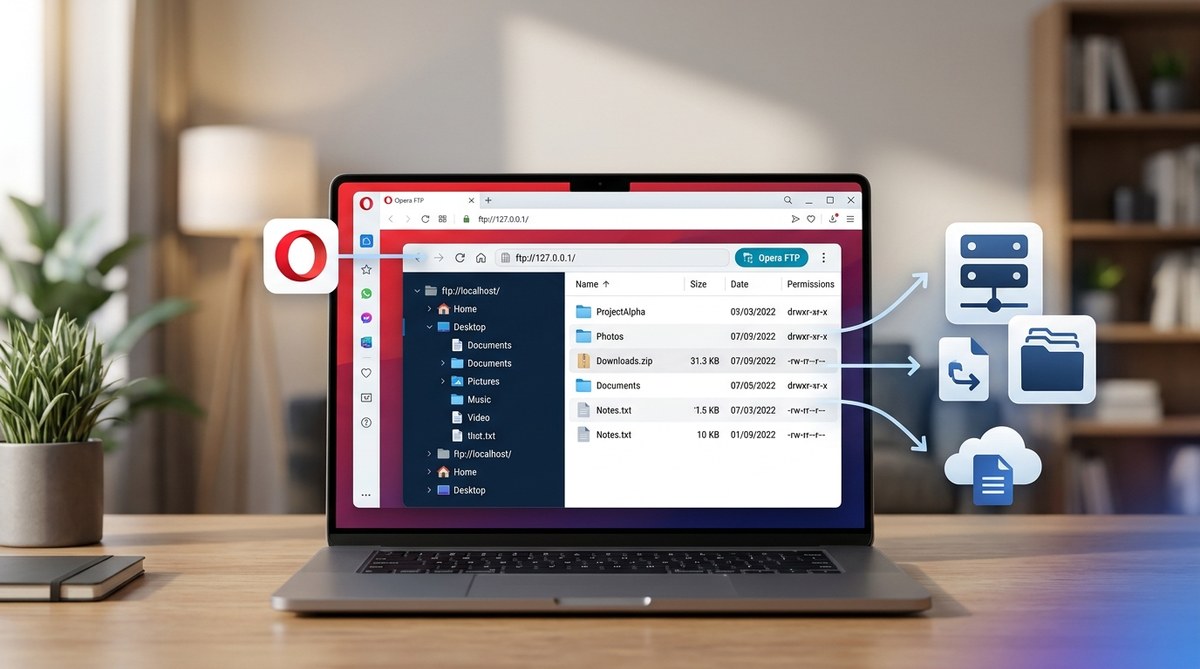
Most people think of Opera as just a web browser, but it has a secret trick hiding in plain sight. Opera comes with a built-in FTP client that can double as a local file manager. That means you can browse, upload, download, and organize files on remote servers or even on your own machine using the same interface you use for reading the news or checking email. No extra software needed. No bloated file manager. Just a lightweight way to handle files directly from your browser.
Opera’s built-in FTP client lets you manage remote and local files without installing separate software. You can connect to any FTP server, browse folders, transfer files, and even edit documents on the fly. This turns your browser into a capable file manager for lightweight setups, portable drives, or quick tasks. It works best for users who want a simple tool without the overhead of dedicated FTP applications.
Why Your Browser Can Replace a File Manager
You already spend hours inside a browser. Why leave it just to move a few files around? Opera’s FTP client turns the browser into a central hub for file management. Instead of juggling FileZilla, Windows Explorer, and a terminal window, you can handle everything from one tab.
This approach is especially handy for portable setups. If you run Opera from a USB drive, you get a file manager that travels with you. No configuration files left behind, no installation required. You plug in, open Opera, and start working with files.
The FTP client also handles local connections. You can point it to a local FTP server running on your own machine or a network drive. That means you can manage files on your desktop, laptop, or home server all from the same browser window.
How to Set Up Opera as a Local File Manager
Getting started is straightforward. You do not need to install any extensions or modify system files. Here is how to turn Opera into a file manager using its built-in FTP features.
Step 1: Enable the FTP Client
Opera’s FTP client is not always visible by default. You need to activate it in the browser settings.
- Open Opera and type
opera://flagsinto the address bar. - Search for “ftp” using the search box at the top of the flags page.
- Look for the flag called “Enable FTP protocol” or similar wording. It might be labeled as “opera_ftp”.
- Set the flag to “Enabled”.
- Restart Opera for the change to take effect.
Once you restart, Opera can handle FTP links and you can type FTP addresses directly into the address bar.
Step 2: Connect to a Server or Local Machine
Type ftp://localhost into the address bar to connect to a local FTP server running on your own computer. If you have a remote server, type its address like ftp://192.168.1.100 or ftp://example.com.
Opera will prompt you for a username and password. If you are connecting to a public FTP server, try “anonymous” as the username and your email address as the password.
Step 3: Navigate Folders and Transfer Files
Once connected, Opera displays the remote directory like a folder view. You can click folders to open them. Drag and drop files from your desktop into the Opera window to upload. Right-click any file to download it to your default download folder.
You can also create new folders by right-clicking in the file list and selecting “Create directory”. Rename files the same way.
Step 4: Edit Files Directly
Opera lets you open text files in the browser. Click a .txt, .html, or .css file, and Opera will display it in a new tab. You can copy the content, edit it in a text editor, and upload the modified version back. This is not a full code editor, but it works for quick tweaks.
Common Mistakes and How to Avoid Them
Even experienced users trip up on a few things when using Opera’s FTP client as a file manager. Here is a table of the most frequent mistakes and how to fix them.
| Mistake | Why It Happens | How to Fix It |
|---|---|---|
| Connection refused | The FTP server is not running or a firewall is blocking the port. | Start the FTP service on your machine or check firewall rules for port 21. |
| Cannot see local files | You typed ftp://localhost but no server is running. |
Install a lightweight FTP server like FileZilla Server or use Python’s pyftpdlib. |
| Files fail to upload | The server does not have write permissions for your user. | Check the server configuration and set write access for your user directory. |
| Drag and drop does not work | Opera may not support drag and drop in all versions. | Use right-click and select “Upload” instead. |
| FTP flag is missing | The flag might be removed in newer Opera builds. | Use an older version of Opera or switch to a dedicated FTP client. |
Expert advice: If you plan to use Opera as your daily file manager, set up a local FTP server that starts automatically when your computer boots. That way you never have to think about it. Just open Opera and type
ftp://localhostto get started.
When to Use Opera’s FTP Client vs. a Dedicated Tool
Opera’s built-in FTP client is not a replacement for heavy-duty tools like FileZilla or WinSCP. It is best for light tasks where you need speed and simplicity. Here are the situations where it shines.
- Managing files on a home server or NAS device.
- Transferring a single file to a web server.
- Browsing public FTP directories.
- Working from a portable or shared computer where you cannot install software.
- Editing configuration files on a remote machine.
For bulk transfers, automated backups, or secure file transfers using SFTP, you still want a dedicated client. Opera only supports plain FTP, not encrypted FTPS or SFTP. That means your login credentials and file contents travel in plain text. Only use it on trusted networks.
How Opera’s FTP Client Compares to Other Built-in Tools
Opera is not the only browser with file management features. But its approach is different from most. Here is how it stacks up against other common tools.
| Feature | Opera FTP | Windows Explorer | Chrome/Firefox |
|---|---|---|---|
| Built-in FTP support | Yes | Yes, but limited | No |
| Local file browsing | Yes, via localhost | Yes | No |
| Drag and drop upload | Yes | Yes | No |
| Folder creation | Yes | Yes | No |
| File editing | View only | Yes | No |
| SFTP support | No | No | No |
Windows Explorer can connect to FTP servers, but it is clunky and often fails with non-standard ports. Chrome and Firefox removed FTP support years ago. Opera is the only major browser that still includes a usable FTP client in 2026.
Setting Up a Local FTP Server for Testing
If you want to test Opera’s file manager capabilities, you need a local FTP server. Here is the simplest way to set one up on Windows.
- Download and install FileZilla Server from the official website.
- During installation, set a password for the server admin interface.
- Open the FileZilla Server interface and create a new user.
- Set the home directory to a folder on your desktop, like
C:\Users\YourName\FTP_Files. - Grant read and write permissions for that user.
- Start the server and leave it running in the background.
Now open Opera and type ftp://localhost. Log in with the username and password you created. You should see the contents of your FTP_Files folder. Try dragging a file from your desktop into the browser window. It will upload instantly.
This setup works for testing and for daily use. You can point the home directory to any folder on your computer. That makes it easy to share files between devices on your network or to access your files from a different room.
Using Opera’s FTP Client for Remote Work
Remote workers and freelancers often need to move files between their local machine and a web server. Opera’s FTP client handles this without forcing you to learn a new tool. You can keep your browser open with the FTP tab on one side and your work on the other.
For example, if you run a small WordPress site, you can connect to your host’s FTP server, download a plugin file, edit it, and upload the new version all from Opera. No need to open a separate application or remember complex commands.
If you work on a public computer, like a library or a coworking space, Opera’s portable version combined with the FTP client gives you a complete file management setup without leaving traces on the machine. Just run Opera from a USB stick and connect to your server.
Security Considerations for Opera’s FTP Client
Since Opera’s FTP client uses plain FTP, your data is not encrypted. Anyone on the same network can see your username, password, and files. That is fine for home networks or trusted environments, but risky on public Wi-Fi.
If you need secure transfers, use a VPN or switch to a client that supports SFTP. You can also run an FTP server over a VPN tunnel to add encryption.
Another tip: never use the same password for your FTP server that you use for important accounts. If your FTP traffic gets intercepted, that password is compromised. Use a unique, strong password for each FTP server.
Final Thoughts on Using Opera as a File Manager
Opera’s built-in FTP client is a hidden gem for tech-savvy users who want a lightweight file management solution. It works well for local file access, server management, and portable setups. You do not need to install extra software or learn new interfaces. Just enable the flag, connect to your server, and start moving files.
To get the most out of this feature, pair it with a local FTP server that starts automatically. That way you have a file manager ready at all times. And if you want to improve your overall browsing experience, check out our guide on top performance tweaks to speed up your Opera browser experience. It covers settings that make Opera faster and more responsive.
Give it a try today. Set up a local FTP server, connect from Opera, and see how much simpler file management can be when you keep everything inside your browser.