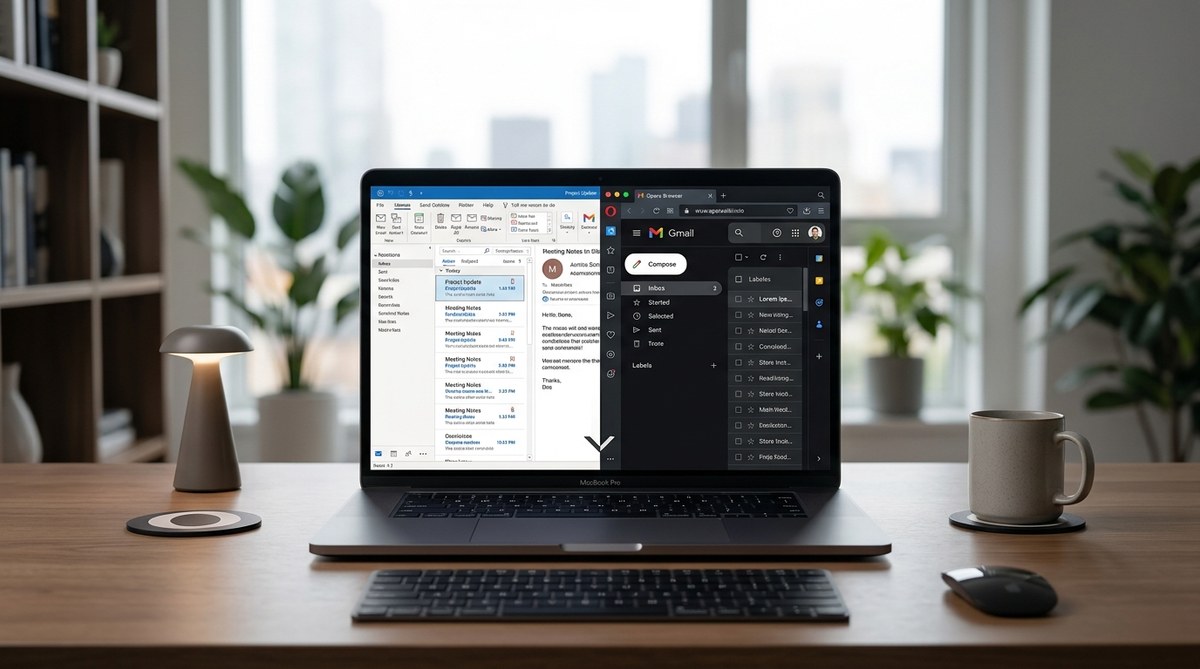
You are staring at your desktop. Two apps are open: your browser and your email client. You wonder if you could merge them into one. Opera browser has included an email module for years, but most people never open it. That might be a mistake. In 2026, Opera’s integrated mail tool has matured into a capable inbox that handles multiple accounts, calendar events, and feeds without forcing you to leave the browser window. The question is whether it can handle the volume and complexity that a dedicated desktop client manages with ease.
Opera’s email client is a solid choice for users who manage five or fewer accounts and prefer a single-window workflow. It lacks offline search indexing, advanced filtering rules, and native PGP encryption. If you rely on heavy automation or handle sensitive data daily, keep Thunderbird or Outlook. For everyone else, dropping a separate mail app frees up memory and reduces context switching.
What the Opera Mail Module Actually Does
Opera does not ship a standalone email program anymore. The old Opera Mail desktop application was discontinued years ago. What you get inside the current Opera browser is a mail panel that lives in the sidebar. It supports POP3, IMAP, and SMTP protocols. You can add Gmail, Outlook.com, Yahoo, and most self-hosted email servers.
The module includes a unified inbox, search, folder management, and basic message composition. It also bundles a calendar view and an RSS feed reader. For many people, those three tools (mail, calendar, feeds) cover 90 percent of daily communication needs.
How It Stacks Up Against Dedicated Clients
Let us compare Opera’s built-in tool against three popular desktop email clients. The table below shows where each option wins or loses.
| Feature | Opera Mail | Thunderbird | Outlook (Desktop) | eM Client |
|---|---|---|---|---|
| Accounts supported | Unlimited (IMAP/POP) | Unlimited | Unlimited | Unlimited |
| Offline search | Basic (indexed only when open) | Full offline index | Full offline index | Full offline index |
| Calendar integration | Read-only sync (read events) | Full calendar (tasks, events) | Full calendar (tasks, events) | Full calendar (tasks, events) |
| Encryption | No built-in PGP | OpenPGP via add-on | S/MIME built-in | PGP and S/MIME |
| Rules and filters | Simple (move to folder) | Advanced filters with actions | Advanced rules with conditions | Advanced rules with conditions |
| Resource usage | Low (shares browser process) | Moderate | High | Moderate |
| Learning curve | Low (familiar sidebar) | Moderate | Moderate | Moderate |
The biggest gap is offline capabilities. Opera’s mail module needs an active connection to search older messages. Thunderbird and Outlook build a local cache you can search without internet. If you work on a plane or in a spotty connection area, that matters.
Setting Up Your First Account
Adding an email account to Opera takes about two minutes. Here is the process.
- Click the mail icon in the sidebar (looks like an envelope). If you do not see the sidebar, press Ctrl+Shift+E or go to View > Sidebar.
- Click “Set up a mail account.”
- Enter your name, email address, and password. For most providers, Opera auto-detects the server settings.
- Select whether you want to sync only recent messages or your entire mailbox.
- Choose a sync interval (every 5, 15, or 30 minutes, or manually).
- Click “Finish.”
Opera will pull down your folders and start indexing. For Gmail and Outlook.com, you need to enable “less secure app access” or generate an app-specific password if you use two-factor authentication. That is standard for any third-party client.
The Hidden Productivity Gains
Using Opera’s email tool inside the browser removes the mental cost of switching windows. That might sound small, but studies show context switching costs about 23 minutes to refocus after an interruption. When your email lives in the sidebar, you never truly leave your workflow.
You also get the benefit of Opera’s other integrated features. The built-in VPN can encrypt your mail connections when you are on public Wi-Fi. The ad blocker removes tracking pixels from marketing emails. The sidebar can hold your chat apps (WhatsApp, Telegram, Messenger) right next to your inbox. That turns Opera into a communication hub rather than just a browser.
Expert advice: If you decide to rely on Opera for email, enable the sidebar’s “Mail” and “Calendar” panels together. That way you can see your schedule while reading messages. It mimics the split-pane view of Outlook without the heavy RAM usage.
Three Scenarios Where Opera Falls Short
No tool is perfect. Opera’s mail module has clear limits.
- High-volume inboxes. If you process 200+ messages per day across multiple roles, the lack of advanced filtering becomes painful. You cannot set up rules that auto-reply, forward based on subject lines, or apply labels across providers. You can only move messages to folders.
- Professional encryption needs. Journalists, lawyers, and anyone handling sensitive data will miss PGP support. Thunderbird with the Enigmail add-on or a dedicated client like eM Client handles encryption properly. Opera does not.
- Offline-first workflows. When you lose internet, Opera’s mail panel shows only what it cached during the last sync. You cannot compose a new message offline and have it send later. The browser itself also becomes mostly useless without a connection, so the whole setup breaks down.
When It Makes Sense to Switch
Opera’s email client works best for people who fit a specific profile. You manage three to five email accounts. You rarely need to search messages older than a few months. You do not use PGP encryption. You value having one less program running on your machine.
That describes a lot of freelancers, students, remote workers, and small business owners. If you already use Opera as your daily driver, adding email removes the need for Thunderbird, Mailbird, or the Outlook desktop app. You can reclaim the system memory those programs consume.
Performance and Resource Comparison
To give you a concrete idea, here are typical RAM usage numbers on a Windows 11 machine with 16 GB of RAM.
- Opera browser alone (no mail): around 400 MB with five tabs open.
- Opera with mail module active and three accounts synced: around 520 MB.
- Thunderbird with three accounts: around 380 MB.
- Outlook desktop with three accounts: around 650 MB.
So Opera with mail uses more memory than Thunderbird alone, but less than Outlook. The tradeoff is that you already have the browser open anyway. Adding email does not launch a second application. The total system load stays lower than running browser plus a separate client.
How to Get the Most Out of It
Follow these tips to make Opera’s mail tool feel closer to a dedicated client.
- Use keyboard shortcuts. Press Ctrl+Shift+I to open the inbox. Press Ctrl+N to compose a new message. Press Enter to open a selected email. These shortcuts mirror Gmail’s, so they feel natural.
- Pin important folders. Right-click any folder and select “Pin to sidebar.” That keeps your most-used labels one click away.
- Enable conversation view. Go to Settings > Mail > Conversation view. This groups replies into threads, just like Gmail.
- Set up a signature. Opera supports HTML signatures. You can include a logo, links, and multiple lines. Go to Settings > Mail > Signature.
- Use the unified inbox. By default, Opera shows all accounts in one list. You can switch to per-account views by clicking the account name at the top of the mail panel.
What You Lose and What You Gain
Let us be honest about the tradeoffs.
You lose offline message composition. You lose advanced search operators (no “from:john has:attachment” queries). You lose the ability to set up vacation auto-responders from within the client. You lose calendar event creation (you can only view existing events).
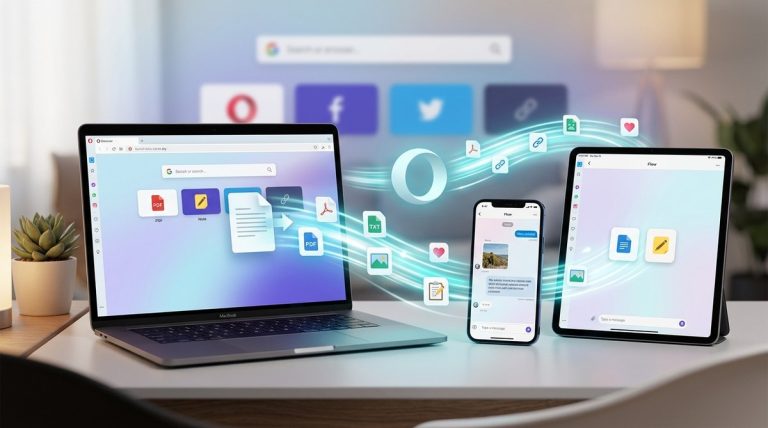
You gain a cleaner desktop. You gain faster access to email because the sidebar is always there. You gain the ability to drag a link from a web page directly into a draft email. You gain the built-in RSS reader, which replaces yet another app (like Feedly or NewsBlink). You gain Opera’s Flow feature for sending files between your devices, which works like a private messenger.
Making the Final Decision
To help you decide, here is a numbered checklist. If you answer “yes” to most of these, Opera’s email client will serve you well.
- Do you already use Opera as your primary browser?
- Do you manage fewer than six email accounts?
- Do you rarely need to search messages from more than a year ago?
- Do you have a stable internet connection most of the day?
- Do you prefer a single-window workflow over multiple open applications?
- Do you not use PGP or S/MIME encryption?
- Do you want to reduce the number of programs running at startup?
If you answered “yes” to five or more, it is worth a trial. You can always switch back. Opera lets you remove the mail account without touching your browser settings. Nothing is permanent.
Tying It All Together
The Opera browser email client is not a replacement for every desktop email application. It will not satisfy power users who need offline archives, complex filters, or encryption. But for the majority of people who just want to read, reply, and manage a handful of accounts, it does the job with less clutter and fewer system resources than running a separate program.
Give it a week. Set up your main account in Opera’s sidebar and close your old email client. See if you miss anything. Most likely, you will appreciate having one less icon in your taskbar. If you want to further streamline your workflow, check out our guide on how to customize your Opera browser sidebar for quick access to tools. You might find that the sidebar becomes your command center for more than just email.
Try it this week. The only cost is five minutes of setup time. If it does not work, your old client is still there waiting for you.