Your old laptop takes forever to load a page. The fan spins up the second you open a browser. You have tried clearing cookies, but nothing seems to fix the lag. If you are running Opera on a budget Windows machine from a few years ago, you do not need to buy a new computer. You just need to adjust a few settings that most people never touch.
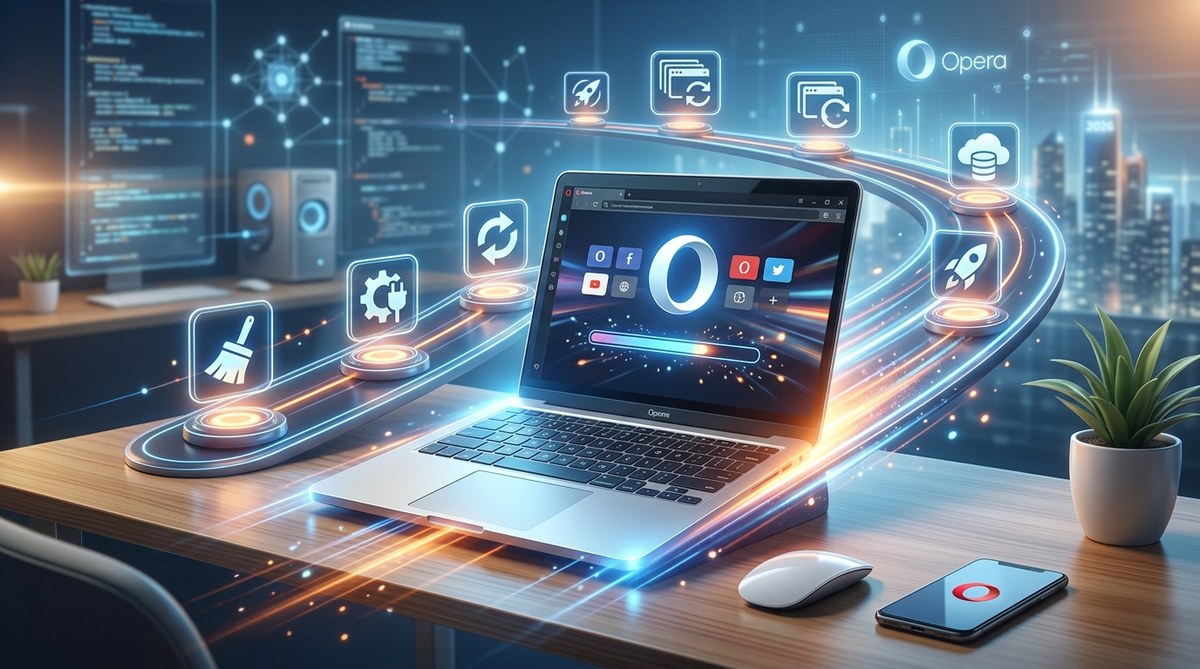
You can speed up Opera browser on an old computer by turning off resource-heavy features, limiting background processes, and using built-in tools like the ad blocker and Energy Saver mode. These six tweaks take under ten minutes and can make a 5-year-old Windows PC feel noticeably faster.
Start with the built-in ad blocker
Ads are not just annoying. They are heavy. Every video ad, pop-up, and animated banner eats CPU cycles and memory. On an older machine, this adds up fast.
Opera includes a native ad blocker. You do not need to install a third-party extension. Here is how to turn it on:
- Open Opera and click the menu button in the top-left corner.
- Go to Settings.
- Scroll down to Ad Blocker.
- Toggle it on.
- For extra savings, check the box that says Block all ads on all sites.
This single step can cut page load times by half on some sites. It also reduces the amount of data your browser downloads, which helps if you are on a metered connection.
Turn off the sidebar features you never use
Opera ships with a sidebar full of tools: Messenger, Instagram, WhatsApp, a music player, and more. These are handy if you use them, but they sit in memory even when idle.
Open the sidebar by clicking the three dots at the bottom of the left panel. Uncheck every service you do not need. If you only use bookmarks, leave that one on and remove the rest.
This frees up RAM for the pages you actually want to load. It also stops Opera from polling those services for notifications, which can cause periodic lag spikes.
Limit how many tabs can stay alive
Tabs are the biggest performance killer on any browser. Each open tab uses memory, even if it is just sitting there. On an older PC with 4GB or 6GB of RAM, twenty open tabs can bring everything to a crawl.
Opera has a feature called Tab Sleep Mode that helps. It puts inactive tabs to sleep after a set amount of time. When you click back to a sleeping tab, it reloads.
To set it up:
- Open Settings.
- Go to Advanced and then Tabs.
- Turn on Tab Sleep Mode.
- Set the timeout to 30 seconds of inactivity.
This is aggressive, but it works. Tabs you are not looking at will stop using resources. The reload happens fast enough that you barely notice.
If you need to keep many tabs open for research or school, try using workspaces to organize tabs like a pro. Workspaces let you group related tabs into separate sets, so only the active workspace uses memory.
Disable hardware acceleration if your GPU is old
Hardware acceleration sounds like a good thing. It tells Opera to use your graphics card to render pages and video. But on older computers, the GPU may be slower than the CPU. This can cause stuttering and slow scrolling.
Try turning it off to see if things improve:
- Open Settings.
- Go to Advanced and then System.
- Toggle off Use hardware acceleration when available.
- Restart Opera.
You might lose some smoothness in video playback, but overall navigation often gets snappier on older hardware. Test it both ways and keep whichever feels faster.
Use Energy Saver mode for instant performance gains
Opera includes a feature called Energy Saver that is hidden in plain sight. It was designed to extend laptop battery life, but it also reduces background activity.
When you turn on Energy Saver, Opera limits background processes, reduces animation, and pauses extension activity. This is perfect for a low-spec PC.
Click the battery icon in the address bar (next to the menu button). If you do not see it, go to Settings > Advanced > Features and enable Show Energy Saver button. Toggle it on whenever your computer feels sluggish.
For a deeper look at how this mode works, check out our guide on what happens when you enable Opera’s Energy Saver mode.
Clean up your extensions and startup behavior
Extensions are small programs that run inside Opera. Each one uses memory and CPU time. Over time, people install extensions and forget about them.
Open the extensions menu by clicking the puzzle piece icon in the sidebar or going to Menu > Extensions > Manage Extensions. Look through the list. Turn off anything you have not used in the past month.
Some common culprits:
- Grammar checkers
- Coupon finders
- Weather widgets
- Old ad blockers (you already have the built-in one)
You can also stop extensions from running at startup. Click each extension and uncheck Allow this extension to run in the background. This way, they only activate when you click them.
To see which extensions are worth keeping, read our guide on how to manage Opera browser extensions for better security and performance.
A simple comparison of settings to change
| Setting | Where to find it | Impact on speed |
|---|---|---|
| Ad Blocker | Settings > Ad Blocker | High. Stops heavy ads from loading. |
| Sidebar services | Sidebar > Three dots | Medium. Frees RAM and stops polling. |
| Tab Sleep Mode | Settings > Advanced > Tabs | High. Reduces memory from idle tabs. |
| Hardware acceleration | Settings > Advanced > System | Medium. Helps if GPU is slow. |
| Energy Saver | Address bar battery icon | High. Limits background activity. |
| Extensions | Menu > Extensions | Medium. Removes hidden resource drains. |
Common mistakes that slow Opera down
Some well-meaning tweaks can actually make things worse. Here are a few to avoid:
- Installing multiple ad blockers. They conflict with each other and use extra memory. Stick with Opera’s built-in one.
- Using live wallpapers or themes. Animated backgrounds drain CPU constantly. Use a static image or the default theme.
- Keeping the VPN on all the time. Opera’s free VPN is useful for privacy, but it routes traffic through a server and adds latency. Turn it on only when you need it. Learn more in our article on how to use Opera’s built-in VPN for secure browsing.
- Running Opera in compatibility mode. Some users set Opera to run as administrator or in Windows 7 compatibility mode. This adds overhead. Keep it on normal settings.
“The biggest performance gain on older hardware comes from reducing what the browser does automatically. Turn off everything you do not actively use. That includes features you think are ‘nice to have’ but rarely touch.” — Performance tip from a long-time Opera community moderator.
When to reset Opera completely
If you have tried all the steps above and the browser still feels slow, a full reset may help. This clears out corrupted data and resets every setting to default.
Go to Settings > Advanced > Browser > Reset settings. This will remove your extensions, themes, and saved passwords. Make sure to export your bookmarks first.
After the reset, only enable the settings from this guide. Do not reinstall every extension you had. Start fresh and add tools one at a time.
Make your old computer last another year
You do not need the latest hardware to browse the web comfortably. Opera is one of the lightest major browsers when configured correctly. By turning off the sidebar, enabling Tab Sleep Mode, and using the built-in ad blocker, you can boost your Opera browser speed with these proven tips in 2026.
Try these changes one at a time. Restart Opera after each one and see how the system feels. Your laptop will run cooler, the fan will spin less, and pages will load before you finish your coffee. That is the kind of upgrade that does not cost a dime.