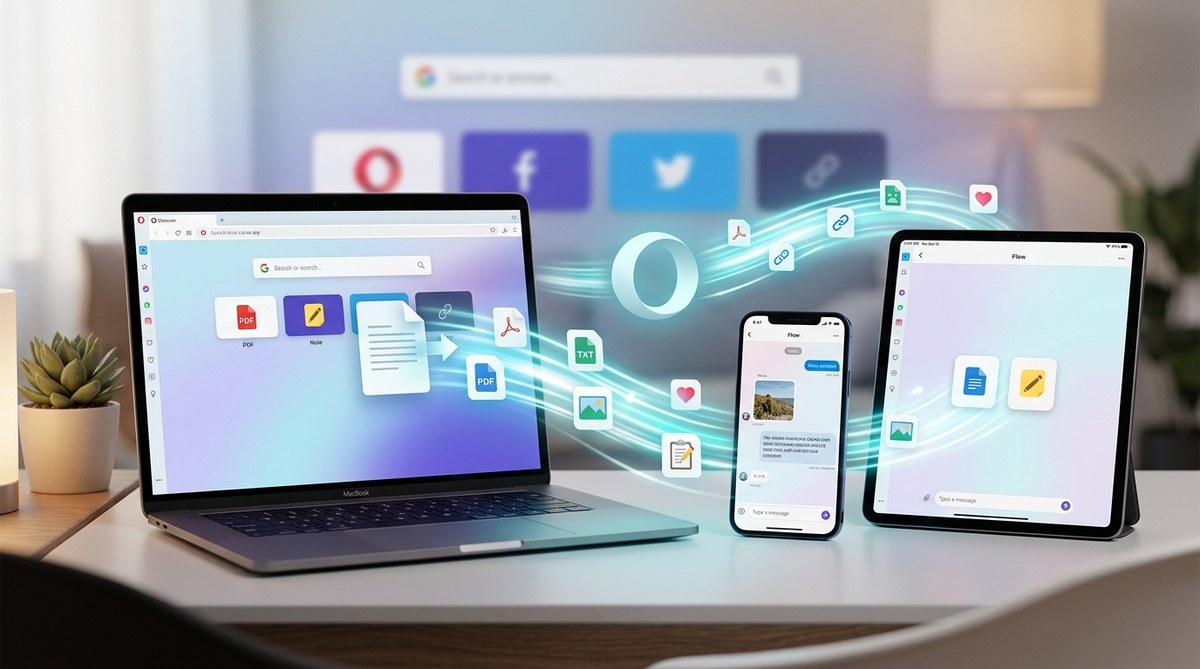
You are sitting at your desk, and a PDF on your phone needs to get to your laptop. Or maybe you jotted down a grocery list in your browser and want it on your tablet before you walk into the store. Most people reach for email, a messaging app, or a cloud storage service. But Opera has a built-in feature that handles this exact problem without any extra software. It is called Opera Flow, and it lets you send files, links, and notes between all your devices in seconds.
Opera Flow is a private, cross-platform tool inside the Opera browser that lets you send files, links, and notes between your desktop and mobile devices. You do not need a third-party app like Dropbox or Google Drive. Once you sign in with your Opera account on each device, Flow becomes a simple drop zone for anything you want to transfer.
What Exactly Is Opera Flow?
Opera Flow is a sidebar panel that acts as a private channel between your devices. Think of it as a personal clipboard that syncs across your phone, tablet, and computer. You drop a file or a note into Flow on one device, and it appears on every other device where you are signed into Opera.
The feature was designed for people who use Opera on multiple platforms. If you have Opera on your Windows laptop and also on your Android phone, Flow bridges the gap. It works with files, plain text notes, and web links. There are no size limits for text, and file transfers handle most common formats without trouble.
How to Set Up Opera Flow on All Your Devices
Getting Flow running takes about two minutes. The process is the same on desktop and mobile, and you only need to do it once.
- Install Opera on each device. If you do not have Opera yet, download it from the official site for your desktop (Windows, macOS, Linux) or your app store for mobile (iOS and Android).
- Create or sign in to your Opera account. Open Opera, go to the menu (top-left corner on desktop), and click “Sign in.” Use the same email and password on every device. This account is what ties your Flow together.
- Open the Flow panel. On desktop, look at the left sidebar. You will see a small icon that looks like a stack of papers or a folder. Click it. On mobile, tap the Opera logo in the bottom-right corner, then select Flow from the menu that appears.
- Start sending. Once Flow is open, you can drag a file into the panel, paste a link, or type a note. Hit send, and it will show up on your other devices within seconds.
That is it. No cables, no cloud uploads, no emailing yourself.
What Can You Send Through Opera Flow?
Opera Flow supports three main types of content. Each one works a little differently, so here is a breakdown.
| Content Type | How to Send | Best Use Case | Limits |
|---|---|---|---|
| Files (PDFs, images, documents) | Drag and drop into the Flow panel on desktop, or use the attachment icon on mobile | Transferring a photo from your phone to your computer for editing | Files must be under 100 MB per transfer |
| Text notes | Type directly into the Flow text box and press send | Shopping lists, passwords, or meeting notes | No length limit |
| Web links | Paste a URL into the Flow text box and send | Sharing a recipe or article between devices | No limit |
Flow is not a replacement for a full cloud backup service. It is a temporary bridge. Once you receive a file on another device, you should save it locally. The file stays in your Flow history for a while, but you should not treat it as permanent storage.
Using Opera Flow for Notes and Links
The note feature in Flow is surprisingly useful. Say you are browsing on your phone and find a restaurant you want to visit. Instead of bookmarking it or texting yourself, open Flow, paste the link, and send it. When you sit down at your desktop later, the link is waiting for you.
Same thing works for text. You can type a to-do list, a quote, or a code snippet. It is faster than opening a notes app or sending an email. Flow syncs almost instantly, so there is no waiting.
A Step-by-Step Example: Sending a Photo from Your Phone to Your Desktop
Let us walk through a real scenario. You took a picture of a whiteboard at work, and you need it on your laptop.
- On your phone, open Opera and tap the Opera logo in the bottom toolbar.
- Select Flow from the menu.
- Tap the paperclip or attachment icon (it looks like a small plus sign).
- Choose the photo from your gallery.
- Add a note if you want, then tap send.
Now switch to your desktop. Open Opera, click the Flow icon in the left sidebar. You will see the photo appear in the conversation thread. Click it to download. Done.
Opera Flow vs. Third-Party Tools
Why use Flow instead of Dropbox, Google Drive, or email? Here are the main advantages.
- No extra account. You already have an Opera account if you use the browser. Flow does not require a separate login.
- No app switching. You stay inside the browser. No tabbing out to a cloud service or email client.
- Faster for small transfers. Dragging a file into Flow takes two seconds. Uploading to a cloud service involves navigating folders and waiting for sync.
- Privacy. Flow uses Opera’s sync infrastructure, which is encrypted. You are not handing your files to a third-party service.
Of course, Flow has limits. The 100 MB file cap means you cannot send large video files. And Flow is not designed for collaboration. You cannot share a Flow item with another person. It is just for your own devices.
Common Mistakes and How to Avoid Them
Even a simple tool can trip you up. Here are a few things to watch for.
- Not signing in on all devices. Flow only works if you use the same Opera account everywhere. Double check that you are signed in on both your phone and desktop.
- Expecting Flow to work without internet. Flow needs a network connection to sync. It is not a local transfer tool like a USB cable.
- Forgetting to save files. Flow keeps a history, but it is not a backup service. Download important files to your device after you receive them.
- Using Flow for sensitive data. While Opera encrypts sync traffic, Flow is not built for classified documents. Use a dedicated encrypted service for that.
Expert advice: If you send a file and it does not appear on your other device, check your internet connection first. Then make sure both devices are signed into the same Opera account. A simple sign-out and sign-in usually fixes sync problems.
How to Manage Your Opera Flow History
Your Flow history builds up over time. You can scroll back through old messages and files, but it is a good habit to clean things out. On desktop, hover over any item in Flow and look for the three-dot menu. You can delete individual items or clear the whole conversation.
On mobile, tap and hold an item to see the delete option. Clearing your Flow history does not affect your other Opera data like bookmarks or settings.
When Opera Flow Shines
Flow is not a tool you use every hour, but it is invaluable in specific moments.
- Moving a recipe from your phone to your laptop while cooking.
- Sending a work document from your office desktop to your home tablet.
- Sharing a link with yourself instead of bookmarking it.
- Typing a note during a meeting on your phone and reading it on your computer later.
If you use Opera on more than one device, Flow saves you from the “email myself this file” habit. It is one less step in your workflow.
Opera Flow and Your Privacy Settings
Flow uses the same encryption as Opera Sync. That means your data is protected during transfer. If you want to tighten your privacy even further, you can review your sync settings. Opera allows you to choose what gets synced across devices. You can turn off bookmark sync or password sync while keeping Flow active.
For a deeper look at keeping your browsing safe, check out our guide on mastering Opera browser privacy settings for safer browsing. It covers the sync settings and other controls that affect Flow.
What Opera Flow Does Not Do
Let us be clear about the boundaries. Flow is not a replacement for a full file management system. It does not let you organize files into folders. It does not support batch uploads. You cannot share a Flow item with friends or coworkers. And as mentioned, file size is capped at 100 MB.
If you need to send a large video project or a folder of photos, stick with a cloud service. But for the everyday task of moving a single file or a note between your own devices, Flow is faster and simpler.
Making Flow Part of Your Daily Routine
The best tools are the ones you forget you are using. Flow works best when it becomes a reflex. See a link you want to read later? Send it to Flow. Need a document from your phone? Send it to Flow. Over time, you will stop reaching for email or messaging apps for your own personal transfers.
Pair Flow with other Opera features to get even more done. For example, you can use Opera’s built-in VPN for secure browsing while you transfer files through Flow. The combination keeps your activity private from your ISP.
Troubleshooting Opera Flow
Problems are rare, but here are the most common fixes.
- Flow items not appearing. Check that both devices are online and signed into the same Opera account. Try a manual sync by opening Flow and tapping the refresh icon.
- File fails to send. The file might be over 100 MB. Compress it or use a different method.
- Flow panel missing. On desktop, go to Settings > Sidebar and make sure Flow is enabled. On mobile, check that you have the latest version of Opera.
- Sync is slow. Large files can take a moment. Give it 30 seconds before trying again.
Tips for Power Users
Once you are comfortable with Flow, try these advanced tricks.
- Use Flow as a temporary bookmark system. Send links to yourself instead of cluttering your bookmarks bar.
- Combine Flow with Opera’s workspaces. Organize your tabs into workspaces for different projects, then use Flow to transfer notes between those workspaces on different devices. Learn how to master Opera’s workspaces to organize tabs like a pro.
- Keep a running note in Flow. Type a list of things you need to remember, and update it from any device throughout the day.
A Tool That Respects Your Time
Opera Flow is one of those features that feels obvious once you use it. It solves a small but frequent annoyance without adding complexity. No new accounts, no extra apps, no learning curve. You just drag, drop, and go.
If you have not tried it yet, open Opera right now. Sign in on your phone and your computer. Send a test file or a note. See how it feels. Chances are, you will wonder how you managed without it.
For more ways to get the most out of Opera, take a look at our guide on 10 hidden features in Opera browser you should know about in 2026. Flow is just the beginning.
Your Next Step with Opera Flow
Start small. Send yourself a link from your phone to your desktop today. Then try a photo. Then a note. Within a week, you will have built a new habit that saves you time every day. Opera Flow is already installed. You just have to use it.